Quick Answer
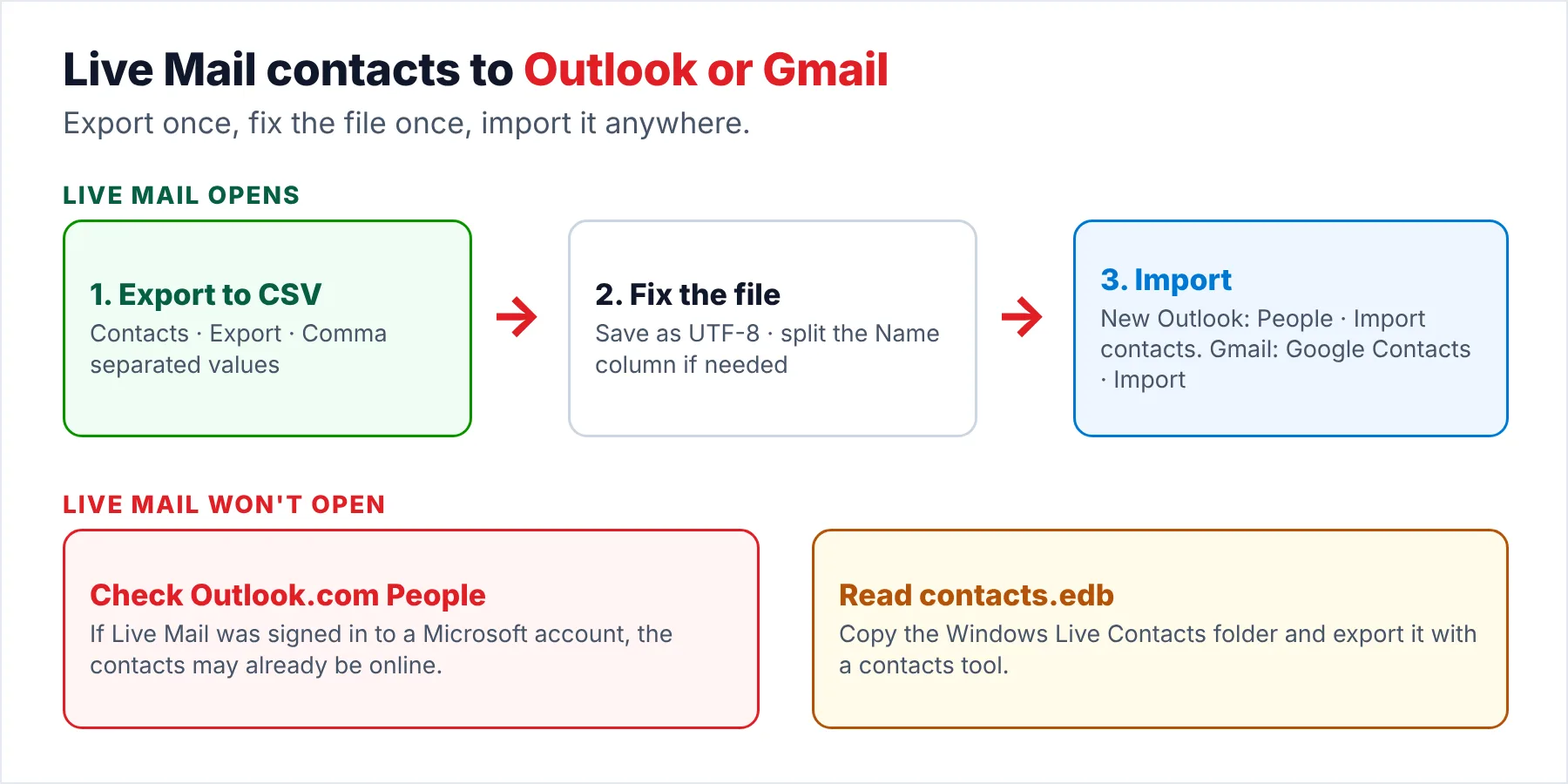
To export Windows Live Mail contacts, open Contacts in Live Mail, click Export and choose Comma separated values. Pick the fields you want and save the CSV file, which the new Outlook and Google Contacts both import without any extra tool.
If Live Mail no longer opens, you will not find the contacts in the mail store, because they sit in their own database file called contacts.edb.
If you are moving off Windows Live Mail, you probably think about the emails first and remember the address book late, often after the old PC has already gone. Your address book is easy to save while the program still opens, because it has its own export that takes you only a few minutes. Saving the address book gets harder once the program is gone, because your contacts live in a different place from your mail and need their own route out.
This guide covers the export while Live Mail works, the import into the new Outlook and Google Contacts, the two fixes most CSV files need first and what you can still do when Live Mail won't start. I checked the contacts import steps against Microsoft's and Google's help pages on October 20, 2026.
Where Does Windows Live Mail Keep Your Contacts?
Your contacts are not in the Windows Live Mail store folder with your emails, so copying that folder alone usually leaves them behind. Live Mail keeps your address book in its own database file, contacts.edb. Our guide to the mail store files explains what is in the mail folder instead of your contacts.
| Where | What it holds |
|---|---|
| AppData\Local\Microsoft\Windows Live Contacts\{ID}\DBStore | The contacts.edb database on Windows Vista and 7 installs, according to NirSoft |
| AppData\Local\Microsoft\Windows Live\Contacts | A newer location with sub-folders such as Default, reported by Triple S Computers for Live Mail 2012 |
| Outlook.com People | A copy online, if you signed in to Live Mail with a Microsoft account |
| Windows Contacts folder | Not your Live Mail contacts. Live Mail never used it |
The last row of the table trips people up, because Windows Contacts sounds like the right place. A 2015 Microsoft Q&A answer says there is "absolutely no link" between Windows Contacts and Windows Live Contacts. The same answer says that signing in to Live Mail keeps your contacts available across devices. So if you used a Microsoft account in Live Mail, check Outlook.com People before anything else.
Who Needs to Export Live Mail Contacts?
Which of these is you?
You are about to move to the new Outlook or Gmail and want the address book to come with you on the same day as the mail. Exporting the address book while the program still opens is the easy case, because the built-in export does all the work for you.
Export to CSV →You exported the contacts earlier and now the import into Outlook or Gmail shows strange characters or a single name column.
Fix and import the file →The program fails at start-up or the old PC is gone, but you still need the addresses of people you wrote to for years.
Get contacts another way →How Do You Export Windows Live Mail Contacts to a CSV File?
When the program still opens, it exports your whole address book to one CSV file in four short steps, which is the quick route. The steps below follow the Oryon knowledge base walkthrough of the same export. The accepted answer in a 2016 Microsoft Q&A thread uses the same Contacts, Export, comma separated values route before a Windows reinstall.
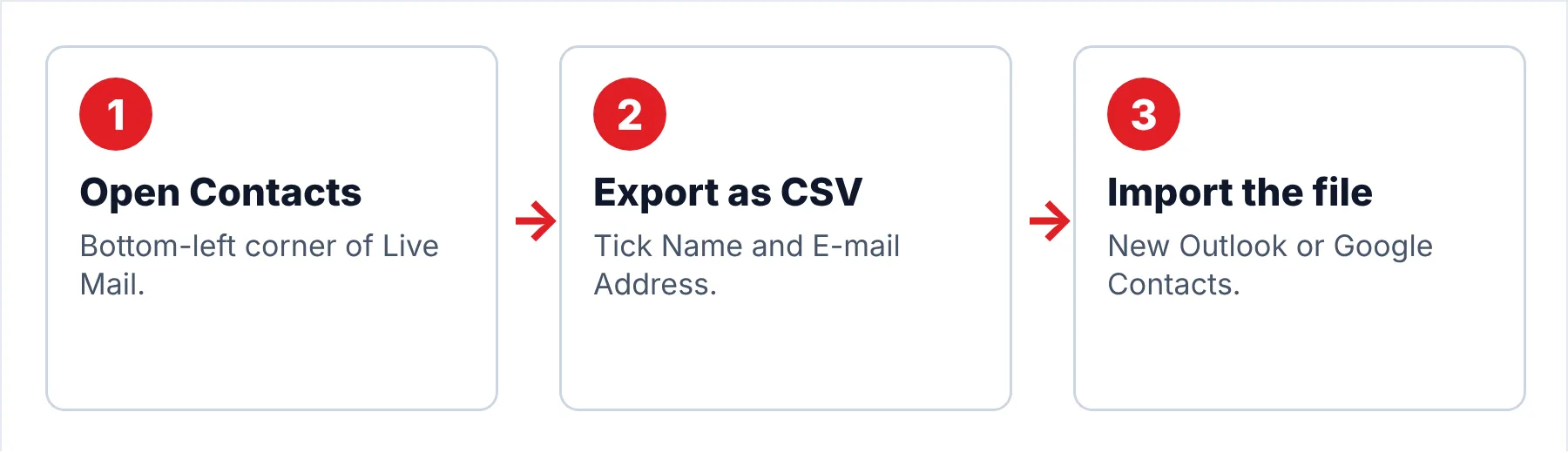
- Open the Contacts viewStart the program and click Contacts in the bottom-left corner of the window so that your address book opens in its own view.
- Start the exportClick Export on the ribbon, choose Comma separated values (.CSV) and click Export.
- Name and save the fileClick Browse, pick a folder such as your Documents folder, type a file name like live-mail-contacts and click Save, then Next.
- Pick the fields and finishTick the fields you want to keep, including Name and E-mail Address. Then click Finish. Open the file in a spreadsheet to check it before you import it anywhere, because a quick look now usually saves you a second import later.
Note: the export dialog lists First Name and Last Name, but Oryon reports that Live Mail "does not export first and last names separately". Tick Name so the full name comes through, then split it later if the target program needs two columns.
Which Two Fixes Does a Live Mail CSV File Need?
Your Live Mail CSV file opens fine in a spreadsheet, but the same CSV file often imports badly. Two problems in the CSV file cause almost all the import trouble and you can fix both of them in a spreadsheet in a few minutes before you try the import again.
| Problem | Fix |
|---|---|
| Names with accents or non-Latin letters often turn into symbols | Open the CSV file in Notepad, choose File, Save as and set Encoding to UTF-8. Microsoft's import page asks for UTF-8 so every alphabet comes through correctly. |
| First and last names sit in one column | In Excel, select the Name column and use Data, Text to Columns with a space as the separator. Check names with more than two parts by hand. |
How Do You Import the Contacts Into the New Outlook or Gmail?
Both destinations take your CSV file directly. The import steps below follow each company's own help page for importing a CSV file, which I read on October 20, 2026 before writing this guide.
- Open PeopleSelect People in the left bar. If it is missing, open More apps and pin People.
- Import the fileSelect Import contacts on the ribbon, click Browse, choose the CSV file and select Import.
- Check the previewMicrosoft's import page says to cancel and convert the file to UTF-8 if the preview shows unreadable text.
- Spot-check the resultOpen five or six contacts you know well and check that the name and the email address landed in the right fields.
- Open Google ContactsClick Import in the left panel of Google Contacts on your computer.
- Choose the fileSelect the CSV file and click Import. Google Contacts also accepts vCard (.vcf) files.
- Watch the sizeGoogle's import page warns about files with more than 3,000 contacts and allows 25,000 contacts per account, so split a very large file first.
- Compare with the templateThe same Google page offers a CSV template, so if a column will not map you can match its header names to the template and try again.
Are you moving the emails along with the contacts? Our guide to the new Outlook and our guide to Gmail cover the email side of each move.
What If Windows Live Mail Won't Open?
Without the program, the built-in contacts export is gone, so your contacts have to come from somewhere else where you may need to try more than one option. Work through these contacts options in order, because the first option is the quickest and the safest for you and needs no extra software.
| Option | How | Catch |
|---|---|---|
| Outlook.com People | Sign in to Outlook.com with the Microsoft account you used in the program and look at People | Only works if Live Mail was signed in to that account |
| Fix Live Mail long enough to export | Try the start-up fixes in our guide to a Live Mail that won't open, then export as above | Takes longer. Some fixes also need the old installer |
| Read contacts.edb directly | Copy the Windows Live Contacts folder, then open contacts.edb in NirSoft's free LiveContactsView and save it as CSV | NirSoft documents it for Windows Live Messenger contacts. One technician also found it only worked on the original PC |
| Copy the Contacts folder to a new Live Mail | On a PC with the same Live Mail version, replace the Contacts\Default folder with the old one | Only possible when the new PC has Live Mail |
The last two rows of the options table come from a 2013 Triple S Computers case study. There the author used LiveContactsView to export contacts.edb to CSV and found it worked only on the original PC where the profile was created. A reader reported that replacing the Default folder on a new PC brought every contact back.
NirSoft adds that LiveContactsView can open a contacts.edb file from another location through its Advanced Options (F9). If the old PC with contacts.edb is dead, our guide to an old hard drive explains how to get past the permission errors before you copy the folder.
How Do You Save the Emails Too?
Your address book is only half of what you are moving off the old PC. Univik Windows Live Mail Converter reads the mail store on that PC, not contacts.edb, so export the contacts from Live Mail itself. Use the converter for the emails, which also keep the address of everyone you wrote to in their From and To lines.
The converter opens a copy of the store folder without Live Mail and writes your emails out in PST, MBOX or PDF form. That makes it the route to take when Live Mail won't open long enough for any other export.
The converter takes a copy of your Live Mail store, so the messages travel to the new program along with the address book you exported.
Download Free Trial Select a Licence - From $29Trial runs keep ten items from each folder. Any 64-bit copy of Windows 10 or 11 that has .NET Framework 4.8 installed can run the converter.
What Goes Wrong After the Contacts Import?
Do this: Check that you ticked E-mail Address in the export dialog, which is the quick and reliable way to keep every address in the new program. Contacts with a phone number only still import, but those contacts show up with no email address.
Do this: You may have imported the same contacts file twice while Outlook.com held the same contacts already. Use the merge or duplicate tool in Outlook or Google Contacts before you clean up by hand.
Do this: A CSV file holds one row per contact and no group structure, so recreate the few contact groups you use often in the new program.
Stuck with a contacts file that won't import? Write to Univik support and include the first line of the contacts CSV file.
- The program exports the whole address book to one CSV file from Contacts, Export, Comma separated values.
- The address book sits in contacts.edb, not in the mail store folder.
- Save the CSV file as UTF-8 and split the Name column before you import it.
- The new Outlook imports the file under People > Import contacts. Google Contacts imports it under Import.
- If the program won't open, check Outlook.com People first, then read contacts.edb.
FAQ: Export Windows Live Mail Contacts

Export steps follow the Oryon walkthrough, import steps follow Microsoft's and Google's help pages and the contacts.edb details follow NirSoft and Triple S Computers, which I read on October 20, 2026. The converter details describe build 6.9.
Sources we read:
- Oryon: export email addresses from Windows Live Mail
- Microsoft Support: import contacts to Outlook
- Google Contacts Help: import contacts
- NirSoft: LiveContactsView
- Triple S Computers: Live Mail contacts case study
- Microsoft Q&A: Windows Contacts and Windows Live Contacts
- Microsoft Q&A: Live Mail backup with contacts