Quick Answer
To move Windows Live Mail to the new Outlook, you turn the Live Mail store folder into a PST file and import that file under Settings, Data files, Import. The new Outlook has no import for Live Mail folders or loose .eml files.
The old File > Export email > Microsoft Exchange route works only with classic Outlook installed beside Live Mail on the same PC. On a new PC, start from a copy of the store folder.
If you've searched for this, you've seen the question on Microsoft Q&A, where the answers rarely end well. In one Q&A thread from February 2024 a user followed the export steps three times and watched Live Mail close and reopen on its own. That user never found an Outlook folder in Documents after the export. Another user in a Q&A thread from 2021 dragged 8,000 .eml files into a PST and got every email stamped with that day's date.
Both problems come from the same place, which you can see in your own export menu. Live Mail only knows how to hand your mail to classic Outlook through its export. The new Outlook isn't classic Outlook.
Why Won't Windows Live Mail Export Straight to the New Outlook?
Live Mail's export menu dates from 2012 and expects a MAPI mail program on the same PC as your mail. The new Outlook for Windows doesn't offer a MAPI program, so each of the old routes breaks in its own way. The table pairs each symptom you see with its cause and the page that documents the cause.
| What you tried | What happens and why |
|---|---|
| File > Export email > Microsoft Exchange | The export looks for an Outlook MAPI profile on the same PC you run it on. Without classic Outlook, Live Mail may close and reopen with nothing written, as the Microsoft Q&A thread shows. The HowTo-Outlook migration guide adds that the 32-bit edition of classic Outlook is the safe one during the move. |
| Drag .eml files onto the new Outlook | Microsoft's page on opening .eml files says a dragged file opens on the reading pane. The email is shown on that pane, not stored. A Microsoft staff reply in a January 2024 thread says Live Mail files "can't be imported directly into Outlook". |
| Drag .eml files into a PST in classic Outlook | The files land as attachments with no From, To or Date and show you the current date, as the 2021 thread describes with 8,000 messages from 2009 to 2015. |
| Export hangs on one message | A damaged .eml file usually stops the Exchange export before you see an error. One user in the same thread reports a hang "on message 21 of 7007" and spent days exporting in batches of 50 to find it. |
| Install Live Mail on the new PC first | Microsoft ended Windows Essentials 2012 support on 10 January 2017 and took the download down. Copies from third-party sites install, but the export still needs classic Outlook beside it before you can run it. |
The route below skips every row in that table for you. You turn the store folder into a PST file on your new PC. The new Outlook then imports that PST file through its own Settings page.
Who Is Moving From Windows Live Mail to the New Outlook?
Which of these sounds like your desk this week?
The new Outlook opened on first sign-in and there is no classic Outlook on the laptop. Fifteen years of your POP mail sit in Live Mail on the old PC, far from that laptop.
Copy the store first →Both machines still work and Live Mail still opens. You want the shortest route from Live Mail and you don't mind installing classic Outlook for an afternoon.
Compare the routes →The old PC is gone. A copy of the Windows Live Mail folder on a USB stick is all you have left of the old PC's mail.
Convert the copy →Why Copy the Store Folder Before Anything Else?
Everything Live Mail ever downloaded for you sits in one store folder on your old PC. That store folder is the only thing your move needs, so copy the folder first and work from the copy. Live Mail itself can stay installed, uninstalled or broken once the copy exists.
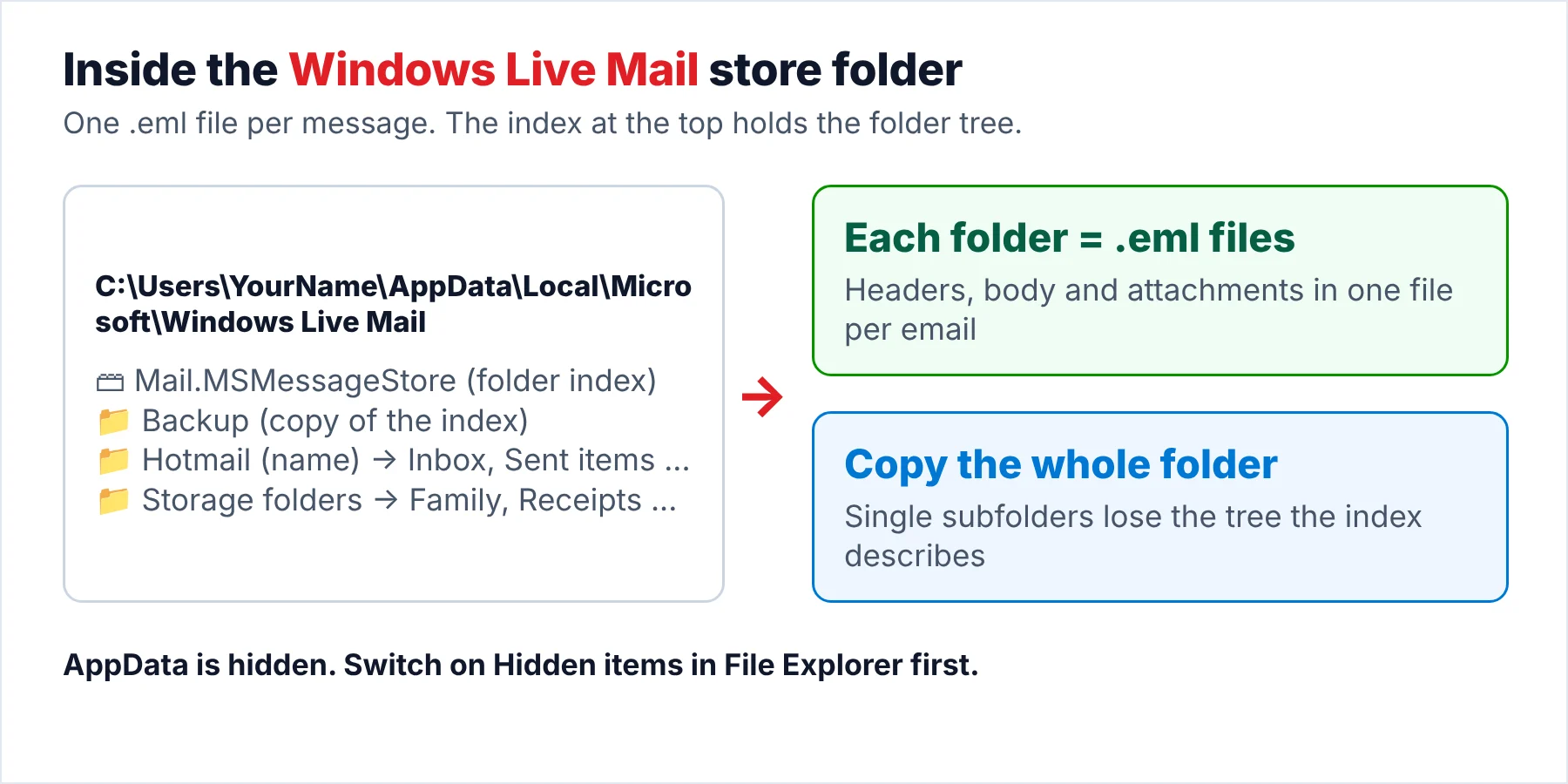
- Find the storeThe default path you want is C:\Users\YourName\AppData\Local\Microsoft\Windows Live Mail, as the Microsoft Q&A answer on the store location confirms. If Live Mail still opens, Options > Mail > Advanced > Maintenance > Store Folder shows the exact path.
- Show hidden itemsAppData is hidden until you change a setting. In File Explorer open View and tick Hidden items (Windows 10) or Show > Hidden items (Windows 11).
- Copy the whole folderTake the complete Windows Live Mail folder, with Mail.MSMessageStore and the Backup subfolder, to a USB stick or a portable drive. Single subfolders lose the tree.
- Export the contactsOpen the Contacts window (Ctrl+3), then Export > Comma separated values (.CSV) and tick every field. Mail and contacts travel separately, so you export both.
I checked Microsoft's PST import page for the new Outlook on October 19, 2026. The import page you need puts the option under Settings > Data files > Import, takes a .pst file and asks for a target mailbox and folder. The same page has no entry for .eml files or for a Live Mail store, which is the whole reason the PST step exists.
Which Manual Route Should You Use?
All three routes below work without buying anything. Each route needs classic Outlook or a second mail program on one of your PCs at some point. None of the three routes reads a store folder on a PC where Live Mail never ran, so pick a route by what you still have running.
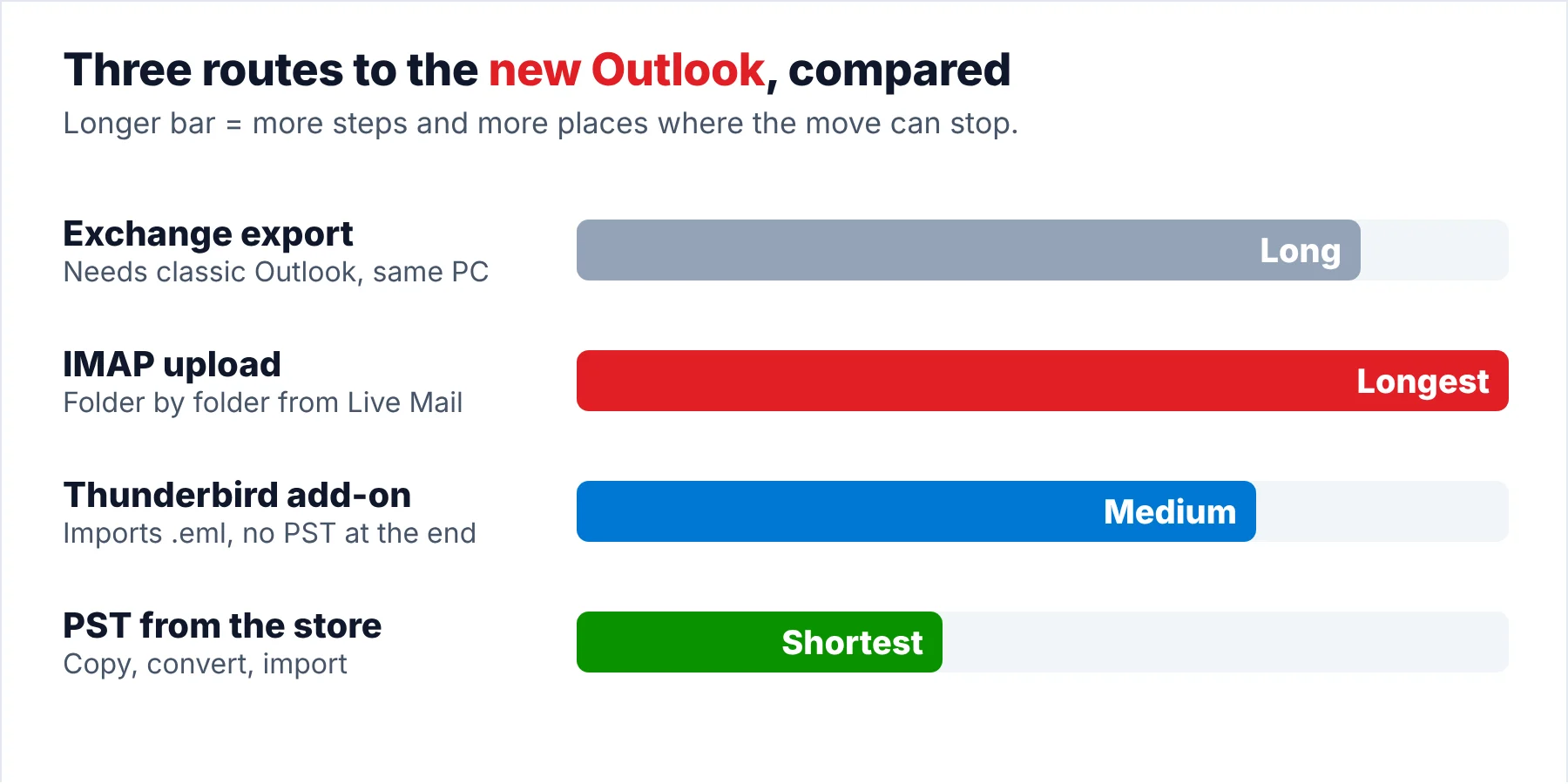
| Route | Software needed | Licence needed | What you get | Limit |
|---|---|---|---|---|
| Export to Microsoft Exchange, then export a PST from classic Outlook | Live Mail and classic Outlook (32-bit) on the old PC | A Microsoft 365 or Office licence for classic Outlook | A PST with the folder tree and original dates | Same PC only. The export can hang on one damaged message |
| Upload the folders to an IMAP account from Live Mail | Live Mail with an Outlook.com or Gmail account added | None | The mail inside a webmail account that the new Outlook also shows | Folder by folder and slow for a large store. The old PC must still run Live Mail |
| Import the .eml folders into Thunderbird, then export | Thunderbird with the ImportExportTools add-on | None | Mail in Thunderbird, which can write mbox but not PST | Two programs and two imports for one move with no PST at the end |
| Convert the store folder to PST with a desktop converter | A Windows 11 or 10 PC | Free trial, then a licence | A PST per account folder, imported through Settings in the new Outlook | Windows only |
The Exchange export details come from the HowTo-Outlook guide, which also warns against using Outlook's own Import for .eml files because that import can reset the received date. The Thunderbird add-on note in the table comes from Mozilla's switching page.
Limitations: the first route is the one Microsoft Q&A users try most. The same route produces the "Live Mail restarted" reports, because it needs classic Outlook on the old PC. A Microsoft 365 Personal or Family plan still installs classic Outlook, but a laptop that came with only the new Outlook has no classic Outlook to export into.
How Do You Move Windows Live Mail to the New Outlook With a PST File?
Univik Windows Live Mail Converter reads the store folder itself, with no Live Mail and no classic Outlook on the PC. The converter lists your account folders and Storage folders with a count per folder, then writes one PST that the new Outlook imports through its Settings page. The whole job happens on your own PC, which keeps your mail private. The converter also opens your store folder read-only, which keeps the copy safe for a second run.
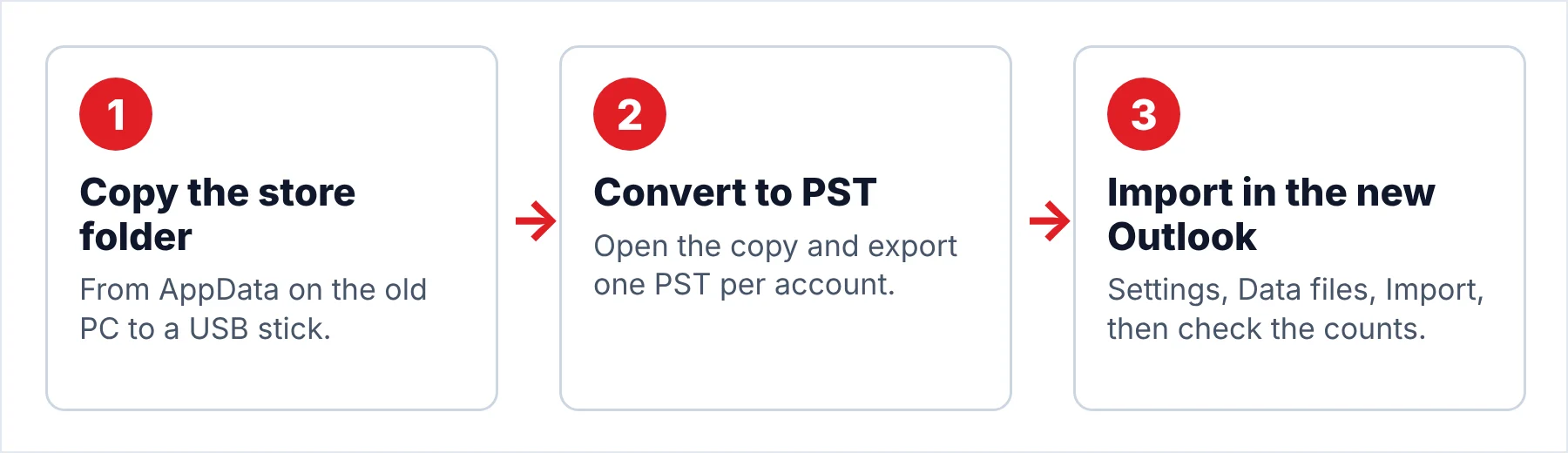
- Copy the store folderOn the old PC, show hidden items in File Explorer and copy C:\Users\YourName\AppData\Local\Microsoft\Windows Live Mail to a USB stick. Take the whole folder, with Mail.MSMessageStore and the Backup subfolder inside it. A full copy is the safe choice, because the index inside it rebuilds the folder tree.
- Open the copy in the converterOn the Windows 11 PC, install the converter and click Open. On a PC that ran Live Mail you see the store listed on its own. On a new PC you click Browse and select the copied folder. The account folders and Storage folders appear in the left pane with a count per folder.
- Export to PSTClick Export and select PST under Email Files, the first group you see. Choose an output folder on your local drive rather than the USB stick, then start the run. A local drive is the fast choice, because a USB stick slows every write. One PST per account folder is the easy choice when you have more than one account in the store, since each PST then imports into its own mailbox.
- Import the PST in the new OutlookOpen the new Outlook you want the mail in and go to Settings > Data files > Import. Click Get started, select the PST, leave Include subfolders ticked, pick how duplicates should be handled, choose the mailbox under Account and a target folder, then click Import.
- Check the countsOpen the imported folder tree and compare a few folder counts with the counts the converter showed you. You only need two or three folders for the check. Then you open the oldest email you remember and the one with the biggest attachment. Both should carry their original date. Your attachment should open as well.
Note: trial mode saves 10 items per folder, which is enough for you to run the import once and check that dates and attachments arrive. Also keep your USB copy untouched until the counts match. A second run from the same copy is the quickest fix for a mistake. A quick fix beats a second trip to the old PC.
The converter opens the copied store folder on Windows 11 or 10 and writes a PST with the folder tree, dates and attachments intact. The PST then imports in minutes.
Download Free Trial Select a Licence - From $29For Windows 11 and 10 with .NET Framework 4.8. Trial mode saves 10 items per folder.
What Do You Get After the PST Import?
Your imported folders appear under the target folder you chose, with the Live Mail tree inside. The import dialog reports success even when a folder came through empty, so you run through the folder checks below before you wipe your old PC.
- The folder names match the Live Mail tree you had, Storage folders included.
- Two or three folder counts match the counts shown in the converter.
- The oldest email you open carries its original received date, not the import date.
- The biggest attachment you had opens from the new Outlook.
- A search for a sender you wrote to often returns your mail from more than one year.
Limitations: a PST carries mail, not account settings, so you set up your POP or IMAP account again in the new Outlook by hand. Your contacts come across through the CSV export. The Live Mail calendar has no export of its own, so you retype the calendar entries. Also, the open-as-data-file option in the new Outlook needs a Microsoft 365 subscription and classic Outlook installed, which is why this guide imports the PST rather than opening the PST as a data file.
What If the PST Import Fails?
Do this: The Data files page usually appears only for a signed-in mailbox. Your organisation can also switch PST access off through its Outlook on the web policy, which removes the page. Sign in with the mailbox that should receive your mail, then check with your admin if the Data files page still isn't there. The Office 365 for IT Pros note on PST support explains the policy switch.
Do this: One damaged .eml file is usually the cause. Skip the Live Mail export and convert your store folder instead, which reads each .eml file on its own and reports the .eml files it cannot parse. If you must use the Live Mail export, move your folders out in batches of 100 until the hang shows you which folder holds the damaged file. The guide on fixing a Windows Live Mail export that is not working matches each export error to its cause.
Do this: Your emails went in as dragged .eml files, not as mail items. Delete that folder in Outlook and rebuild your PST from the store folder, which is quick because the converter run takes minutes. For a handful of single .eml files on the desktop, the guide on importing EML files into Outlook covers the classic Outlook route for .eml files.
Still stuck on the import? Write to Univik support with the folder count from the converter and a screenshot of the Import page.
- The new Outlook has no import for Live Mail folders or loose .eml files, so the move goes through a PST file.
- Import the PST in the new Outlook under Settings, Data files, Import.
- Live Mail's own export to Microsoft Exchange needs classic Outlook installed on the same PC.
- Copy the whole Live Mail store folder first and work only from that copy.
- Check the folder counts after the import before you wipe the old PC, because the import dialog reports success even for an empty folder.
FAQ: Windows Live Mail to New Outlook

Import steps follow Microsoft's support page for the new Outlook and Microsoft Q&A threads, opened on October 19, 2026. Export facts follow the HowTo-Outlook migration guide. The converter steps match its product page and the version 6.9 screens.
Sources we read:
- Import email, contacts and calendar from a .pst file, Microsoft Support
- Open .eml, .msg and .oft files in new Outlook and Outlook on the web
- eml file import into the new Outlook for windows, Microsoft Q&A
- Move emails from Windows Live Mail to MS Outlook, Microsoft Q&A
- Moving email from Windows live mail to outlook, Microsoft Q&A
- Where does Windows Live Mail store e-mail on the hard drive, Microsoft Q&A
- Migrate from Outlook Express or Windows (Live) Mail to Outlook, HowTo-Outlook
- Support for Windows Essentials apps, Microsoft Support
- New Outlook for Windows Support for Export to PST, Office 365 for IT Pros