Quick Answer
To import Foxmail archive files, open Menu, then Import, then Foxmail Archive. Open the .fox file, choose the account that receives the mail and start the import. The mail lands in an archive folder beneath that account. Try the first archive import on a spare Foxmail copy and compare message totals afterwards.
Test the import on a spare copy first and keep every .fox file untouched.
Foxmail 7.2 can read back each .fox file that its own Mail Archive tool writes. The Import menu holds the entry for that job, which is called Foxmail Archive. You get the steps I ran in Foxmail 7.2, a plan for testing them on a spare copy of Foxmail before you touch your daily mail and a quick way to count what came back.
In my Foxmail 7.2 the Import list has seven entries. Foxmail Archive is the fourth. I tested that entry in Foxmail 7.2. The Mail Archive tool makes a single .fox file per configured account, so with two accounts you should see two .fox files to import. Our walkthrough on how to archive Foxmail emails shows how those files get made.
My sample store spreads 5,424 messages over two IMAP accounts, 2,876 in the first and 2,548 in the second, so I use those numbers as the worked example in the checking section. I tested the archive and the import in Foxmail 7.2. The numbers show the method that you repeat on your own store.
Where Is Foxmail Archive in the Import Menu?
Foxmail Archive is the fourth entry in the first group of the Import list (right after Foxmail MailBox). The Menu button is the list icon at the upper right of the Foxmail window. Point to Import there to see the first group of entries. A second group of entries after a divider holds the Outlook entries. The Foxmail Import menu guide covers the other six, so you can match each entry to your job.
In my copy Import sits directly in the Menu, next to Tools, so look there first.
When the entry is missing, read your build in About Foxmail and press Check for Update (it sits in the same Menu). An older build is the first thing I'd rule out.
How Do You Import a Foxmail Archive Step by Step?
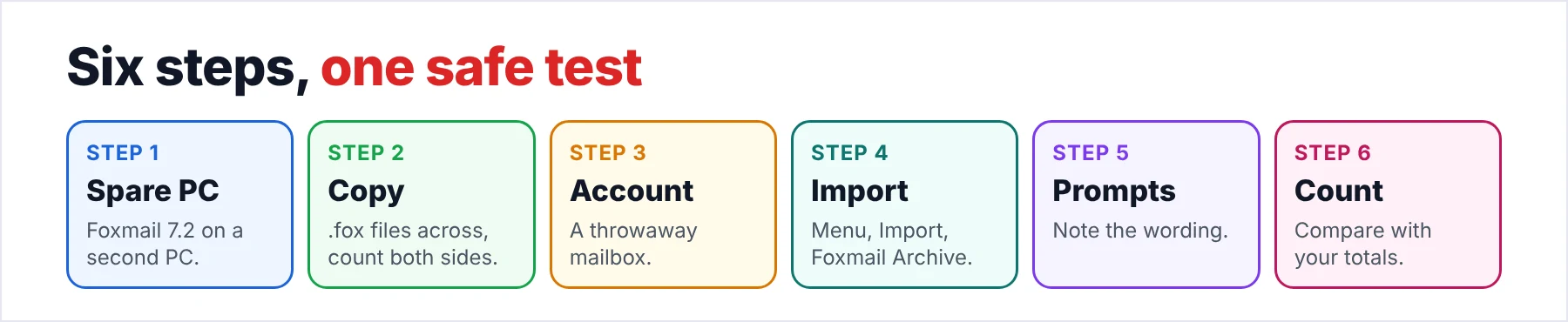
Seven steps follow the order I ran in Foxmail 7.2. Run them on a spare copy first.
- Set up a spare FoxmailInstall Foxmail 7.2 on a second PC or on a Windows virtual machine. Keep your daily Foxmail out of the first test.
- Copy the .fox files acrossCopy the whole archive folder to the spare PC. A big archive may come in several pieces, so count the files on both sides.
- Add the account firstAdd the receiving account to the spare Foxmail before you import. The import needs an account to put the mail in. Use a test mailbox for the first run.
- Open the Import listUse the Menu button in the top right corner, point to Import and choose Foxmail Archive.
- Pick the .fox fileBrowse to the folder and open the archive file. When the archive came in several files, keep them all in that folder.
- Choose the account and startSelect the account that receives the mail and start the import. Look for an archive folder beneath that account when it finishes.
- Count what arrivedOpen the archive folder and count the messages for each account. Compare the counts with the totals you noted before the archive run.
Step 3 is the one people skip. The import needs an account to put the mail in, so the account has to exist in Foxmail first. Check the account list on the spare PC before you start step 4.
Why Test the Restore on a Spare PC First?
A spare copy makes the import a harmless test. An upload to a live IMAP server isn't easy to take back, which is my reason for testing elsewhere first.
A second PC or a Windows virtual machine costs you about an hour, while a tangled mailbox costs you far more, so it's an hour well spent. Use a throwaway mailbox as the receiving account, so your real account stays out of the test. That's the safe choice for a first test.
Back up before you import anything on your daily PC by copying the Storage folder and FMStorage.list, as the post about moving Foxmail to a new computer describes. The related guide on where Foxmail stores emails shows you where those files live.
Treat the .fox files with the same care, because you may have ticked Delete mails after archive on the original run. In that case the .fox files may now hold the only copy of that mail. Copy the .fox files to a second drive before you touch anything. The article on how to archive Foxmail emails explains that tick and each other box.
Will a Restore Ask for an IMAP Authorization Code?
The archive is a mail file, so the target account has to sit in Foxmail with its own sign-in before the import starts.
Some providers also demand a generated code in place of the normal password, such as QQ Mail. Our QQ Mail settings guide explains that a desktop client must sign in with the generated code and not with the QQ password, so you should generate the code and add the account before you import.
Whether your provider asks for the code again during the import depends on the provider. Keep the code at hand during the spare-PC test, because a prompt that stops you halfway is easy to avoid. If a prompt appears, write down its exact wording.
How Do You Check That the Restore Worked?
Count the messages in each account's archive folder and compare the counts with the totals you noted before the archive run. A count is the most reliable first check, because it needs no extra tools. The table shows the count method with my sample store. The sample numbers are mine. The after-import column shows the totals to expect when the archive range covered all mail.
| Account | Before the archive | After the import |
|---|---|---|
| IMAP account one | 2,876 messages | 2,876 if the range covered all mail |
| IMAP account two | 2,548 messages | 2,548 if the range covered all mail |
| Both accounts | 5,424 messages | 5,424 across two archive folders |
The after-import counts may fall short of the account totals, because the default range covers older mail only, as the test run in that archive guide showed. So compare the counts against the range you chose and not against the account total.
Four more checks cover what the counts can't show. Run the four checks in this order and stop at the first one that fails, because one failed check tells you more than three passed ones.
- Folder totalsCount the messages in each folder of the archive folder and add them up for each account. Match the sum with the total you noted.
- Date edgesOpen the oldest and the newest message. Both should fall inside the range you picked when you made the archive.
- AttachmentsOpen three messages that carry attachments, then open each attachment.
- SearchType a known sender or subject into the Search mail box at the top of the window. You should see the message under the archive folder.
What Do You Do When a Foxmail Archive Import Fails?
Do this: Read your build in About Foxmail and press Check for Update in the Menu. An older build may lack the entry, so update first and look again.
Do this: Look for the archive folder under the account you chose, because the mail lands in an archive folder there and not in the Inbox.
Do this: Add the account again with its authorization code and repeat the import. Note the wording of the prompt each time the import runs.
Do this: Count the .fox files in the folder and compare the count with the folder you copied. A big archive may come as several files, so copy every file before you import.
Do this: Check the date range of the original archive first, because the range may explain the gap. When a gap remains, keep the .fox files untouched and read them outside Foxmail, as the next section describes.
Can You Read a .fox File Without Importing It?
Yes. Univik Foxmail Converter reads a .fox file after you press its Open button. You get a preview of the mail with no Foxmail on the PC. I'd pick this route when the import fails or when the account is an IMAP mailbox you don't want to disturb, because your live Foxmail stays untouched.
On that route you press Open and point at the .fox file. A preview of the .fox file appears before any conversion starts, so you see what the archive holds first. The Export menu then offers EML, MBOX, PST and PDF for the archive among other formats. Those archive formats apply to a .fox file. Run one small archive through the free trial before you convert a big one.
The file type has two pages of its own. The FOX file viewer page sorts the kinds of .fox file that listings describe. The FOX file converter page covers moving a .fox archive into PST, EML or PDF.
Finally, when the next stop is Outlook or Thunderbird, convert first and import the result, because I found no sign that either program reads a .fox file. Those two outputs have their own guides, Foxmail to Outlook for PST and Foxmail to Thunderbird for MBOX.
Univik Foxmail Converter opens .fox files made by Mail Archive. Press Open to see a preview of the mail, then export to EML, MBOX, PST or PDF when you want a copy outside Foxmail. The free trial lets you test one small archive before you export a copy.
Download Free Trial Select a Licence - From $39Foxmail Converter works on 64-bit Windows 10 and 11 after you install .NET Framework 4.8. A trial run covers 10 items from every folder.
- Foxmail Archive is the fourth entry under Import in Foxmail 7.2.
- You test the import on a spare copy first, because a spare copy keeps a live IMAP account out of the first run.
- You add the account before you import, since the import needs an account to put the mail in.
- You count messages for each account, then check date edges, attachments and search.
- You can read a .fox file with a preview and no Foxmail, so a failed import never traps the mail.
FAQ: Import Foxmail Archive

Tested on Foxmail 7.2 on October 21, 2026, with our Mail Archive walk-through and QQ Mail settings page for reference. The Import list and the single .fox file per account come from my Foxmail 7.2 copy. The restore steps, the archive folder and the sign-in advice come from my tests in Foxmail 7.2.