Quick Answer
Thunderbird can't open a Foxmail Storage folder, so convert the mail or write it into a Thunderbird profile, which needs no add-on. MBOX files import through the ImportExportTools NG add-on. An IMAP account whose server still holds the mail can be added again with no conversion.
A bug report shows that add-on skipping any single mbox file over 4 GB, so a large account suits the profile route or smaller files.
Thunderbird is a free desktop client that keeps its mail in mbox files, which suits anyone who wants to own the mail files, but the Foxmail mail sits in a Storage folder that Thunderbird can't read, so a conversion has to come first. I read Mozilla's profile page, the add-on's README and Thunderbird's own storage notes on October 21, 2026 before I wrote the steps.
My sample store for those steps has two IMAP accounts, one with 2,876 messages and the other with 2,548, so Thunderbird should end up with 5,424 once the move is done. A bigger test store (86,000 emails, about 5.8 GB) is the reason the MBOX route needs a size check.
Which Route Takes Foxmail to Thunderbird?
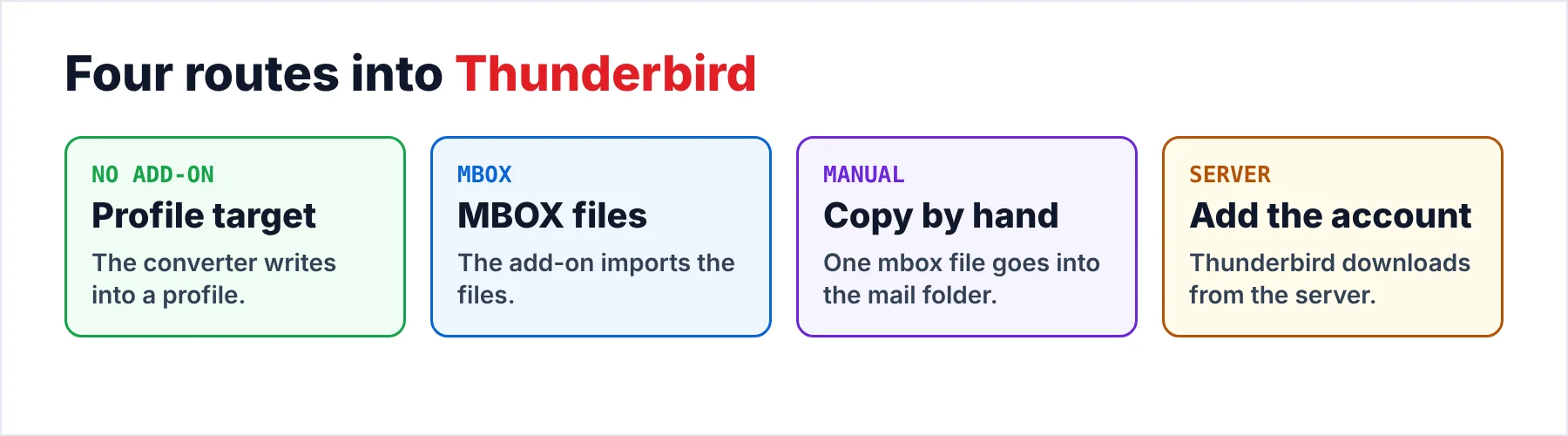
The MBOX route is one of four routes into Thunderbird, which each hand Thunderbird the mail in a different shape, so the table lists what arrives and what each route needs from you.
Foxmail's Import submenu runs the opposite way. My copy of 7.2 lists three Foxmail entries and three Outlook entries there, plus one named Messages. No entry carries the Thunderbird name.
| Route | Thunderbird receives | Needs | Watch out for |
|---|---|---|---|
| Profile target | Folders written into a profile | Converter plus a closed Thunderbird | A backup of the profile first |
| MBOX and add-on | MBOX files to import | The ImportExportTools NG add-on | Single files over 4 GB |
| Copy by hand | One mbox file placed in the mail folder | A closed Thunderbird and a renamed file | A slow rebuild of the index |
| Add the account again | A fresh download from the server | The account password | Mail that never left the PC |
For one person with a few gigabytes of mail I'd choose the profile target, because you need no add-on and you meet no size check on the way. The MBOX route needs the add-on and meets its size check, yet it fits when you want files to keep, for instance an archive on a USB drive.
Adding the account again skips the files and the drive, but it works only for mail that still sits on the server. My sample store holds two IMAP accounts, so a fresh download from the server is possible there. However, a folder that exists only on the PC is a folder the server never held, so it would stay behind. Compare the Foxmail counts before you rely on it.
Where Does the Profile Folder Sit on Windows?
Thunderbird keeps each account's data in one profile folder, which sits at C:\Users\<name>\AppData\Roaming\Thunderbird\Profiles\ on Windows by default. Windows hides AppData unless you show hidden folders. To reach AppData from inside Thunderbird, go to Help and then Troubleshooting Information, then click Open Folder beside the profile row, which is the quick way in.
Local message storage uses mbox by default, which means one file for each folder, with a small .msf file beside it that holds the index of that folder. Mozilla says to close Thunderbird before you copy the profile folder, so I'd apply the same rule to any tool that writes into the profile folder.
- A closed ThunderbirdYou shut the client down before any tool writes into the profile, so the converted folders show up when you start it again.
- A profile copyYou copy the profile folder first, which is a safe habit because one bad run then costs you nothing.
- The size of the storeYou look at the Foxmail store in Explorer, since a large one points to the profile route.
- A copy of the Foxmail storeYou convert from a copy. The article on where Foxmail stores emails lists where the original sits.
How Do You Move Foxmail to Thunderbird With a Profile Target?
Univik Foxmail Converter is one tool that writes into a profile folder. Its Export menu lists Thunderbird as a target. The converter opens the Foxmail store without the client, so the client can stay shut or be removed from the PC, while the five steps run from the Export menu to the last count check.
- Load the Foxmail storeStart the converter and browse to the Storage folder of the PC or to a copy of it. The converter shows every account, its folders and a message count for each folder. Write those counts down, since step 5 compares against them.
- Close Thunderbird and copy the profileClose Thunderbird, then copy the whole profile folder to a safe place. Mozilla says a backup starts with a closed Thunderbird and a copy of that folder, which is what you do here. Keep Thunderbird closed until the export ends, so the converted folders show up when you start it again.
- Tick the accounts and folders that should moveTick the accounts and folders for the move. The Inbox and Sent folders make a quick first check, so you can start with those two.
- Choose the Thunderbird targetOpen the Export menu and choose Thunderbird from the email clients group. The converter uses the default profile and lets you switch to another one.
- Start Thunderbird and compare the countsRun the export, start Thunderbird and click each folder. Compare the Total figure in the status bar with the number from step 1. The trial moves 10 items per folder, so use it to check one account before the full run.
The folders should arrive in Thunderbird under their old names, since my test run of 86,000 emails kept the folder names when it wrote files, so I expect the Thunderbird target to behave the same way in the full run. The trial run on 10 items per folder lets you see that before the full run, because the Foxmail store itself stays untouched by the trial run and by the full run.
Univik Foxmail Converter reads Foxmail stores from version 6.x up to 7.2. It also reads a copy of a store and writes the mail into a Thunderbird profile. The converter saves MBOX files too, so the same run can feed a Thunderbird profile or the add-on route.
Download Free Trial Select a Licence - From $39Foxmail Converter runs on 64-bit Windows 10 or 11 with .NET Framework 4.8. Its free trial moves up to 10 items from every folder.
How Do You Move Foxmail to Thunderbird With MBOX Files?
Choose MBOX in the Export menu of the converter when you want files to keep, because the converter then writes the mail as mbox files into an output folder. Nothing in the Storage folder changes, so a bad import costs you only the mbox files that you can write again. Thunderbird imports no mbox file by itself, so the next job is to add a helper.
The helper is the free ImportExportTools NG add-on, which you install from the Thunderbird add-ons site and which lists mbox import with the folder structure kept. Most functions of the add-on sit in the Tools menu. You may have to turn on the Menu Bar of Thunderbird to see them. Add-ons depend on the Thunderbird version, so open the add-on's page on the Thunderbird add-ons site and read which versions the current release supports.
The add-on's notes say the mbox import works only for Local Folders and not for IMAP accounts, so you import into Local Folders first and move the folders afterwards if you want them under another account. The guide to importing a Google Takeout MBOX into Local Folders walks through the same add-on screens.
Will the 4 GB Add-On Limit Stop a Large Mailbox?
A 4 GB limit can stop a large mailbox. A bug report in the add-on's tracker shows the message "Mbox larger than 4GB, skipping" when someone imports a single mbox file over 4 GB, which leaves the target folder empty after the add-on skips the mbox file. The report I read used add-on version 14.0.0 on Thunderbird 115 while the maintainer of the add-on didn't call the limit intended, so a newer release may behave differently with a store of my size.
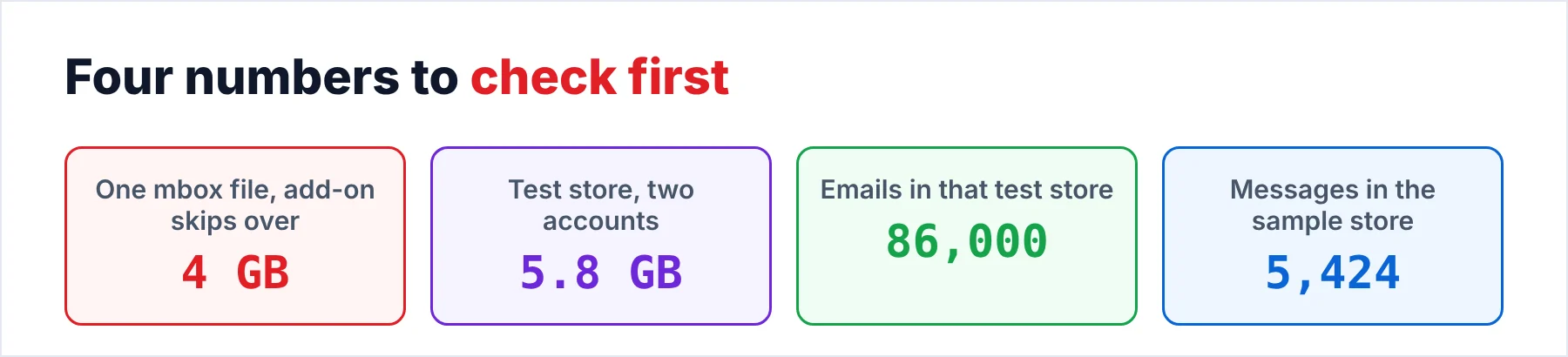
My 86,000-email test store came to about 5.8 GB across two accounts, so the files from those accounts may stay under 4 GB folder by folder, although one big Inbox could pass it. The converter writes one mbox file for each folder and the file grows with its folder, so you should take a quick look at the size of every file in Windows Explorer before you import anything.
If a file does pass 4 GB, split it first, which the guide to splitting a large MBOX file covers, while the guide to the 4 GB skip message lists the other fixes. For an account that big I'd rather pick the profile target, because that route skips the 4 GB check.
How Do You Check Folders and Counts in Thunderbird Afterwards?
Open the account or the Local Folders entry that received the mail, then click each folder and read its Total figure in the status bar, which you compare with the count from step 1. In the sample store you should see folder totals that match step 1 and come to 5,424 messages.
Then pick a message in the Sent folder and another with an attachment. Check the sender and the date, then the attachment name, against what you saw in Foxmail. When a folder lists a count and no readable mail, right-click it, choose Properties and use Repair Folder to rebuild its index.
Contacts and calendars aren't in that index, because you get them as separate files (the FAQ has the details). The guide to importing a VCF file into Thunderbird covers the address book that holds the contacts. The VCF viewer lets you look at the cards first.
What If a Folder Stays Empty After the Move?
Do this: You check the size of the file first. A file over 4 GB is a likely cause, so you split it or switch to the profile target, which is the more reliable choice for a big account. Also confirm that the file went into a folder under Local Folders and not into an IMAP account.
Do this: Right-click the folder and choose Properties. Then click Repair Folder, which rebuilds the index file that sits beside the mbox file.
Do this: You turn on the Menu Bar and look under Tools for the add-on, since the add-on puts the mbox file import there. When the entries are still missing from Tools, open the add-on's page and check which Thunderbird versions the release supports.
Do this: Thunderbird was open while the converter wrote. You close Thunderbird, restore the profile copy from step 2 and run the export again.
If the export still fails, send Univik support the Foxmail version, the Thunderbird version and the exact message on screen.
- Thunderbird can't open a Foxmail Storage folder, so you convert the mail or write it into a profile.
- The profile target needs no add-on and it skips the 4 GB check of the MBOX route.
- The add-on brings mbox files into Local Folders but not into IMAP accounts.
- You close Thunderbird and copy the profile folder before any tool writes into it.
- You compare every folder total in Thunderbird with the counts from step 1.
FAQ: Moving Foxmail to Thunderbird

Read on October 21, 2026: the profile path, the mbox default and the add-on notes. The message counts come from a sample store (Foxmail 7.2.25.563). Converter facts come from its 6.10 product page.
Pages we read: