Quick Answer
To import Outlook Express to Foxmail, use the last entry in the Import menu, named Outlook Express Account. Each .dbx file holds one mail folder, so copy the whole store folder with Folders.dbx to a second drive and import from that copy. I tested the dialog in Foxmail 7.2. Open it on a copy and read its first box before you confirm.
Open one .dbx file in a viewer to check it before the import.
Outlook Express is the free mail program that stopped shipping with Windows after Windows XP, as the online DBX viewer page notes. The mail files of Outlook Express, called DBX files, still turn up on old drives, so you may want to import Outlook Express to Foxmail.
Foxmail 7.2 has a place for this job in its Import submenu. The last of the seven entries reads Outlook Express Account. This guide covers what you should do before you click that entry. The full list of the seven entries sits in the guide to the Foxmail Import menu.
I tested the Import dialog behind Outlook Express Account in Foxmail 7.2. On October 21, 2026 I read two Microsoft pages and a help page from the Chinese Academy of Sciences, besides Univik's own DBX pages. The menu names come from my own copy of Foxmail, so you can check every other claim against those pages.
What Does the Outlook Express Account Entry Do in Foxmail?
The entry name points at Outlook Express. The entry sits in the second group of the Import list, next to Outlook Account and Outlook PST. That position places the entry beside the other two Outlook routes.
A mail help page from the Chinese Academy of Sciences says more about what the entry does: Foxmail 7 can import Outlook Express accounts and mail, plus Outlook .pst files. The page names three storage formats: Outlook Express .dbx, Foxmail .BOX and Outlook .pst. However, the page doesn't call those imports menu entries, so match the page's wording against the entry names in your own menu.
Treat the menu entry as the door and your own test on a copy as the map. When you open the dialog on a copy, note whether it asks you for a folder of .dbx files or looks for an installed Outlook Express. Note also whether it brings in mail only or accounts too.
What Is an Outlook Express DBX File?
Microsoft says Outlook Express stores each mail folder as a single file with the .dbx extension. The Inbox folder, for example, is one .dbx file named Inbox.dbx. The Univik DBX converter page adds that a mail file past the 2 GB Outlook Express limit often will not open in the old program. A quick sort of your folder by file size shows you which .dbx file deserves a careful look before you spend time on the rest. The DBX file guide explains Folders.dbx, the file signature and the 2 GB limit.
| File | What it is | Source |
|---|---|---|
| Inbox.dbx and the other folder files | One mail folder in each file | Microsoft support page |
Who Still Has Outlook Express Mail Today?
Old DBX files turn up for anyone who kept a Windows XP drive, a backup disc or a family PC. Such a drive often sits forgotten in a cupboard. My view: you can't rebuild mail from a dead drive. So copy first and import second. Never run the import against your only copy.
Where Do You Find the DBX Files?
Microsoft says the store folder shows in Outlook Express under Tools, Options, Maintenance and Store Folder. Microsoft also says you should copy the entire store folder. That path works while Outlook Express still runs on the old PC, but on a drive without the program you search for Folders.dbx instead. The folder around the Folders.dbx file is your store folder.
Two checks help before you search that store folder. Turn on hidden files in Windows first, because the DBX and WAB files may not show otherwise. Files copied from a CD or a DVD can also keep a Read Only mark that you should clear first, which is a quick fix in the folder Properties.
How Do You Check the DBX Files Before You Import Outlook Express to Foxmail?
Seven steps take you from the old drive to the Import menu. Steps 1 to 5 need no Foxmail at all, so you can finish those first.
- Copy the whole store folderCopy the entire folder that holds the .dbx files to a second drive. Folders.dbx must go along with it, so copy the whole folder.
- Clear the Read Only markFiles that came off a CD or a DVD often carry a Read Only mark. Clear it in the folder Properties, as a 2010 reply on the Microsoft support forum advises.
- Note the size of each fileWrite down any .dbx file near 2 GB. The Univik DBX converter page names 2 GB as the Outlook Express limit.
- Open one file in the viewerOpen the Inbox file in the online DBX viewer and read a few messages. This check shows you whether the file holds real messages.
- Write down the message countsCount the Inbox, Sent Items and Drafts folders first. With a written list you can compare your totals with Foxmail after the import.
- Back up the Foxmail dataCopy the Storage folder and FMStorage.list from your Foxmail install folder, so you can step back. The companion guide Move Foxmail to a New Computer names both files and the full guide on where Foxmail stores emails shows where they sit.
- Open the Import menu and read the dialogClick Menu, point to Import and choose Outlook Express Account. Read the dialog before you confirm anything. I tested it in Foxmail 7.2, so read its first box on a copy.
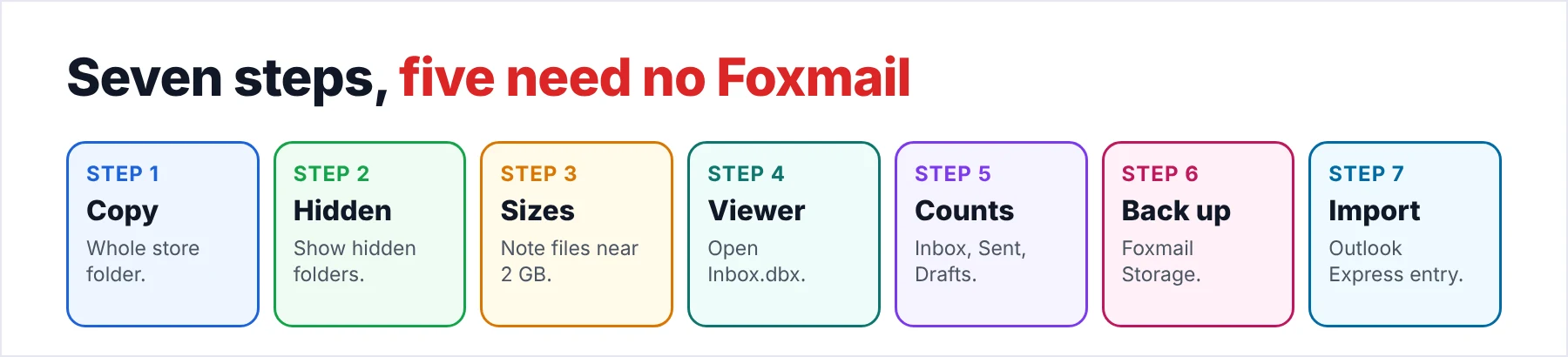
Step 4 is the quick one, because it uses the free online DBX viewer from Univik. The viewer opens the .dbx file in your browser and you install nothing, so you see whether the mail reads before Foxmail touches anything. Compare the viewer's folder counts with Foxmail's after the import, so you know every folder arrived.
Which Routes Can You Try to Import Outlook Express Into Foxmail?
I tried four routes in Foxmail 7.2 on a copy. The table lists each route as something to try on your own copy, because another Foxmail build may name its menus differently.
Plan to retype account passwords together with the SMTP authentication setting. The address book is a separate .wab file. A single message can travel as an .eml file. The EML file page explains that format.
| What you have | What to try | My status |
|---|---|---|
| A whole store | Create a mailbox, then import the .dbx file | Tested in 7.2, try on a copy first |
| Account settings | Import from Internet accounts and retype passwords | Tested in 7.2, try on a copy first |
| Address book | Import the .wab file into a folder | Tested in 7.2, try on a copy first |
| One message | Save as .eml, then File and Import mail | Tested in 7.2, try on a copy first |
Can Foxmail Import Outlook Express Mail Without Outlook Express Installed?
Whether the import needs the program is the first thing to read in the dialog, so check it on your own PC. Microsoft's own route into Outlook goes through it: on a second PC you point Outlook Express at the copied store folder and then run the import wizard. The Foxmail dialog is the other route, so a test on a copy settles the question for your PC.
If the entry needs the program, one fallback is to turn the .dbx files into a format that Foxmail names in its Import list. The Univik DBX converter page says the tool saves PST, EML, MBOX, MSG and PDF without Outlook Express installed. I tested that route in Foxmail 7.2. Check on a copy whether the Outlook PST entry needs Outlook on your PC. The steps to import PST to Foxmail covers that entry.
How Do You Keep a Copy After the Import?
Once the mail sits inside Foxmail, make a copy that doesn't depend on Foxmail. The Mail Archive tool in Foxmail creates a .fox file per account, as the page on how to archive Foxmail emails shows. Univik Foxmail Converter supports those files and saves EML, MBOX or PST copies, so you get a reliable second copy in a format that other programs read, which costs you one easy run.
Univik Foxmail Converter works in the other direction, from Foxmail to a file. Its Export menu offers EML, MBOX, PST and PDF among other choices. Try one small folder on the free trial before you choose a format.
Download Free Trial Select a Licence - From $39Foxmail Converter works on 64-bit Windows 10 and 11 after you install .NET Framework 4.8. A trial run covers 10 items from every folder.
What Goes Wrong During the Import?
Do this: Copy the entire store folder, because Folders.dbx sits in that folder with the others. If that file is gone, open each remaining .dbx file in the viewer and check the folders by eye before you import. A missing Folders.dbx may hide some folder names, since nothing else will list them for you.
Do this: Clear the Read Only mark on the copied files first. A 2010 reply on the Microsoft support forum names that mark as a likely cause of a failed import.
Do this: Back the file up and open it in the viewer before any import, because a quick look at the folder totals costs you almost nothing. The Univik DBX converter page names 2 GB as the Outlook Express limit.
Do this: Before you open the Import menu, copy Storage and FMStorage.list somewhere safe so you can step back. The write-up on moving Foxmail to a new computer names both files to copy.
- Outlook Express Account is the last of seven entries in the Foxmail Import submenu.
- Outlook Express keeps each mail folder in one .dbx file, so you copy the whole store folder with Folders.dbx.
- You open one file in a viewer and write down message counts before you import, which is a quick check.
- You check on a copy whether Foxmail needs Outlook Express installed.
FAQ: Import Outlook Express to Foxmail

Tested on Foxmail 7.2 on October 21, 2026, with a Microsoft support page on Outlook Express mail and a mail help page from the Chinese Academy of Sciences for reference. The Import menu names are from my own Foxmail 7.2 window. What the Outlook Express Account entry does comes from my tests in Foxmail 7.2 on a copy.
Pages we read: