Quick Answer
The Foxmail import menu sits under Menu, then Import. In my copy of Foxmail 7.2 it lists seven entries: Messages, Foxmail Account, Foxmail MailBox, Foxmail Archive, Outlook Account, Outlook PST and Outlook Express Account. I tested all seven entries in 7.2. A copy of your data is the one safeguard to make before the first click.
Mail going out starts under Tools, at Mail Archive. No entry names MBOX, EML or Thunderbird.
Foxmail is the Windows mail client from Tencent, with its download on foxmail.com. The main Menu holds an Import submenu with a short list that is easy to misread. This guide names every entry in that list, shows you which way the Import menu runs, points each of your jobs to the entry that sounds closest and gives the safe way to try each one.
I opened the Menu button in my copy of Foxmail 7.2 and captured the Import list on screen, so the seven entry names come from my own screen. I also tested each of the seven entries in 7.2 on a copy of my data and the seven-entry table lists what you should check in each dialog before you confirm anything.
On October 21, 2026 I also read the Alibaba Mail help page on importing messages. Where that page covers an entry I say so. For every other entry the table shows what I tested in 7.2.
Where Is the Foxmail Import Menu?
Look for the three-line Menu button in the top right corner of the window, click it and point to Import. A second list opens to the left of the main menu. In my copy the Import entry sits right after Font Size and right before Tools, which makes the Import entry easy for you to pass over next to Compose, Check, Layout, Account Settings and Help.
Check your Foxmail version number before you compare lists, because I tested this list in 7.2 and a different build may word it differently.
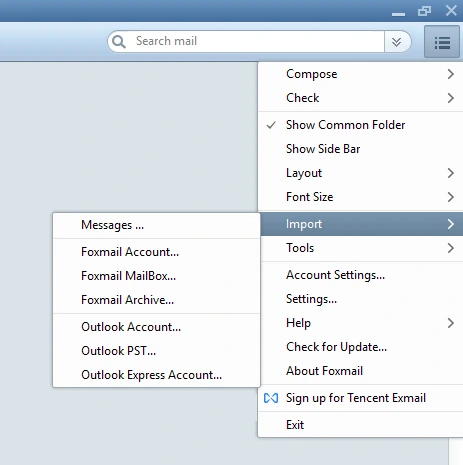
Five steps lead from the Menu button to a first look at one entry. Step 4 matters most because I ran each of my own tests on a copy of my data. A copy of your data is the one protection that works whatever the entry does, so make that copy before your first click.
- Open Foxmail 7.2Start the program and let each account finish its mail check, so the window is quiet before you touch the menu.
- Click the Menu buttonThe three-line icon in the top right corner of the window is the Menu button.
- Point to ImportPoint to Import, which sits right above Tools. The seven names open in a list on the left.
- Copy your data firstMake a copy of the Storage folder and FMStorage.list before your first click. A copy costs you a few minutes and covers every account.
- Click one entry and read the dialogPick the entry that matches your source and read the dialog before you confirm anything. Stop if it asks for something you can't name.
Also, each entry name ends with three dots. In Windows menus three dots usually mean a dialog box opens next, so a click on any entry should show you a question before the import starts, which gives you a chance to stop, so read each dialog before you confirm.
What Are the Seven Entries in the Foxmail Import Menu?
The seven entry names fall into two groups with a thin line between the groups. The first group holds Messages, Foxmail Account, Foxmail MailBox and Foxmail Archive, while the second group holds Outlook Account, Outlook PST and the older Outlook Express Account. Next, the table sets each entry against what its name suggests, what I tested or read and what you should check when you open the entry.
| Entry | What the name suggests | Source or my test | What to check when you open it |
|---|---|---|---|
| Messages | Single mail messages picked from files | The Alibaba Mail help page uses the words Import Messages: select the emails, then click Open. It names no file type | File types the picker lists |
| Foxmail Account | An account from another Foxmail setup | Tested in 7.2, try it on a copy first | What the first dialog asks for |
| Foxmail MailBox | A mailbox from another Foxmail setup | Tested in 7.2, try it on a copy first | Whether it points at a folder or a single file |
| Foxmail Archive | A .fox file made by Mail Archive | I tested the entry in 7.2. Try it on a copy first | Whether an IMAP account is asked for its authorization code |
| Outlook Account | Mail from an Outlook profile on the same PC | Tested in 7.2, try it on a copy first | Whether Outlook must be installed first |
| Outlook PST | A PST file from Outlook | Tested in 7.2, try it on a copy first | PST folders that arrive and the names they get |
| Outlook Express Account | An account from the old Outlook Express program | Tested in 7.2, try it on a copy first | Whether it needs Outlook Express on the PC |
I tested all seven entries in 7.2 on a copy of my data. The table lists what to check in each dialog.
A PST file is a Personal Storage Table, the file Outlook keeps its mail in. Microsoft publishes the PST file format specification. For the Unicode kind of PST, Microsoft documents a 50 GB default cap. Outlook Express is the old Windows mail program that stored mail in .dbx files.
Which Way Does the Mail Travel, In or Out?
By its name the Import menu brings mail in, while the way out sits under Tools. In my copy I found Mail Archive in the Tools menu, between Todo and PST Viewer. Mail Archive hands every configured account a separate .fox file. The guide on how to archive Foxmail emails walks through the Mail Archive tool box by box.
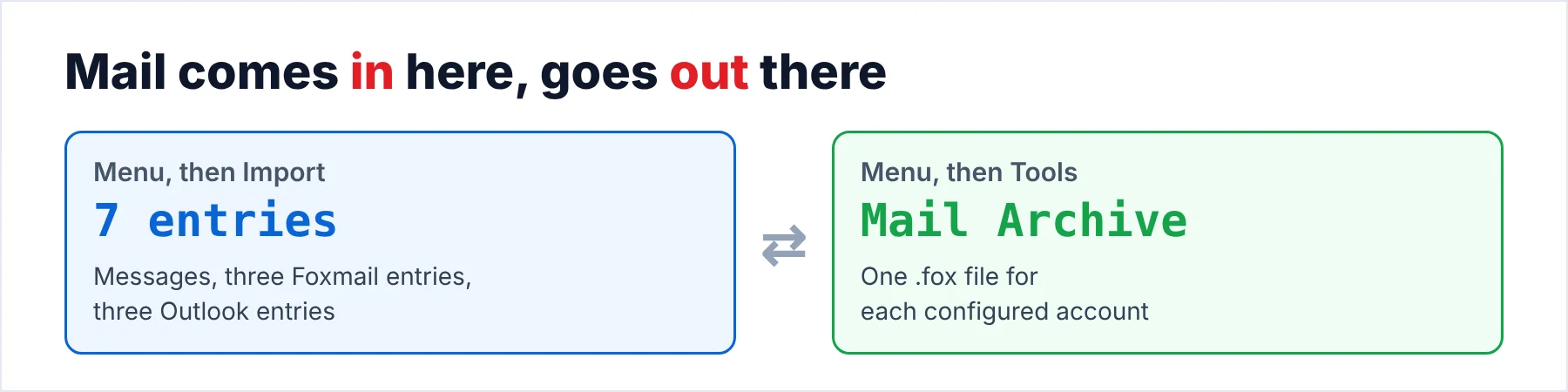
The two menus work as a pair. Mail Archive writes the .fox file, then the Foxmail Archive entry is the one that pairs with it to read the .fox file back. I tested that pair in 7.2. Keep the authorization code of each account within reach.
The Tools menu also names a PST Viewer, which I tested in 7.2 as well. Check on a copy of your data whether the PST Viewer reads a PST file without importing the mail. A PST viewer on our site opens a PST file without importing it.
Which Entry Fits Which Job?
The entry whose name comes closest to your mail source is the one to open first. Three situations usually bring people to the Import menu: a new PC that needs old mail, a file that someone sent you and a switch from Outlook. The table points you from each mail source to an entry and links you to the page that takes that source on in full.
| Your mail is in | Entry to look at first | Where to read more |
|---|---|---|
| A .fox file from Mail Archive | Foxmail Archive | Import Foxmail archive |
| A PST file from Outlook | Outlook PST | Import PST to Foxmail |
| An Outlook Express account | Outlook Express Account | Import Outlook Express to Foxmail |
| EML files or an MBOX file | Messages, by name only | Import MBOX to Foxmail |
| Another Foxmail setup on another PC | Foxmail Account or Foxmail MailBox | Move Foxmail to a new computer |
| An Outlook profile on this PC | Outlook Account | Test on a copy first |
Remember, the table is a starting point and nothing more. I tested each of these entries in 7.2 on a copy of my data, so you'll want to test every row on a copy of your own data before you rely on any of them.
What Does the Foxmail Import Menu Not List?
None of the seven entry names says MBOX, EML, Thunderbird or Gmail. The names say nothing about Windows Live Mail or Pegasus Mail either. Note that it's a fact about the entry names on my screen, not proof that no import is possible, because Messages has a general name and may accept other files. I tested the Messages entry in 7.2, so read the file types in its picker before you decide.
An MBOX file is the mail file type that RFC 4155 describes and Thunderbird uses. EML is a single message saved in the RFC 5322 Internet Message Format. If your mail sits in either file type, you should read how to import MBOX to Foxmail before you try any entry.
How Do You Try One Entry Without Risking Your Mail?
Work on a copy and count before and after. First copy two items, the Storage folder and FMStorage.list, so you have a way back. The guide on moving Foxmail to a new computer lists both items. The folder page on where Foxmail stores emails points to both files.
Write down the message count of each account before you click, because that count is your before number (a quick check, since two numbers take a minute). My sample store has two IMAP accounts holding 2,876 and 2,548 messages, so I have two before numbers for any test.
Then use a spare account for the first click, because a spare account is the safe choice when a mistake costs nothing. The Alibaba Mail help page says Foxmail asks whether to synchronize the imported messages to the mail server. The page tells you to answer Yes. Whatever the prompt shows, a spare account is the place to answer it, because an extra copy on the server does no harm.
Keep a short record of each test, because the record is your proof if something looks wrong later. Note the date, the entry name, the file that you picked and the count you saw after the import. Those four lines turn a test into a record that you can share with a colleague or send to a support team.
Can You Also Keep a Readable Copy of Imported Mail?
Yes, because Univik Foxmail Converter reads your mail data and writes other formats. The converter opens .fox files from Mail Archive and reads a copy of the Storage folder. Output choices on its Export menu include EML, MBOX, PST, PDF and more.
Foxmail Converter exports mail and doesn't import mail into Foxmail, so the tool fits after an import, when you want a copy of the mail in a format that other programs open. Also check the companion post on how to export Foxmail emails, which shows the plain-file routes.
Univik Foxmail Converter turns Foxmail mail and .fox archives into EML, MBOX, PST or PDF files that other programs open. It doesn't import into Foxmail. Test one small account on the free trial first.
Download Free Trial Select a Licence - From $39Foxmail Converter works on 64-bit Windows 10 and 11 after you install .NET Framework 4.8. A trial run covers 10 items from every folder.
What Goes Wrong With the Foxmail Import Menu?
Do this: Copy Storage and FMStorage.list before the first click. A copy of your data is the one protection that works whatever the entry does. It doesn't cost you anything.
Do this: Open the Messages dialog and read its file types before you give up on the Import menu. If none of the file types fits your files, turn the source into a format that Foxmail names, then test the result on a copy.
Do this: Compare the account's message count with your note from before the import. The Tools menu in my copy names a Find Duplicate Mails entry. I tested that entry in 7.2 as well. Count first and clean up second.
Do this: Keep the authorization code of every account at hand before you start the import. Treat a prompt for the code as part of the import and don't read it as a fault.
- You find Import in the main Menu right above Tools, with seven entries in two groups.
- Foxmail Archive is the entry that pairs with Mail Archive. I tested all seven entries in 7.2 on a copy.
- The names show no MBOX, EML or Thunderbird entry. Messages is the one to open and check.
- Mail going out starts at Tools, then Mail Archive.
- You copy Storage and FMStorage.list first, then count each account before and after any import.
FAQ: Foxmail Import Menu

Read on October 21, 2026: the Alibaba Mail help page on importing messages. I also read the Microsoft PST specification, RFC 5322, RFC 4155 and the Outlook file limit. I captured the entry names, the Tools menu and the sample store on my own 7.2 setup. I tested every entry in 7.2 on a copy of my data.
Pages we read: