Quick Answer
Foxmail exports a calendar as an .ics file. Click the calendar icon at the lower left, select the account, open the menu at the top right and save the file. Repeat the save for each account. When several accounts hold events or Foxmail won't start, convert a copy of the Storage folder instead.
Outlook and Google Calendar both import the .ics file, so count the events before and after the import.
When you need to export Foxmail calendar entries, your target is an .ics file, which is the iCalendar format that both Microsoft Outlook and Google Calendar read. I ran the export steps in Foxmail 7.2 myself and read two Microsoft import pages and Google's import page on October 21, 2026. Menu names can differ between builds, so check them on your own screen in Windows before you rely on them.
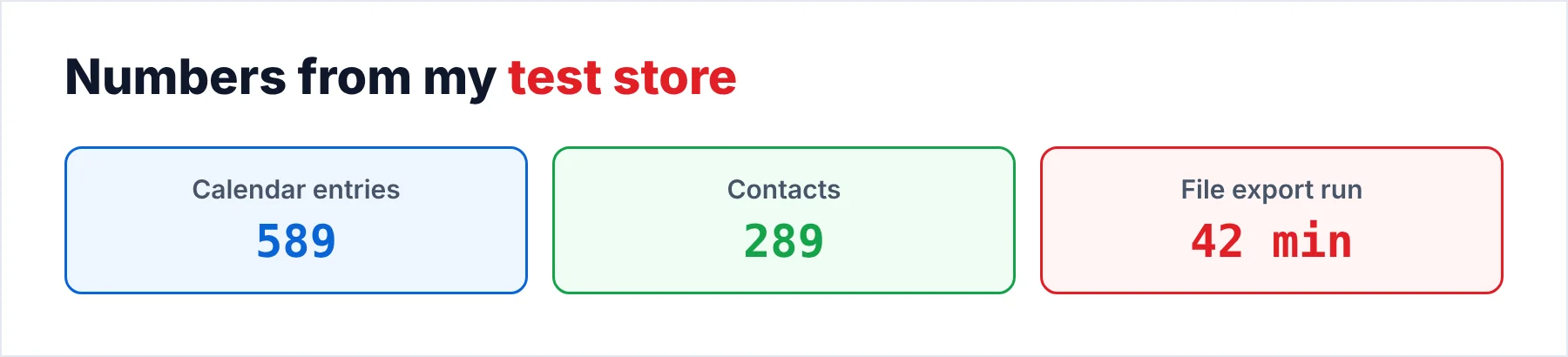
My biggest test store, with 86,000 emails at 5.8 GB, held 589 calendar entries next to 289 contacts. That number gave me a target for the calendar I exported, because a calendar that comes back short is easy to miss. You can count the events in your own store the same way before you start, which gives you a target too.
Which Route Fits When You Export Foxmail Calendar Data?
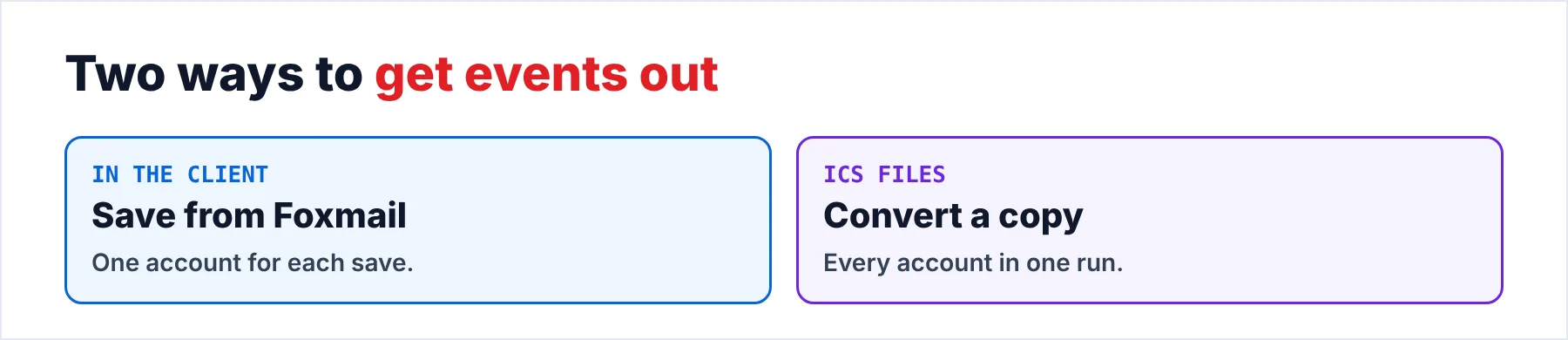
Two routes get your events out of Foxmail. The main difference between the two routes is how many accounts one pass covers for you, so the table sets the two routes side by side with the trap that each one hides.
| Way out | Fits when | Requires | Trap |
|---|---|---|---|
| Save from Foxmail | One account holds your events | A working Foxmail with the account selected | One save covers one account |
| Convert a copy | Several accounts or a Foxmail that won't start | A copied Storage folder plus FMStorage.list | Compare the entry count afterwards |
I'd save from Foxmail when one account holds your events, because the menu route costs you nothing and takes a minute. I'd run the converter from two accounts upward, since repeating the save for each account is where you forget entries and where a count saves you.
What Does the ICS File Hold?
An .ics file is a plain text file in the iCalendar format, which RFC 5545 defines for events and other scheduling data (the ICS file guide shows the layout line by line). Each event in the file sits in its own VEVENT block (the RFC calls VEVENT the event component), so a text editor such as Notepad shows you what the file holds. That makes the file a reliable thing for you to open in Notepad when you suspect that an import went wrong. Our ICS viewer opens the same file without importing it. Our ICS converter writes the events to CSV or Excel.
Google Calendar adds two limits that you should know before you start. The Google import takes .ics or .csv files. The Google import also leaves out guests and conference data, so you will probably add the attendees again by hand when a meeting needs them.
Repeating events are a second place you should look. Google warns that repeating events in a .csv file may show up as separate one-time events, so you should pick the .ics file whenever you have the choice. I'd make that choice every time, because the warning names only the .csv file.
Who Needs to Move Events Out of the Client?
Three situations bring you to this task: a switch to another calendar app on Windows, a Foxmail with many accounts or a PC that no longer runs. You may be leaving Foxmail for Outlook next week, which means your events must move with you. Your team may keep a shared history of events in several accounts, which makes one save per account slow for you. The old PC may even be gone, so that only a copied drive holds your events.
- A new calendar appYou save the .ics file and import it into the new app, so your events end up in one place.
- Several accountsYou'd repeat the save for each account, so a converter run is quicker for you.
- A dead PCYou copy Storage and FMStorage.list from the old drive first, as the guide to moving Foxmail to a new computer shows, then convert the copy.
How Do You Save a Calendar From the Foxmail Client?
Foxmail saves the calendar of one account per pass, so these five steps finish with a loop over your other accounts. These steps go from the menu icon to the save dialog, so look for an export item behind that icon on your own screen.
- Open the calendar in FoxmailStart Foxmail and click the calendar icon in the lower left corner of the window.
- Select the accountSelect the account whose events you want to export. One save covers one account, so note which account you picked.
- Open the menu at the top rightClick the menu icon in the upper right corner. Pick the export entry behind that icon, which opens the save dialog.
- Choose a folder and savePick a folder for the file and click Save. The file you get ends in .ics.
- Repeat for each account and countRepeat steps 2 to 4 for every other account. Then count the events of each account and keep the numbers for the check after the import.
Note: I followed these steps in Foxmail 7.2 myself, so the menu names in another build may differ.
Save the file in a folder that you can find again in File Explorer, because you pick the file again during the import. When you want the mail in a file too, our walkthrough on how to export Foxmail emails covers that side of the same client.
How Do You Import the ICS File Into Outlook or Google?
Outlook on the web: you open Calendar and click Add calendar on the toolbar. You choose From file, click Browse and select the .ics file. Then you pick the receiving calendar with the arrow next to Calendar and click Save.
Classic Outlook on Windows: you go to File, Open & Export and Import/Export, then you choose the iCalendar (.ics) option and select your file. You choose Open as New, which Microsoft's page says brings the items into your Outlook calendar automatically. However, the page doesn't say which calendar receives them, so you should check that after your first import.
Google Calendar: you click the gear icon, open Settings and choose Import & Export. In that Import & Export section you select the file from your computer and pick the receiving calendar for the import (the default is your primary calendar). Then you click Import. A .zip file has to be extracted first, so you import each .ics file on its own.
I'd import a file with five events first, because neither Microsoft's page nor Google's page says what happens to events that already exist. That small import costs you two minutes, while a duplicated calendar takes you much longer to clean.
What If Several Foxmail Accounts Hold Events?
Univik Foxmail Converter reads a Foxmail store through its Storage folder with the FMStorage.list file, so you need no running Foxmail. It writes calendar entries as .ics files for every account, which is the file type that the Outlook and Google import steps in the last section ask for. The converter reads every account of the store in one run, so you don't repeat a save for each account.
The run also writes your contacts as VCF or CSV files. That means you export Foxmail contacts without a second pass. My test store held 589 calendar entries and 289 contacts. The file export run on that store took about 42 minutes. When your old PC is gone, you copy the store folders from its drive first and convert the copy (my guide on where Foxmail stores emails gives the paths).
I'd convert as soon as your Foxmail store has more than one account, because one run is quicker for you than repeated saves, which also leaves you with a single set of counts to compare afterwards.
Univik Foxmail Converter reads a Foxmail 6.x to 7.2 store or a copy of it. It writes calendar entries as ICS files from every account of that store. It also saves the contacts and mail of that store.
Download Free Trial Select a Licence - From $39Foxmail Converter is a 64-bit program for Windows 11 and 10 that needs .NET Framework 4.8. The free trial limits each mail folder to 10 items.
How Do You Check a Calendar After the Export?
Count first and open samples second. You count the events of each account in Foxmail before you export, because a count is the only proof you have that nothing dropped out of the calendar on its way to the new app. After the import you count the events in the receiving calendar and compare the two numbers, since a count that differs is often the first sign that you skipped an account.
Then you open three events: one from last year, one from next month and one that repeats. You compare the date, the time and the title of those events with Foxmail. Note: Google Calendar leaves out guests and conference data, so a missing guest list is not an error in your file.
What Goes Wrong After the Import?
Do this: Run the save for every other account, because Foxmail saves one account per pass. Count the events of each account against what you imported. A converter run covers every account in the store.
Do this: Pick the receiving calendar in the import dialog, where Outlook on the web has an arrow next to Calendar. Google's default is your primary calendar, so you remove the first batch and import again with the right calendar selected.
Do this: Add the attendees again by hand, because Google leaves out guests and conference data. You can keep a short list of the meetings that had guests before you import.
Do this: Check in File Explorer that your file ends in .ics or .csv. Extract a .zip file first, then import each .ics file on its own.
If the export still fails, tell Univik support which Foxmail version you run and where the steps break.
- Foxmail saves the calendar of one account per pass as an .ics file.
- Outlook and Google Calendar both import the .ics file.
- Google leaves out guests and conference data.
- A converter run reads every account of a Foxmail store in one pass.
- You count the events before and after the import.
FAQ: Export Foxmail Calendar

Read on October 21, 2026: two Microsoft import pages, Google's import page and RFC 5545. The entry counts come from my test store, not from any page. I ran the Foxmail menu steps myself in Foxmail 7.2.
Pages we read: