 Email Settings Guide
Quick answer: the Microsoft 365 IMAP server is outlook.office365.com on port 993 with SSL/TLS. The SMTP server is smtp.office365.com on port 587 with STARTTLS. This host has no port 465. POP3 uses outlook.office365.com on port 995. Sign in with your full work address through the Microsoft sign-in window (OAuth), because password sign-in has already ended for IMAP and POP and is being retired for SMTP. Your admin controls whether IMAP, POP3 and SMTP are switched on for your mailbox.
What Changed Recently#
Related email providers: Google Workspace email settings, Zoho IMAP settings, Zoho Workplace email settings, Amazon WorkMail IMAP settings, Open-Xchange email settings, The Messaging Company IMAP settings
Email providers change login rules more often than server addresses. Microsoft has rewritten these rules harder than any other provider. One big change is still ahead rather than behind. Here is where Microsoft 365 stands in July 2026 and what it means for your setup.
Latest update
SMTP password sign-in is being retired, but not yet. Microsoft first planned to start switching off Basic authentication for SMTP AUTH client submission in spring 2026, then revised the timeline in January 2026. The current plan: it keeps working until the end of December 2026, when it is disabled by default for existing tenants and an admin can still re-enable it. Tenants created after that lose it by default. Microsoft will name a final removal date in the second half of 2027. So a scanner or script sending through smtp.office365.com with a password works today. The time to move it to OAuth or a no-password sending road is before that December deadline.
Earlier change
IMAP and POP3 password sign-in already ended. Microsoft finished switching off Basic authentication for reading mail across Exchange Online tenants by late 2022, leaving SMTP AUTH as the single exception. Any app still storing a plain password for outlook.office365.com has failed since then, which is why old tutorials with a password field lead nowhere.
Earlier change
The SMTP AUTH switch is off by default for newer tenants. Separate from the password change above, Microsoft disables the authenticated SMTP protocol itself for tenants created since 2020 and for mailboxes that have never used it. An admin turns it on before anything sends through smtp.office365.com, even with a correct OAuth sign-in. This is the switch behind the common 535 5.7.139 error.
Before You Begin#
Do these 2 things first. If you skip them, your email app will reject the connection even when every server value is correct. On Microsoft 365 the setup you can touch is only the middle layer, which is why a correct-looking setup can still fail:
1. Your admin controls the switches
IMAP, POP3 and authenticated SMTP can each be switched off for your mailbox at the organization level. When they are, every value on this page is correct and the connection still fails. On a work account, check with your admin before changing anything on your side.
Where: Microsoft 365 admin center → Users → Active users → select the user → Mail → Manage email apps
2. Your app must open a Microsoft sign-in window
Typing your password into a plain IMAP form has not worked since Microsoft retired Basic authentication. The app itself has to support Modern authentication and open the browser-style Microsoft sign-in. Outlook, Apple Mail, recent iOS and Android and Thunderbird all do.
Where: The sign-in section below →
About Microsoft 365 Email#
Microsoft 365 email is Exchange Online, the hosted mail behind hundreds of millions of work and school mailboxes on company domains worldwide.
The service launched in 2011 as Office 365, built on the Exchange server platform businesses had run on-premise for decades and took the Microsoft 365 name in 2020. What makes it different from every consumer provider is who holds the keys. Sign-in is OAuth only while your administrator decides per mailbox whether IMAP, POP3 and authenticated SMTP work at all. A perfect setup can still fail because of a switch you cannot see.
| Service Name | Microsoft 365 (Exchange Online), formerly Office 365 |
| Owned By | Microsoft Corporation |
| Launched | 2011 as Office 365, renamed Microsoft 365 in 2020 |
| Email Domains | Your company domain plus the built-in @yourcompany.onmicrosoft.com |
| Webmail URL | outlook.office.com |
| Protocols Supported | IMAP, POP3, SMTP (each can be disabled per mailbox by the admin) |
| App Password Needed | No. OAuth sign-in only, app passwords are retired for mail |
| Mailbox Storage | 50 GB or 100 GB depending on plan |
onmicrosoft.com, every tenant worldwide uses outlook.office365.com and smtp.office365.com. Your domain only changes the username, never the servers. One warning: Outlook.com personal addresses are a different service with a different outgoing server.
Microsoft 365 Webmail Login#
You can always read your mail in a browser. The official Microsoft sign-in pages are:
Webmail
Account Security
Admin Center
Enable IMAP for a Microsoft 365 Mailbox#
There is no IMAP switch inside a Microsoft 365 mailbox for you to flip. The controls sit with your administrator, who can enable or disable IMAP, POP3 and authenticated SMTP for each mailbox separately. If a connection fails with correct values, this is the first thing to check:
- The admin signs in at admin.microsoft.com. Regular users never see these switches.
- Open Users → Active users and select the person whose mailbox needs access.
- Open the Mail tab and choose Manage email apps.
- Tick IMAP, POP or Authenticated SMTP as needed and save. The change can take a while to reach every server, so give it up to an hour before retesting.
On your own tenant with no IT department? You are the admin. Sign in with the account you created the subscription with and the same path works.
Microsoft 365 IMAP Settings#
IMAP is the incoming protocol most people should use. Exchange Online holds the mailbox and every connected device shows the same folders. Remember it only answers when your admin has IMAP enabled for the mailbox:
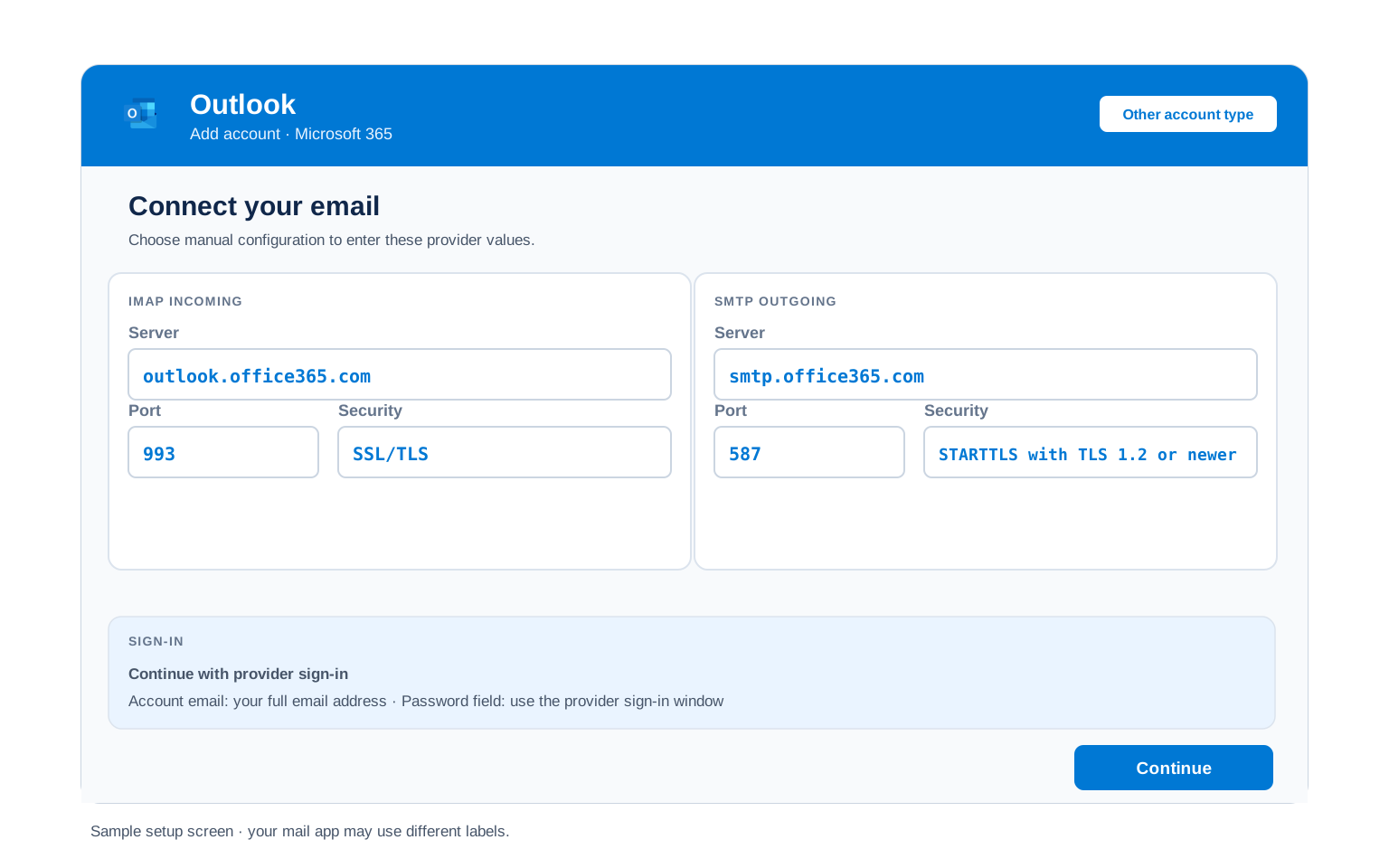
| IMAP Server | outlook.office365.com | |
| Port | 993 | |
| Encryption | SSL/TLS (required) | |
| Username | Your full work address, the one you sign in to Microsoft 365 with | |
| Password | None typed into the app. The Microsoft sign-in window (OAuth) handles it | |
| Authentication | OAuth (Modern authentication), required |
Microsoft 365 POP3 Settings#
POP3 downloads mail to 1 device and Exchange Online serves it from the same hostname as IMAP. Admins often leave POP3 off even where IMAP is allowed, so treat a POP3 failure as an admin question first. Not sure you want POP at all? See the comparison below.
| POP3 Server | outlook.office365.com | |
| Port | 995 | |
| Encryption | SSL/TLS (required) | |
| Username | Your full work address | |
| Password | None typed into the app. OAuth sign-in only |
Microsoft 365 SMTP Settings#
SMTP handles outgoing mail and it is the strictest part of Microsoft 365. Reading works but sending fails? Start here, then check that your admin has Authenticated SMTP switched on for the mailbox:
| SMTP Server | smtp.office365.com | |
| Port (STARTTLS) | 587, the only port on this host | |
| Encryption | STARTTLS with TLS 1.2 or newer (required) | |
| Username | Your full work address | |
| Password | OAuth sign-in, shared with incoming mail. Basic-auth password works until end of December 2026, then off by default | |
| Admin switch | Authenticated SMTP must be enabled for the mailbox. New tenants ship with it off | |
| Authentication | Required, through the same Microsoft sign-in the incoming side uses. |
Scanners, Printers and Apps That Send Through Microsoft 365
Copiers and line-of-business apps are the ones the SMTP password retirement will hit hardest, because most of them only know how to send with a username and password. That sign-in still works today and stops being the default at the end of December 2026, so this is the window to move onto one of the three roads Microsoft leaves open. Picking the right one depends on the hardware:
| Road | Server and port | When it fits |
|---|---|---|
| SMTP AUTH with OAuth | smtp.office365.com, port 587 | Newer devices and software that can register with Microsoft Entra and sign in with a token. Counts against the mailbox sending limits. |
| Direct send | Your tenant MX endpoint, port 25 | Devices that only deliver to people inside your own company. No sign-in at all, so nothing expires, but mail to outside addresses is refused. |
| Connector relay | Your MX endpoint, port 25, authorized by your public IP | Offices that need devices to mail outside addresses. The admin creates an inbound connector in Exchange and the building IP becomes the credential. |
Check Microsoft 365 IMAP Settings Online#
You don't need to download anything to check Microsoft 365 IMAP settings online. This page is the lookup: every value is verified, current and copyable straight from your browser. The catch with Microsoft 365 is that your address ends in your own company domain, so nothing about it says Microsoft. Type it below and the checker gives you an honest answer about what it can and cannot tell:
Does my email address use these settings?
Runs in your browser only. Your address is never sent anywhere or stored.
Want to verify the account itself before configuring an app? Sign in at outlook.office.com. A working webmail login proves the address and password, which leaves only two possible blockers: an admin switch that is off or an app that cannot open the Microsoft sign-in window.
Look Up IMAP Settings for Any Email Domain#
This page covers Microsoft 365 tenants. Not sure whether a company address runs on Microsoft 365, Google Workspace or a hosting mailbox? Our free lookup database imapsettings.com resolves any domain to its real mail servers.
imapsettings.com
Complete email settings database, by Univik
Enter any email address and get the incoming and outgoing server settings for that domain in 1 step:
Your address is used only to find the settings for that domain. Nothing is stored or shared.
Microsoft 365 Sign-In: OAuth Replaces Passwords#
Searching for a Microsoft 365 app password? There is almost nothing to generate. App passwords rode on Basic authentication, which is already gone for IMAP and POP3 and is being switched off for SMTP by the end of December 2026. The Microsoft sign-in window has taken their place. Here is where each sign-in works today:
| Where you sign in | Password typed into the app | Microsoft sign-in window (OAuth) |
|---|---|---|
| outlook.office.com and official Microsoft apps | ✓ Works, on the Microsoft page | ✓ The same thing |
| Outlook desktop, Apple Mail, Thunderbird | ✗ Rejected since Basic auth ended | ✓ Required |
| Phone mail apps (manual IMAP setup) | ✗ Rejected | ✓ Required, choose the Microsoft account type |
| Scanners, printers and scripts on SMTP | Works until end of 2026 | OAuth if supported, otherwise a no-password road |
What to Do Instead of an App Password
- Add the account through the app's Microsoft, Office 365 or Exchange option rather than generic IMAP wherever one exists. That account type opens the real Microsoft sign-in window.
- Sign in inside that window with your work address and normal password, then approve the MFA prompt if your organization uses one. The app receives a token, never your password.
- On manual IMAP setups, modern clients such as Thunderbird detect outlook.office365.com and switch the password field to OAuth on their own. If yours shows only a plain password box, the app is too old for Microsoft 365.
- Sending from a device or script? Ask your admin to confirm Authenticated SMTP is on for the mailbox, then use OAuth if the device supports it or one of the port 25 roads if it does not.
- Nothing to copy, nothing to store. Tokens renew themselves and revoking one app at mysignins.microsoft.com never touches the others.
Set Up Microsoft 365 in Email Clients#
One rule carries every app on this list: choose the Microsoft, Office 365 or Exchange account type and let the sign-in window do the work. Jump to your app:
Outlook (Windows and Mac)
- Open Outlook → File → Add Account or, in new Outlook, Settings → Accounts → Add account.
- Enter your work address and let Outlook run. Outlook is Microsoft's own client, so it finds your tenant and opens the Microsoft sign-in by itself. Skip manual setup entirely.
- Sign in and approve the MFA prompt. Outlook connects over Exchange, which brings calendar, contacts and shared mailboxes along with mail.
- Only force IMAP on purpose, through Advanced options with
outlook.office365.comport993, when you specifically want a mail-only connection. - Finish and send a test email to yourself to confirm both directions work.
Apple Mail (macOS)
- Open Mail → Settings → Accounts → Add Account.
- Select Microsoft Exchange. That is the Microsoft 365 entry here. The Other Mail Account path opens the plain IMAP form, which a work tenant rejects.
- Enter your name and work address, then choose Sign In so macOS opens the Microsoft window.
- Complete the sign-in and MFA prompt. No server fields appear, because Exchange discovers everything itself.
- Enable Mail in the checkbox list and finish. Calendar, Contacts and Notes sit on the same screen if you want them.
iPhone and iPad
- Open Settings → Apps → Mail → Mail Accounts → Add Account.
- Tap Microsoft Exchange. On iPhone that is the Microsoft 365 option. The Other path cannot sign in to a work tenant at all.
- Enter your work address and tap Sign In when iOS offers the Microsoft page.
- Approve the MFA prompt. iOS fetches the servers itself, so no IMAP fields ever appear.
- Pick what syncs, mail alone or calendar and contacts too, then save.
Android
- Open your mail app (Gmail app, Samsung Email or Outlook for Android) → Add account.
- Choose Exchange and Office 365. The Gmail app lists two Exchange entries. The one naming Office 365 is the right one for a work address.
- Enter your work address and continue into the Microsoft sign-in page.
- Approve MFA and any work profile prompt. Some companies require device management before mail syncs, which is policy rather than a settings fault.
- Finish setup and pull down to sync your inbox.
Thunderbird
- Open Thunderbird → Account Settings → Account Actions → Add Mail Account.
- Enter your name and work address, leave the password blank and select Continue.
- Thunderbird finds outlook.office365.com and sets authentication to OAuth2 on its own. Accept the detected IMAP configuration.
- A Microsoft window opens inside Thunderbird. Sign in there and approve MFA. If the window never appears, allow cookies for Microsoft sign-in pages and retry.
- Select Done. Folders sync on first open.
Microsoft 365 Webmail Settings#
Server settings connect your apps. These settings control how the mailbox itself behaves. They follow you into Outlook desktop too, because Exchange stores them server side. All of them live at outlook.office.com under the gear icon → View all Outlook settings.
Signature
Settings → Mail → Compose and reply. Microsoft 365 supports several signatures with separate defaults for new mail and replies. They roam with the mailbox into new Outlook. Classic Outlook desktop still keeps its own local signature list.
Vacation Auto Reply
Settings → Mail → Automatic replies. Set start and end times so it switches off by itself. Use the separate inside-versus-outside-the-organization boxes to keep the casual version internal. Exchange sends it server side, computer off or on.
Filters and Folders
Settings → Mail → Rules. Rules made here run on Exchange itself, so mail is already sorted before any device syncs. Rules built inside classic Outlook desktop can be client-only and stop running when that PC sleeps.
Spam and Blocked Senders
Settings → Mail → Junk email. Blocked senders and domains go to the Junk Email folder, while safe senders skip filtering. Company-wide filtering sits above this in Defender policies, so a message can vanish before your personal list ever sees it.
Microsoft 365 POP3 vs IMAP#
The old POP-or-IMAP question has a Microsoft 365 twist: Exchange Online holds the real mailbox. The protocol you pick only decides how much of it your device mirrors.
| Feature | IMAP | POP3 |
|---|---|---|
| Where mail lives | On Exchange Online (outlook.office365.com) | Downloaded to 1 device |
| Multiple devices | ✅ Everything stays in sync | ❌ Each device sees different mail |
| Sent and deleted mail | ✅ Synced everywhere | ⚠️ Stays only on that device |
| Offline reading | ⚠️ Cached mail only | ✅ Full local copy |
| Server storage used | Yes, counts against your quota | Can be freed after download |
| Best for | Phone + computer, everyday use | Single PC, local archives |
Microsoft 365 Sending and Storage Limits#
Exchange Online is unusually open about its numbers, right down to the per-minute message rate. Learn them before a bulk send or a mailbox move and the throttling will never surprise you:
| Recipients per day | 10,000 across all mail a mailbox sends |
| Messages per minute (SMTP) | 30, so bulk senders must pace themselves |
| Recipients per message | Up to 1,000, unless the admin sets a lower tenant limit |
| Message size | 35 MB by default. Admins can raise it to 150 MB |
| Mailbox storage | 50 GB on Business plans, 100 GB on Enterprise plans, plus archive mailboxes where licensed |
| External recipients | A separate tenant-wide limit on mail to outside addresses now scales with your license count, aimed at bulk senders rather than everyday mail |
| What happens at the limit | Sending is throttled or refused until the window resets, while receiving keeps working. The 30-per-minute rate is the one migrations feel first |
Troubleshooting Microsoft 365 Connections#
Sending failures on Microsoft 365 almost always trace to one of three causes. Each needs a different owner to fix. Read the picture first, then find your exact error in the table below:
Match the exact wording your app or scanner reports to the rows below, since Microsoft 365 errors are specific enough to point straight at the cause:
| Error you see | What it means | Fix |
|---|---|---|
| 535 5.7.139 Authentication unsuccessful, SmtpClientAuthentication is disabled for the Tenant | Authenticated SMTP is switched off for the mailbox or the whole tenant | An admin enables it at Manage email apps or with Set-CASMailbox in PowerShell. Nothing on your side fixes this one. |
| basic authentication is disabled / 535 5.7.3 Authentication unsuccessful | The app sent a plain password, which Microsoft 365 no longer accepts anywhere | Re-add the account through the Microsoft, Office 365 or Exchange account type so the sign-in window takes over. |
| AADSTS50076: multi-factor authentication required | Your organization requires MFA and the app never showed the prompt | Use an app that opens the Microsoft sign-in window, complete the MFA challenge there and the token carries the approval afterwards. |
| Connection to the server failed on port 465 | smtp.office365.com has no port 465, so anything pointed there times out | Change the outgoing port to 587 with STARTTLS. While there, confirm the app allows TLS 1.2. If 587 itself times out, a firewall or VPN is blocking it, since some office and hotel networks close outbound 587. |
| 550 5.7.30 Basic authentication is not supported for Client Submission | The upcoming error once Basic-auth SMTP is switched off. A password worked yesterday and now does not | Move the sender to OAuth or a no-password road. Until the end of 2026 an admin can still re-enable Basic auth as a stopgap, but it is a countdown, not a fix. |
| 550 5.7.60 Client does not have permission to send as this sender | The app signed in as one mailbox but set a different From address | Send as the mailbox you signed in with. If you need the other address, have an admin grant that mailbox Send As permission in the Exchange admin center. |
| User is authenticated but not connected | Sign-in worked and then IMAP itself refused, which means the protocol is disabled for the mailbox | Ask the admin to tick IMAP under Manage email apps, then allow up to an hour before retesting. |
Reader Reported Fixes
Everything correct and IMAP still dead an hour after the admin enabled it: toggle the setting off and on again. Admins in Microsoft's own forums report the Manage email apps checkboxes sometimes fail to propagate on the first save. Untick IMAP, save, wait a minute, tick it again and save. The second pass tends to stick.
Thunderbird loops on the Microsoft sign-in window without ever finishing. The fix readers confirm is clearing cookies for login.microsoftonline.com in Thunderbird's own cookie store, then re-adding the account. A half-stored sign-in session blocks the fresh OAuth token from landing.
Microsoft 365 or Outlook.com? Different Servers#
Two Microsoft services share the Outlook name and people mix their settings up constantly. Microsoft 365 is the paid work service on your company domain. Everything on this page is for it. Outlook.com is the free personal service behind @outlook.com and @hotmail.com addresses. The incoming server is the same outlook.office365.com, but the outgoing server is not: personal accounts send through smtp-mail.outlook.com, work accounts through smtp.office365.com. Setting up a personal address? Use the Outlook.com email settings →
Leaving a job or closing a tenant? Back up the mailbox first. The mailbox belongs to the organization. The day an admin suspends the account, IMAP access dies with it. Copy your mail out while your badge still works.
Moving mailboxes between tenants or out of Microsoft 365? The Univik Email Migration Tool signs in to both sides and copies every folder with dates intact. This page supplies the Microsoft 365 side of the connection.
Rather not do it yourself? Our Email Migration Services team runs whole-tenant moves end to end and verifies every mailbox arrived.
Use These Settings in Univik Email Backup#
The same IMAP settings above let you download a complete Microsoft 365 mailbox to your computer. Univik Email Backup saves everything as PST, MBOX, EML or PDF files that outlive the account, the license and the tenant itself.
- Download Univik Email Backup and install it on Windows.
- Select Office 365 from the source list. The tool opens the official Microsoft sign-in window, the same OAuth flow this page describes, so no password is ever typed into the software.
- Sign in with your work address and approve the MFA prompt if your organization uses one.
- If you choose the generic IMAP source instead, the server is
outlook.office365.comwith port993and SSL from the IMAP table above. The admin must have IMAP enabled for the mailbox. - Pick a saving format and folder, then start the backup. A 50 GB mailbox is normal here, so let it run in the background and expect Exchange throttling to pace the download rather than any setting on your side.
Univik Tools That Use These Settings#
Many people land here while migrating or archiving a mailbox. All 3 tools use the same IMAP settings from this page:

Email Backup
Download a whole Microsoft 365 mailbox to PST, MBOX, EML or PDF before a license ends or an employee leaves.
Email Backup Tool →
Email Migration Tool
Copy every folder between Microsoft 365 tenants or out to Gmail and any IMAP account. No manual export needed.
Email Migration Tool →
Email Converter Tool
Sitting on OST, PST or MBOX files from an old Exchange setup? Convert them to whatever format your new system opens.
Email Converter Tool →Prefer to hand the whole migration to experts?
If tenant switches, OAuth prompts and throttling windows feel like too much, you don't have to learn them. Univik's migration team handles the complete project: planning, transfer, verification and a report showing every folder made it. Since 2013, for single mailboxes up to full company moves.
Email Settings Glossary#
IMAP
Internet Message Access Protocol, the outlook.office365.com route on port 993. Mail stays on Exchange Online, so every device shows the same folders and read status.
POP3
Post Office Protocol version 3, served from the same outlook.office365.com hostname on port 995. Downloads mail to 1 device. Admins keep it off more often than IMAP.
SMTP
Simple Mail Transfer Protocol, the sending half. In Microsoft 365 it runs through smtp.office365.com on port 587 and needs the Authenticated SMTP switch on for the mailbox.
SSL / TLS / STARTTLS
Encryption for the connection. SSL/TLS encrypts from the start on ports 993 and 995, while STARTTLS upgrades port 587. Microsoft 365 additionally insists on TLS version 1.2 or newer.
OAuth Sign-In
A generated code some providers use in place of the real password. Microsoft 365 has effectively retired them for mail, since they depend on Basic authentication, which is gone for IMAP and POP and closing for SMTP.
OAuth
The Microsoft sign-in window. Your password goes to login.microsoftonline.com alone and the app receives a renewable token, which is the only sign-in Microsoft 365 mail accepts.
How We Verify These Settings#
Univik builds email backup, migration and converter software since 2013. Microsoft 365 is the most migrated platform in that entire history. Our tools open sessions against outlook.office365.com and smtp.office365.com every day for thousands of users, so when Microsoft tightens a rule, our connection logs feel it within hours.
Every value on this page is confirmed with 3 checks: a live IMAP and SMTP connection from Univik Email Backup, a comparison against Microsoft's official Exchange Online documentation and a fresh OAuth sign-in completed through the current login.microsoftonline.com flow. Microsoft announces retirements well ahead, so each announcement triggers a retest here before the deadline lands. Quarterly passes run regardless.
Found something that no longer matches what Microsoft shows you? Tell us and we will retest and update the page, with the change logged in what changed recently.
 Help & Support
Frequently Asked Questions
Use outlook.office365.com on port 993 with SSL/TLS. The username is your full work address and sign-in happens through the Microsoft window (OAuth), never a typed password. The complete table is in the IMAP settings section. Remember your admin must have IMAP enabled for the mailbox.
Microsoft retired Basic authentication, so any password typed into a plain IMAP or SMTP field is rejected even when it is right. The password is correct, the method is dead. Re-add the account through the Microsoft, Office 365 or Exchange option so the sign-in window takes over. If webmail also rejects you, the account itself is locked or MFA is pending.
Neither is first choice on Microsoft 365. Take the Exchange account type where an app offers it, since it adds calendar and contacts. Fall back to IMAP for mail-only apps and leave POP3 for deliberate single-machine archives. Full comparison here.
Yes. outlook.office365.com and smtp.office365.com serve every device and every tenant worldwide, so only the menus differ, which is what the client setup guides cover. What does change between organizations is policy: your admin's switches and MFA rules follow the mailbox, not the device.
You almost certainly cannot. The good news is you no longer need to. App passwords depended on Basic authentication, which Microsoft has retired for IMAP, POP3 and SMTP, so the mail door they used to open is closed. Use the Microsoft sign-in window instead. The rare exception is an organization still on legacy per-user MFA, where old software may keep one alive for a while.
Yes. Both connect through the Microsoft sign-in window, so your password never lives inside the app and MFA still applies. Review connected sessions at mysignins.microsoft.com occasionally and sign out of devices you retired. On a work account, your admin can also see and cut sessions centrally.
A dedicated backup tool beats letting Outlook sync for days, because it saves standard files and paces itself under Exchange throttling. See how to back up a Microsoft 365 mailbox. Already holding OST or PST files from an old machine? An email converter turns them into whatever your new system opens.
Microsoft has retired sign-in methods in waves, IMAP and POP3 password sign-in back in 2022 and SMTP password sign-in scheduled to switch off by default at the end of 2026, which breaks setups that never changed on your side. Check what changed recently. The fix is almost always moving the account to OAuth or asking the admin about a switched-off protocol.
An email migration tool signs in to both mailboxes and copies folder by folder with dates intact. This page supplies the Microsoft 365 side: the IMAP values plus an OAuth sign-in, with IMAP enabled by the admin for the source mailbox.
For a whole tenant or a long list of staff mailboxes, our managed email migration service runs the entire move for you.
Other Email Provider Settings
Summary: Microsoft 365 Settings at a Glance
- IMAP: outlook.office365.com, port 993, SSL/TLS
- POP3: outlook.office365.com, port 995, SSL/TLS
- SMTP: smtp.office365.com, port 587 only, STARTTLS
- Username is always your full work address
- OAuth sign-in only, app passwords retired
- Admin controls IMAP, POP and SMTP per mailbox
- Sending limit: 10,000 recipients per day
- Personal Outlook.com uses a different SMTP server