 Email Settings Guide
Quick answer: Namecheap Private Email uses one host, mail.privateemail.com, for every protocol. IMAP is port 993 with SSL/TLS. SMTP is port 465 (SSL) or 587 (STARTTLS). POP3 is port 995 with SSL. Sign in with your full email address and your mailbox password. There is no app password to set up.
What Changed Recently#
Related email providers: A2 Hosting email settings, Network Solutions IMAP settings, Web.com email settings, Turbify IMAP settings, Squarespace email settings, Wix IMAP settings
Email providers change login rules more often than server addresses. Here is the current status for Namecheap Private Email and what it means for your setup.
Latest update
Private Email moved to a new platform on June 2, 2026. New subscriptions now run on Namecheap's own platform with a redesigned webmail. Existing mailboxes migrate in stages from August 2026. Your IMAP and SMTP settings, login and password all stay the same, so mail apps keep working through the change.
Earlier change
Some Open-Xchange extras are being retired. As Namecheap moves off Open-Xchange, add on features like Drive, public calendars and parts of ActiveSync will not carry over. Export any of those before your mailbox migrates. Plain email, contacts and calendars transfer for you.
Earlier change
Encrypted connections only. Namecheap mail servers refuse plain, unencrypted connections. Every setup needs SSL/TLS or STARTTLS. Secure Password Authentication (SPA) must also be switched off in your client.
mail.privateemail.com with your mailbox password works on both the old and new platform.
Before You Begin#
Settle these 2 points first. Skip either and the connection is refused however carefully the server values are entered.
1. Confirm it is Private Email
Namecheap sells two kinds of email. Private Email uses mail.privateemail.com. Email that comes with Namecheap shared hosting uses your hosting server name instead, so the settings differ.
Where: Tell them apart below →
2. Turn off SPA
Namecheap rejects Secure Password Authentication. If your client has SPA or "secure password authentication" ticked, the login fails even with the right password. Leave it unticked.
Where: your client's outgoing server or advanced settings
About Private Email#
Namecheap Private Email is business email hosting from Namecheap, run on your own domain and used by small businesses and domain owners worldwide.
The one thing to get right is that Namecheap sells two kinds of email. Private Email is the dedicated mailbox product on mail.privateemail.com that this page covers. Email that comes bundled with Namecheap shared hosting runs through your hosting server instead. Sign in is refreshingly plain: your full address and your mailbox password, with no app password to generate. Private Email has run on Open-Xchange and is moving to Namecheap's own platform through 2026.
| Service Name | Namecheap Private Email |
| Owned By | Namecheap |
| Platform | Open-Xchange, moving to Namecheap's own |
| Email Domains | Your own domain |
| Webmail URL | privateemail.com |
| Protocols Supported | IMAP, POP3, SMTP |
| App Password Needed | No, mailbox password only |
| Max Message Size | 50 MB |
mail.privateemail.com. Your domain only changes the username, which is your full address, never the server. On Namecheap shared hosting instead? Your hosting server name replaces it.
Private Email Webmail Login#
You can always read your mail in a browser. The official sign in pages are:
Which Namecheap Email?#
IMAP is already on, so there is nothing to enable. The real question with Namecheap is which of its two email types you bought. Pick the right one and the server falls into place.
Private Email (this page)
A standalone email subscription you added to a domain. It signs in at privateemail.com and every protocol uses mail.privateemail.com. All the values on this page are for it.
Email with shared hosting
Mailboxes made inside cPanel on a Namecheap hosting plan. These do not use mail.privateemail.com. The server is your hosting server name, listed in your hosting welcome email or cPanel.
Namecheap IMAP Settings#
IMAP is the incoming protocol most people should use. Mail stays on the server so every device shows one inbox.
| IMAP Server | mail.privateemail.com | |
| Port | 993 (SSL) or 143 (STARTTLS) | |
| Encryption | SSL/TLS or STARTTLS (required) | |
| Username | Your full email address on your domain | |
| Password | Your mailbox password. No app password needed. | |
| Authentication | Required, with SPA off |
Namecheap POP3 Settings#
POP3 downloads mail to 1 device. Choose it only for a single computer where you keep a local copy. Not sure? See the comparison below.
| POP3 Server | mail.privateemail.com | |
| Port | 995 | |
| Encryption | SSL/TLS (required) | |
| Username | Your full email address | |
| Password | Your mailbox password |
Namecheap SMTP Settings#
smtp.privateemail.com.
SMTP moves outgoing mail. Reading fine while nothing sends points squarely at this section.
| SMTP Server | mail.privateemail.com | |
| Port (SSL) | 465 | |
| Port (STARTTLS) | 587 | |
| Encryption | SSL or STARTTLS (required) | |
| Username | Your full email address | |
| Password | Same mailbox password as incoming | |
| Authentication | Required. Outlook presents it as the outgoing server authentication checkbox. |
Check Namecheap IMAP Settings Online#
You don't need to download anything to check Namecheap IMAP settings online. This page is the lookup: every value is verified, current and copyable straight from your browser. Private Email runs on your own domain, so the checker below routes known consumer domains to their own guides. For your business domain, confirm it points at mail.privateemail.com.
Does my email address use these settings?
Runs in your browser only. Your address is never sent anywhere or stored.
Want to verify the account itself before configuring an app? Sign in at Private Email webmail, which confirms your address and mailbox password work. If that sign in works, any email app connects with the tables above using the same details.
Look Up IMAP Settings for Any Email Domain#
This page covers Namecheap Private Email. For every other address, work email on a company domain included, we run a free online lookup database: imapsettings.com.
imapsettings.com
Complete email settings database, by Univik
Enter any email address and get the incoming and outgoing server settings for that domain in 1 step:
Your address is used only to find the settings for that domain. Nothing is stored or shared.
Your Password and Sign In#
Good news: there is only one password to think about, your mailbox password. Here is where it works and the one setting that trips people up.
| Where you sign in | Mailbox password | App password |
|---|---|---|
| Private Email webmail | ✓ Works | ✗ None exists |
| Outlook, Apple Mail, Thunderbird | ✓ Works | ✗ None exists |
| Phone mail apps (manual IMAP setup) | ✓ Works | ✗ None exists |
| Any client with SPA switched on | ✗ Fails | Turn SPA off |
Where to Set or Change Your Password
- Sign in to your Namecheap account at namecheap.com.
- Open the Private Email dashboard and pick the domain your mailbox is on.
- Find the mailbox and open its settings to set or reset the password.
- You can also change it in webmail under the account or settings menu.
- Use that same password in every mail app. There is no separate code to generate.
535 5.7.8 authentication failed means the password does not match. Namecheap also offers 2FA on your account for extra security. Mail apps still use the mailbox password.
Set Up Namecheap in Email Clients#
Enter mail.privateemail.com for both incoming and outgoing. Leave SPA off. The servers never change.
Jump to your app:
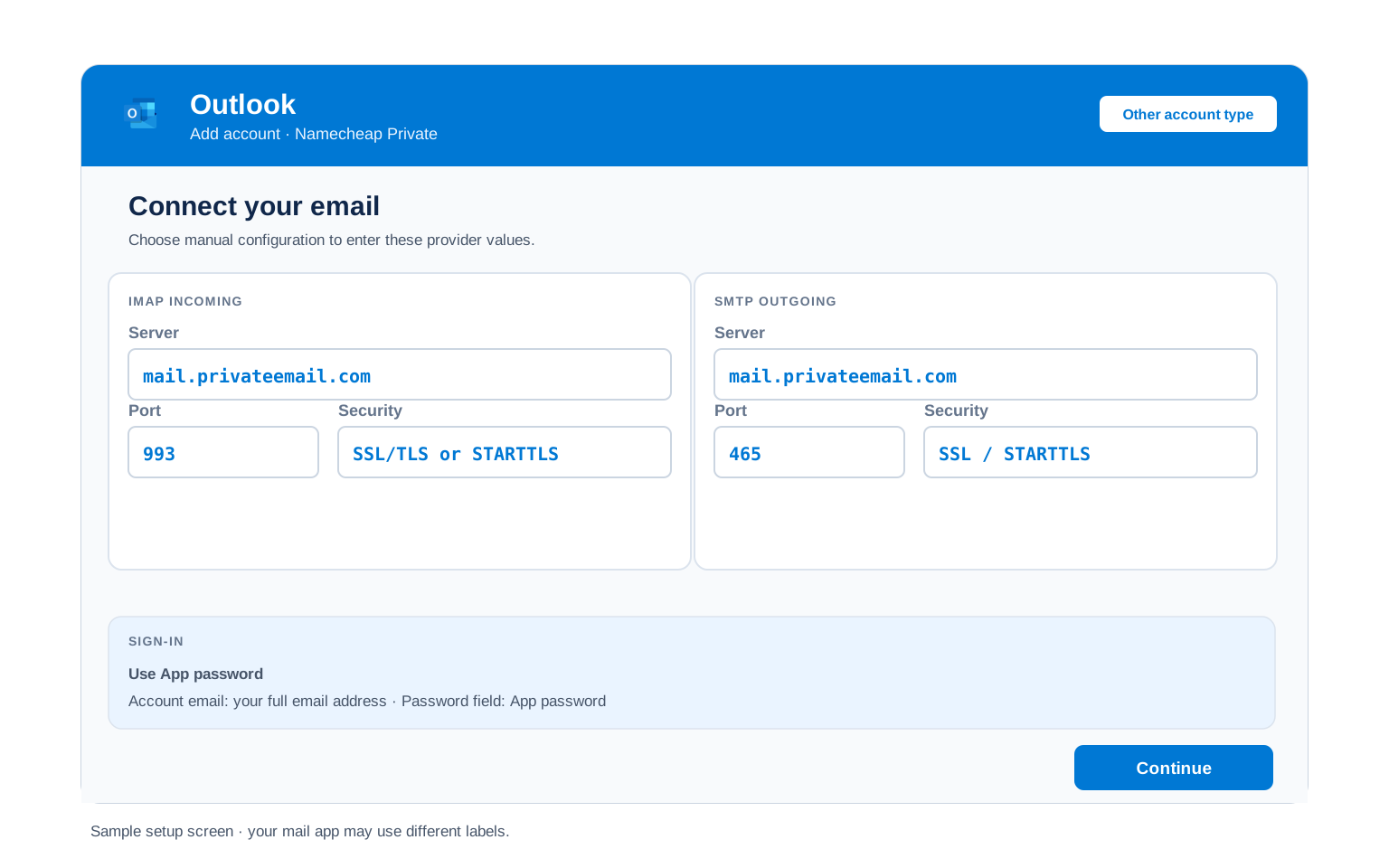
Outlook (Windows and Mac)
- Open Outlook → File → Add Account (in new Outlook, Settings → Accounts → Add account).
- Enter your Private Email address, open Advanced options and check "Let me set up my account manually".
- Choose IMAP and enter
mail.privateemail.comport993(SSL) for incoming andmail.privateemail.comport465(SSL) for outgoing. - Enter your mailbox password. New Outlook adds Private Email over IMAP only, not POP.
- Wrap up by emailing yourself. One message proves the incoming and outgoing halves at once.
Apple Mail (macOS)
- Open Mail → Settings → Accounts → Add Account → Other Mail Account.
- Enter your name, Private Email address and mailbox password, then continue.
- When detection fails, set
mail.privateemail.comas both incoming and outgoing. - Use IMAP 993 SSL incoming and 465 SSL outgoing, with your full address as the username.
- Make sure Mail stays ticked in the service list before finishing.
iPhone and iPad
- From iOS Settings, work through Apps, Mail, Mail Accounts, Add Account, then Other.
- Tap Add Mail Account and enter your name, address and mailbox password.
- Keep IMAP selected. Enter
mail.privateemail.comfor both incoming and outgoing. - Use 993 SSL incoming and 465 SSL outgoing, with your full address as the username.
- Press Save and give iOS a few seconds to check the account.
Android
- Launch your Android mail app of choice and hit Add account.
- Choose Other (IMAP) since Namecheap is not in the list.
- Enter your address and mailbox password, then pick Manual setup.
- Enter the servers:
mail.privateemail.com993 SSL incoming,mail.privateemail.com465 SSL outgoing. - Complete the wizard, then pull the inbox down to start syncing.
Thunderbird
- From Thunderbird, work through Account Settings, Account Actions, Add Mail Account.
- Enter your name, Private Email address and mailbox password, then select Continue.
- Choose Configure manually if detection does not fill in Namecheap.
- Set both servers to
mail.privateemail.com, IMAP 993 SSL and SMTP 465 SSL, with your full address. - Select Done. Folders sync on first open.
Private Email Webmail Settings#
Server settings connect your apps. These settings control how Private Email itself behaves. All of them live in webmail at privateemail.com under Settings.
Signature
Settings, then Signature. A signature added here shows in webmail only. Desktop apps like Outlook keep a separate one of their own.
Vacation Auto Reply
Settings, then Auto-Reply or Vacation Notice. Add a start and end date so it stops on its own. The reply works even when your computer is off because Private Email sends it from the server.
Filters and Folders
Settings, then Mail Filters. Server side rules sort your mail before your phone or Outlook ever sees it. Rules built inside an app only run while that app is open.
Spam and Blocked Senders
Settings, then Anti-Spam or Blacklist. Block a single sender or an entire domain. Blocked senders land in the Spam folder instead of your inbox.
POP3 vs IMAP#
| Feature | IMAP | POP3 |
|---|---|---|
| Where mail lives | On the Private Email server | Downloaded to 1 device |
| Multiple devices | ✅ Everything stays in sync | ❌ Each device sees different mail |
| Sent and deleted mail | ✅ Synced everywhere | ⚠️ Stays only on that device |
| Offline reading | ⚠️ Cached mail only | ✅ Full local copy |
| Server storage used | Yes, counts against your quota | Can be freed after download |
| Best for | Phone + computer, everyday use | Single PC, local archives |
Private Email Sending and Storage Limits#
Hit a limit and Namecheap pauses your sending for a while. Know the numbers before you bulk send or migrate a mailbox:
| Recipients per message | 50, across To, CC and BCC |
| Max message size | 50 MB, attachments included |
| Webmail attachment upload | 25 MB per file |
| Outgoing traffic quota | 2 GB per hour, per domain |
| Mailbox storage | Varies by plan (Starter, Pro, Ultimate) |
| What happens at the limit | Sending is paused for a while, then resumes |
Troubleshooting Namecheap Connections#
Find the exact error your email app shows, then apply the fix:
| Error you see | What it means | Fix |
|---|---|---|
| 535 5.7.8 authentication failed | SPA is on or the password is wrong | Turn off Secure Password Authentication in your client, then re-enter your mailbox password. That clears this error in most cases. |
| Server keeps refusing the connection | You may be on hosting email, not Private Email | If your mailbox was made in cPanel, the server is your hosting server name, not mail.privateemail.com. |
| Cannot connect to server | Wrong host, port or encryption | The host is mail.privateemail.com both ways. Use IMAP 993 SSL and SMTP 465 or 587. A VPN or antivirus app can block these ports too. |
| Webmail looks different or a feature is gone | Your mailbox moved to the 2026 platform | Your mail client settings do not change. Some Open-Xchange extras like Drive and public calendars are retired, so export them if you used them. |
| Messages stuck in Outbox | SMTP authentication is off | Turn outgoing authentication on, giving it the same sign in details as incoming. |
Reader Reported Fixes
Two fixes that come up again and again in Namecheap setups, beyond the error table above.
Untick Secure Password Authentication. This is the single most common Namecheap failure. In Outlook's outgoing server settings, SPA is sometimes on by default. Turn it off and the same password that was being rejected suddenly works.
Put mail.privateemail.com in both server boxes. One host does incoming and outgoing. People sometimes type imap. or smtp. in front of it and the connection fails. There are no such hostnames, so use the plain one both ways.
Moving Your Private Email?#
Moving to the new platform? Namecheap migrates your mail, contacts and calendars for you and checks each mailbox afterwards. You only need to act on legacy Open-Xchange extras like Drive files and public calendars, which do not carry over. Export those before your mailbox migrates.
Coming from another provider? The Univik Email Migration Tool copies every folder into Private Email. Enter your old account on one side and mail.privateemail.com with your mailbox password on the other.
Leaving Namecheap? The same tool copies your Private Email mailbox out to any other account, folder by folder.
Back up before any big change. Save the mailbox first so you keep a copy no matter how the move goes.
Rather not do it yourself? The Email Migration Services team scopes the transfer, carries it through, then verifies every folder landed.
Use These Settings in Univik Email Backup#
The same IMAP settings above let you download your complete Namecheap mailbox to your computer. Univik Email Backup lays the mailbox down as PST, MBOX, EML or PDF. Those files remain yours long after any account does.
- Fetch Univik Email Backup and set it up under Windows.
- Select IMAP from the source list. Namecheap is not named, so IMAP is the right choice.
- Sign in with your full email address and your mailbox password. No app password is needed here.
- If the tool asks for server details, use
mail.privateemail.comwith port993and SSL from the IMAP table above. - Decide on a format and a folder, then kick it off. Sizeable mailboxes carry on downloading behind the scenes.
Univik Tools That Use These Settings#
Many readers reach this page mid migration or mid archive. Each of these 3 tools takes the IMAP values above:

Email Backup
Download your complete Namecheap mailbox to PST, MBOX, EML or PDF before switching or closing the account.
Email Backup Tool →
Email Migration Tool
Copy every folder from Private Email straight into Gmail, Microsoft 365 or any other account. No manual export needed.
Email Migration Tool →
Email Converter Tool
Already holding MBOX, EML or OST from a previous export? Recast it into PST, PDF or whatever your next app expects.
Email Converter Tool →Prefer to hand the whole migration to experts?
None of this has to become your problem to solve. The Univik migration team takes the project on whole, planning it, running the transfer, verifying the outcome, then reporting on where each folder finished up. We have been at it since 2013, handling anything from one mailbox to a full company move.
Email Settings Glossary#
IMAP
Internet Message Access Protocol. Reads mail that is left on the server, which keeps inbox, folders and read marks aligned wherever you look.
POP3
Post Office Protocol version 3. Pulls mail to one device and may delete it from the server. Older method, still useful for local archives.
SMTP
Simple Mail Transfer Protocol. Sends your outgoing mail. Every account needs it next to IMAP or POP3, which only receive.
SSL / TLS / STARTTLS
Encryption for the connection. SSL/TLS encrypts from the start (ports 993, 995, 465). STARTTLS upgrades a plain connection (port 587).
App Password
A 16 character code standing in for your real password inside an app. The advantage is that one app can be cut off without disturbing your main password.
OAuth
Authenticating in the provider's own window rather than handing a password to the app. This is the direction most large providers have taken.
How We Verify These Settings#
Univik has been building email backup, migration and converter software since 2013. Our tools sign in to Namecheap over IMAP and SMTP every day for thousands of users, so a changed server, port or login rule shows up in our connection logs before most guides notice it.
Every value on this page is confirmed with 3 checks: a live IMAP and SMTP connection from Univik Email Backup, a comparison against Namecheap's official documentation and a test sign in through current webmail. We re verify after any Namecheap announcement and at least once a quarter.
Found something that no longer matches what Namecheap shows you? Tell us and we will retest and update the page, with the change logged in what changed recently.
 Help & Support
Frequently Asked Questions
Both use one host, mail.privateemail.com. IMAP is port 993 with SSL. SMTP is port 465 with SSL or 587 with STARTTLS. Sign in with your full email address and your mailbox password. No app password is needed.
The usual cause is Secure Password Authentication being left on. Namecheap rejects SPA, so untick it in your client and the same password works. If it still fails, you may have hosting email rather than Private Email, which uses a different server.
IMAP for almost everyone. It keeps your phone, computer and Private Email webmail in sync. It is also the safer choice through the 2026 platform move since mail stays on the server. POP3 suits only a single computer. Full comparison here.
No. Namecheap Private Email has no app password. Every app, on any device, uses your normal mailbox password. The only extra step is leaving Secure Password Authentication switched off in your client.
In your Namecheap account, open the Private Email dashboard, pick the domain and mailbox, then set a new password. You can also change it inside webmail. Update the new password in every mail app afterwards.
Yes. Use mail.privateemail.com with SSL and leave SPA off. For extra safety you can turn on 2FA for your Namecheap account, which protects the dashboard and webmail while your mail apps keep using the mailbox password.
An IMAP client brings mail down as it syncs, while a purpose built backup tool works faster and produces standard files that open anywhere. See how to back up your Namecheap mailbox. It is worth doing before the 2026 migration so you hold your own copy whatever happens.
No. The 2026 platform move changes how webmail looks, not your mail client settings. mail.privateemail.com with your mailbox password keeps working. The only thing to check is whether you used any Open-Xchange extras, which are being retired.
An email migration tool copies mail directly between the 2 accounts over IMAP. You need the Namecheap IMAP settings with your mailbox password for this side, plus the destination account details. Every folder and date stays intact.
Uneasy about the risk? Facing a queue of accounts? Our managed email migration service handles the whole thing.
Other Email Provider Settings
Summary: Namecheap Settings at a Glance
- One host: mail.privateemail.com for everything
- IMAP port 993, POP3 995, both SSL/TLS
- SMTP port 465 (SSL) or 587 (STARTTLS)
- Username is your full email address
- No app password, use your mailbox password
- Turn SPA off in your client or login fails
- Pick IMAP for phone and computer sync
- Up to 50 recipients per message