Quick Answer
To extract attachments from IMAP email in bulk, sign in to your mailbox over IMAP, tick folders and save every attachment to one folder on your PC. One run covers every ticked folder.
The File Extensions Filter limits your run to file types you list, for example pdf,xls.
Attachments are the part of an IMAP mailbox you usually need most and open least. Invoices, contracts and spreadsheets travel as attachments inside thousands of messages, so finding one attachment means opening its message first.
IMAP Backup can extract attachments from IMAP email in bulk. IMAP Backup signs in to your mailbox once and then writes every attachment from folders you tick to one folder on your PC, which turns a full mailbox into a plain list of files without a single manual save. You don't open one message yourself.
Why Is It Slow to Extract Attachments From IMAP by Hand?
A mail app or a webmail page treats an attachment as part of its message. You open a message and save its file. Then you move on to your next message and repeat both clicks. That routine works for ten messages, but that routine usually breaks down around a few hundred messages because every file costs the same two clicks.
Subfolders add a second problem because attachments sit in many places. My test mailbox has 17 folders that hold mail, which means a manual search can skip a folder without any warning. In my trial PST export of that mailbox 81 messages held 160 attachments (the largest was 5 MB), which is a lot of saving by hand for such a small mailbox.

Which Method Fits Your Attachment Job?
Four methods can pull files out of an IMAP mailbox. The table lists what each method asks of you.
| Method | What it asks of you | Limit to expect |
|---|---|---|
| Host webmail | Webmail asks you to open each message and save its files | A large folder takes long and subfolders are easy to skip |
| Mail app Save All | Outlook and Thunderbird save the files of one message at a time | You repeat the action for every message |
| Forward to yourself | Forwarding moves attachments into a single new mailbox | Forwarded mail stays inside messages and still needs opening |
| IMAP Backup | IMAP Backup writes the attachments of every ticked folder to one folder | You choose folders and file types before you press Save |
Webmail is fine for one invoice but for a whole IMAP mailbox I'd use the last row, because a single run covers every ticked folder. The file extensions filter then keeps output limited to file types you want, which saves you a sorting job afterwards.
Who Needs to Download IMAP Attachments in Bulk?
Four jobs usually call for a bulk attachment run.
- A bookkeeper Supplier invoices arrive as PDF files and the month-end pack needs all of them.
- A project lead Drawings and spreadsheets sit in old threads and the handover is due.
- A records officer A departing colleague's IMAP mailbox has to be reduced to its files.
- A freelancer A client asks for every PDF and spreadsheet you received from the client.
How Do You Extract Attachments From IMAP Email in Bulk?
The attachment work below runs in IMAP Backup, IMAP backup software for Windows that has an Extract menu. Open the mailbox you want to empty of files as you read, since each step points at a screen you can match.
- Add the mailbox. Choose Open, then Email Accounts, then Add account. Type your mailbox address and password into the two boxes. Press Find under Advance Settings when a server name is unknown, because Find looks the server up from your address.
- Tick the folders. The folder tree on the left carries a tick box beside every folder. Keep boxes of folders that hold attachments and clear the rest. Each folder shows its message count, so you can tell where your mail sits.
- Open the Attachments screen. Click the Extract menu and pick Attachments. Contact Photos and Phone Numbers sit in the same menu, next to Email Addresses and the combined Associated Email & Phone Numbers entry.
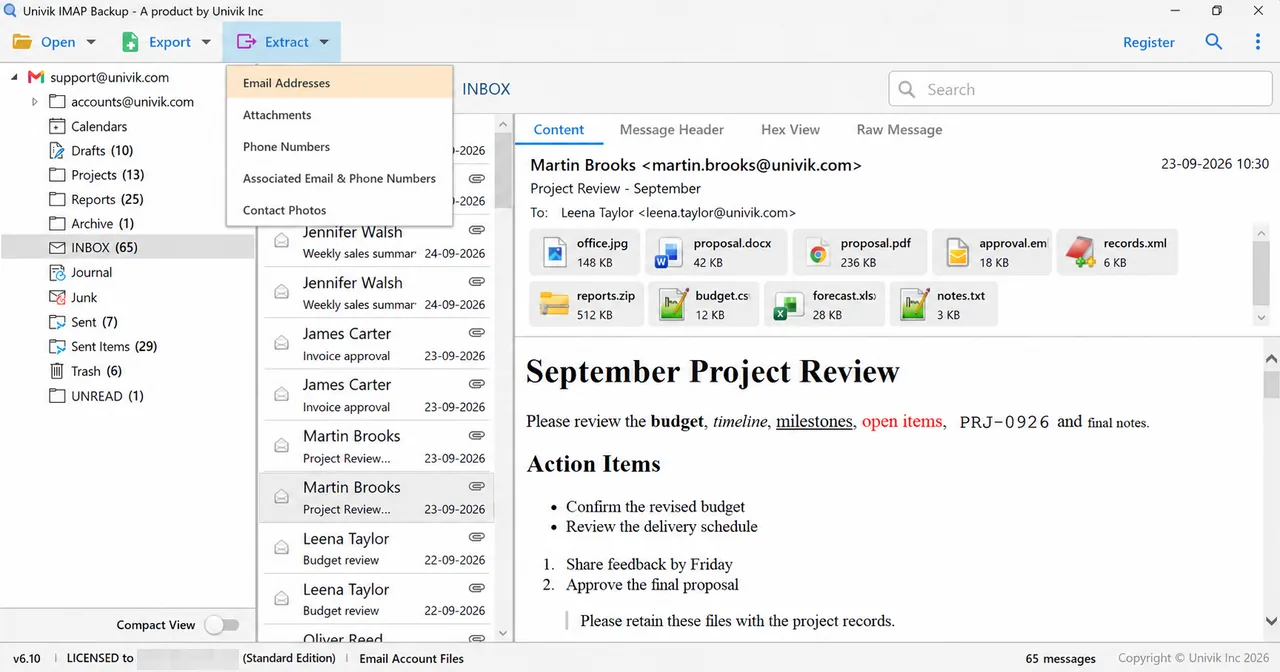
The Extract menu with Attachments in the list. - Set Location and the filter. The Location box starts at
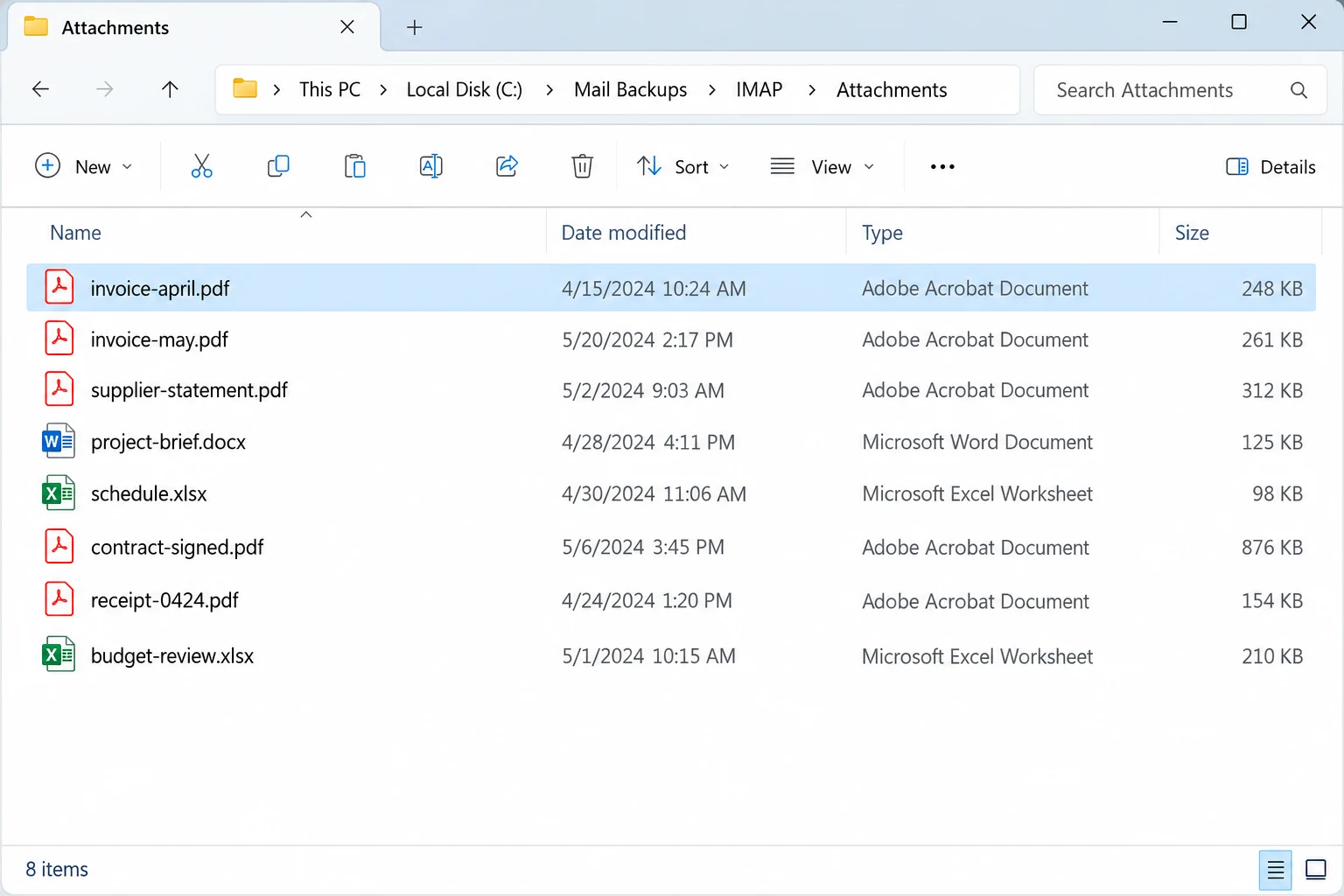
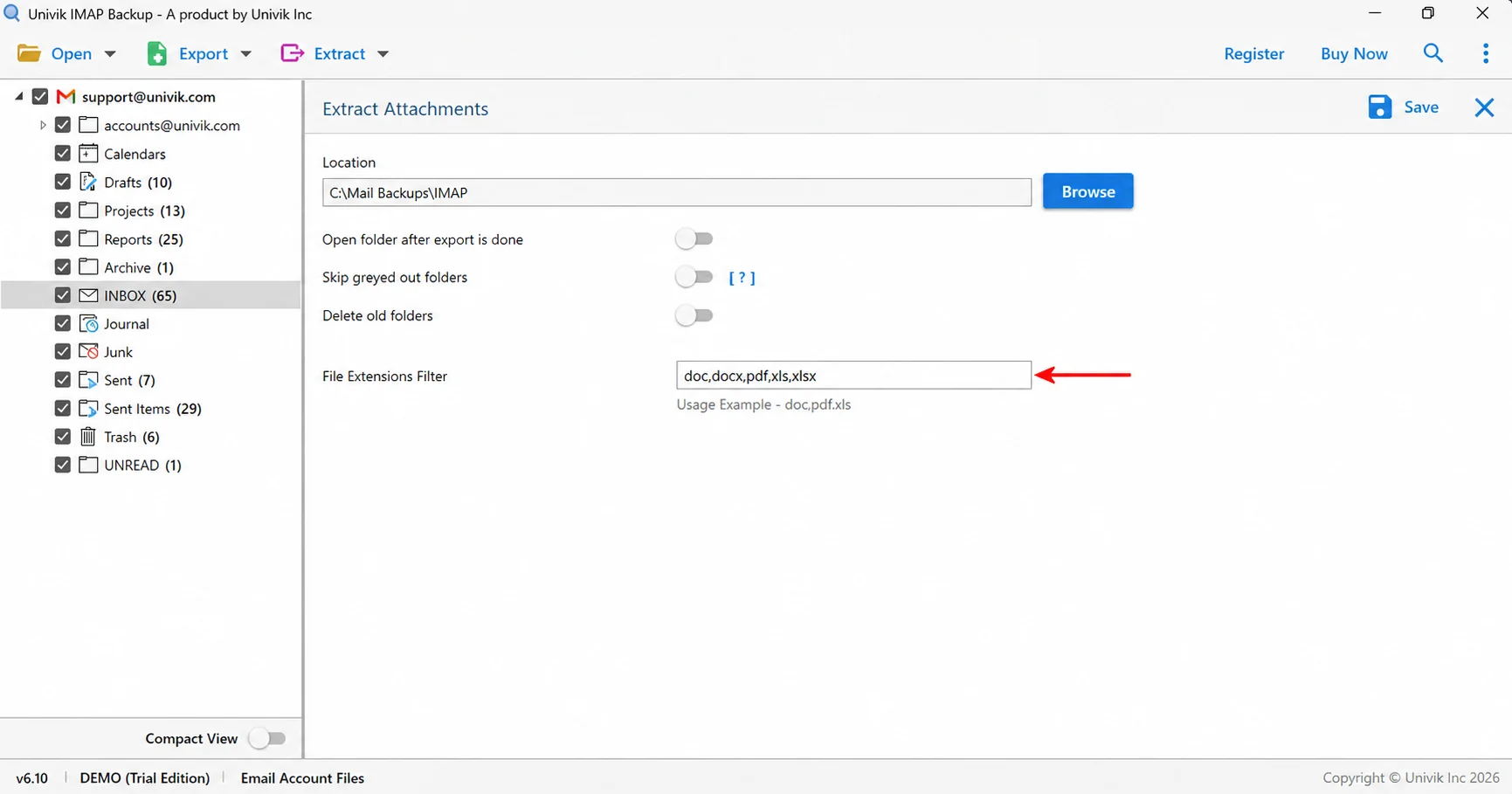
C:\Mail Backups\IMAP. Press Browse to choose another folder. Then type the file types you want into File Extensions Filter. - Press Save. Click Save in the top right corner and let your run finish before you open the Location folder and look through your files. The Open folder after export is done switch can open that folder for you. Delete old folders stays off until you turn it on.
Note: the preview pane shows each attachment of a selected message as a chip with its file name and size. Those chips are a handy way to learn which file types your mailbox holds before you fill in the filter.
How Do You Fill the File Extensions Filter?
The File Extensions Filter box takes extensions separated by commas. The box prints its own example, doc,pdf,xls, so write your list of extensions in the same form with no spaces.
Newer Office files often carry a longer extension, so a mailbox may hold both .doc and .docx files and the filter box gives you a simple way to name both. A list like doc,docx,pdf,xls,xlsx costs nothing to type and it's a safe habit. Read the list once before you press Save, because a typo in the filter box is the one mistake that changes the result.
IMAP Backup logs in with the mailbox address and password. The Extract menu then saves the attachments of the ticked folders onto your PC.
Download Free Trial Select a Licence - From $99Run one folder first and look at the files that land in the Location folder.
What If Your Attachment Run Looks Like This?
Do this: Add its extension to the File Extensions Filter. A mailbox may hold both .doc and .docx files, so list both spellings next to each other.
Do this: Open your webmail with the same address and password to rule out a typo. Then use Find under Advance Settings so the IMAP server is filled in from the address again.
Do this: Look at the Location box before you press Save. Press Browse to pick another folder when the box shows the wrong path.
Do this: Clear their boxes in the folder tree before you press Save. Trash and Junk are folders too, so clear them when their files are not wanted.
If an attachment run behaves in a way this guide doesn't cover, write to Univik support.
- Extracting attachments from IMAP email by hand means one open and one save for every message.
- IMAP Backup writes the attachments of every ticked folder to one Location folder on your PC.
- The File Extensions Filter takes comma-separated extensions like doc,pdf,xls with no spaces.
- Listing both .doc and .docx covers older and newer Office files.
- The preview chips show file names and sizes, so you can choose the extensions before you save.
FAQ: Extract Attachments From IMAP
How do I extract attachments from IMAP email?
Add the mailbox with its address and password. Tick the folders, go to Extract and then Attachments, fill the Location box and the File Extensions Filter and press Save in IMAP Backup.
Can I download IMAP attachments in bulk?
Yes, the Attachments screen of IMAP Backup works on every folder you tick, so one run covers many messages. The extracted files go to the folder named in the Location box.
How do I extract only PDF files from an IMAP mailbox?
Type pdf into the File Extensions Filter box before you press Save. Separate several extensions with commas and no spaces, as in the example doc,pdf,xls.
Where do the extracted attachments go?
The Location box holds the output folder. The output folder starts at C:\Mail Backups\IMAP and the Browse button lets you choose another folder.
Can I choose which folders to extract from?
Yes, the tree on the left puts a tick box beside each folder, so you can keep the folders with attachments and clear the others.
Does the Extract menu cover anything besides attachments?
Yes, the Extract menu also holds Email Addresses, Phone Numbers, Contact Photos and a combined Associated Email & Phone Numbers entry.
Is Delete old folders turned on by default?
No, the Delete old folders switch is off when the Attachments screen opens, so you decide whether to turn the switch on.
How much does IMAP Backup cost?
IMAP Backup licences start at $99 for 2 PCs. The free trial lets you open the Attachments screen on one folder first.

Screen details match IMAP Backup 6.10 as of October 27, 2026. The folder and attachment counts come from a test mailbox that I loaded in the trial build.