Quick Answer
To extract email addresses from IMAP, sign in to your mailbox, tick folders and choose header fields to read. Press Extract and addresses appear in one list that you can save as a text file.
From, To and Cc cover senders and recipients. The result works as an IMAP sender list for your own records.
Every IMAP mailbox holds a list of people you never wrote down. Those people appear in message headers as senders, recipients and anyone copied on a thread, so the addresses exist but they're spread over thousands of messages.
IMAP Backup can extract email addresses from IMAP mailboxes in one pass. The pass needs one sign-in, a tick on each folder to read and a choice of header fields. IMAP Backup then collects the addresses into a list that you can save as a text file, which is a quick way to see everyone a mailbox has dealt with.
Why Is It Hard to Extract Email Addresses From IMAP by Hand?
A mail app shows one sender at a time. Copying a sender means opening a message and copying its address. That address then gets pasted into a sheet and your next message needs the same copy and paste. The routine is tolerable for twenty messages but a mailbox with a few thousand messages turns that routine into a very long copy job.
Recipients make the copy job longer because To and Cc lines hold addresses too. A manual pass usually skips To and Cc lines because the sender feels like an obvious source. My test mailbox holds 173 messages, so even that small mailbox means 173 headers to read (and 173 chances to miss a Cc).

Which Method Fits Your Address List Job?
Four methods can give you an IMAP sender list. The table shows what each of the four methods covers.
| Method | What it covers | Limit to expect |
|---|---|---|
| Copy by hand | Copying reads one message at a time from its header | Work grows with every message and recipients get skipped |
| Contacts export | A contacts export lists people saved in your address book | People who only wrote to you are usually missing |
| Mail app autocomplete | An autocomplete list remembers addresses you typed or replied to | Your list stays inside the mail app and is hard to export |
| IMAP Backup | IMAP Backup reads header fields you tick in every ticked folder | You choose folders and fields before you press Extract |
Copying by hand covers a handful of people well. When your job covers a whole IMAP mailbox I'd choose the last row, because that method reads every ticked folder in one run. Field boxes in that method tell you exactly which header lines were read, which makes your result easy to explain to a colleague.
Who Needs to Extract Email Addresses From an IMAP Mailbox?
Four jobs usually call for an IMAP address list.
- A sales admin A shared sales mailbox holds years of enquiries and nobody keeps a list of senders.
- A recruiter Candidates wrote to an old inbox and a new team needs their addresses.
- A researcher A survey went out from one mailbox and people who replied need a count.
- An office manager A move to a new mail system starts with an empty address book.
How Do You Extract Email Addresses From IMAP in Steps?
IMAP backup software from Univik called IMAP Backup runs these steps on Windows. Keep the mailbox you want to read in view, because every step names a screen that you can match against it.
- Add your mailbox. Click Open, choose Email Accounts and select Add account. Fill in an address and password for your mailbox. If a server name is unknown, press Find under Advance Settings and the server is looked up from your address.
- Mark folders to read. Each folder in the left-hand tree has its own tick box and a message count. Clear boxes of folders that hold no mail you need.
- Open the Email Addresses screen. Click the Extract menu and pick Email Addresses. The menu has four more entries: Contact Photos, Phone Numbers, Attachments and Associated Email & Phone Numbers.
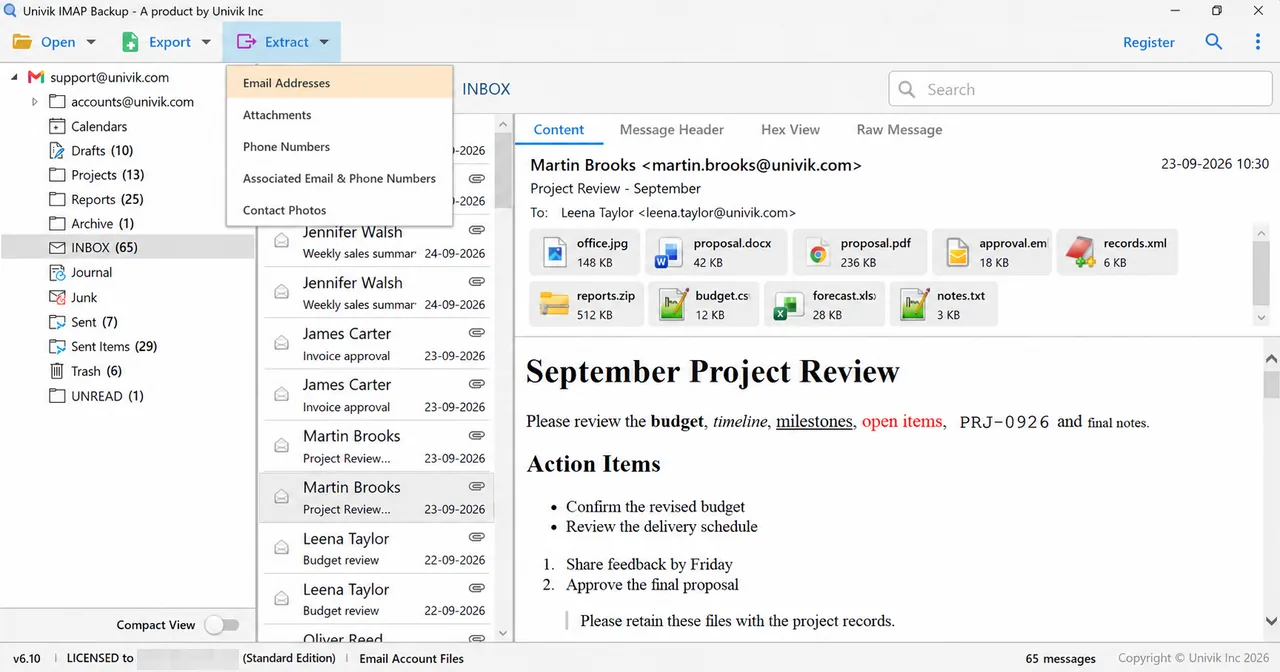
The Extract menu with Email Addresses at the top. - Choose the fields. Tick the header lines to read in the Select fields to extract email addresses from box. Then check the Location box, which starts at
C:\Mail Backups\IMAPand ends with a name that beginsExtracted_EmailAddresses_. - Press Extract and then Save. Click Extract in the top right corner and read the Email Addresses Found box. Then click Save to write the list to the Location path.
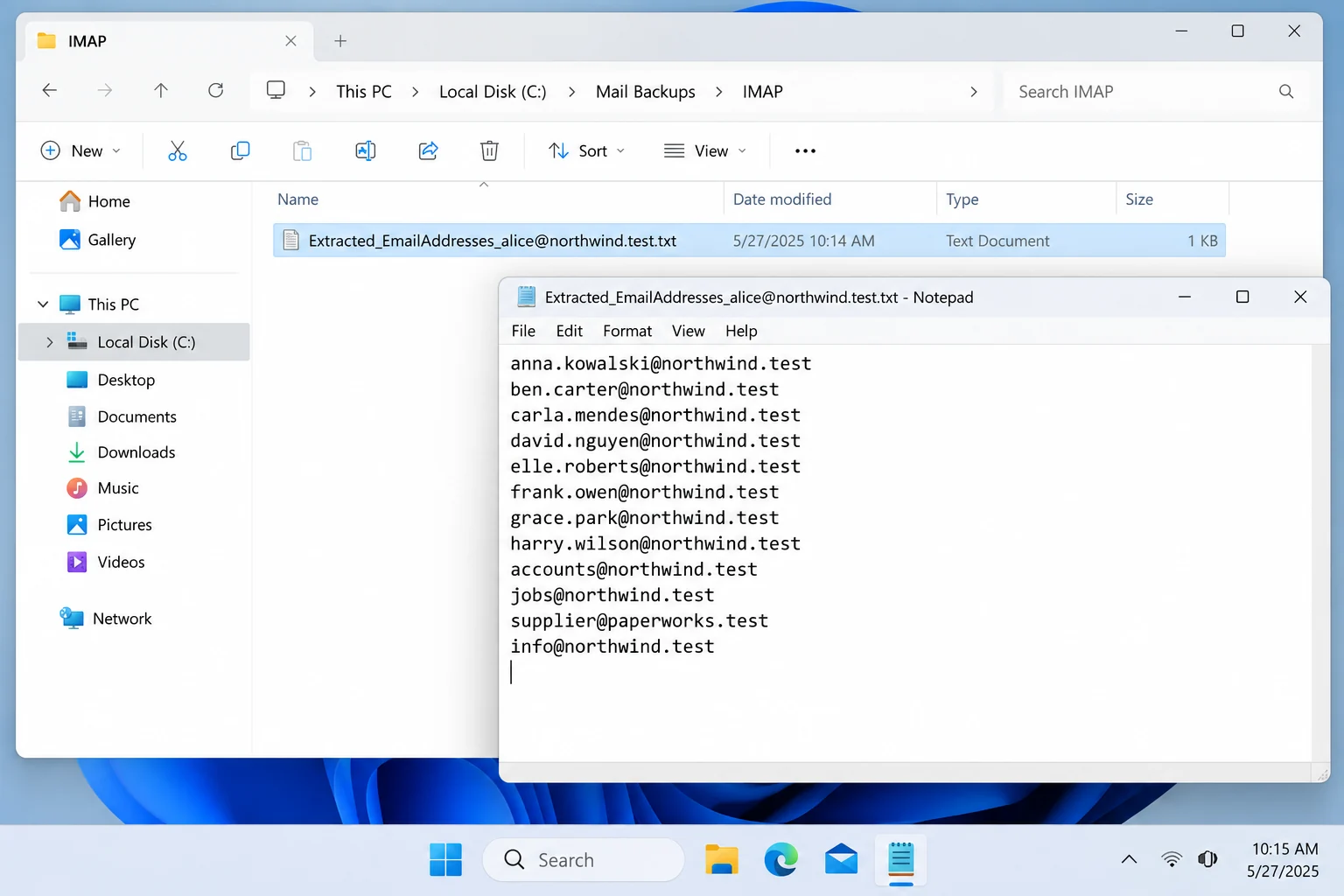
Note: the Location box ends with a file name. The list is therefore written as one text file and not as a folder of files, so it's easy to attach the list to a message.
Which Fields Should You Extract Email Addresses From?
The Select fields to extract email addresses from box has six tick boxes. Three of the six boxes are ticked when the screen opens: From, To and Cc. The other three boxes start clear: Subject, Message Body and Message Header.
The From box covers the people who wrote to you. The To and Cc boxes cover the people you wrote to and the people copied on a thread. Ticking Message Body or Message Header widens the search to addresses typed inside the text. That usually adds more addresses and it may add some you don't want, so tick one extra box at a time and watch what each box adds.
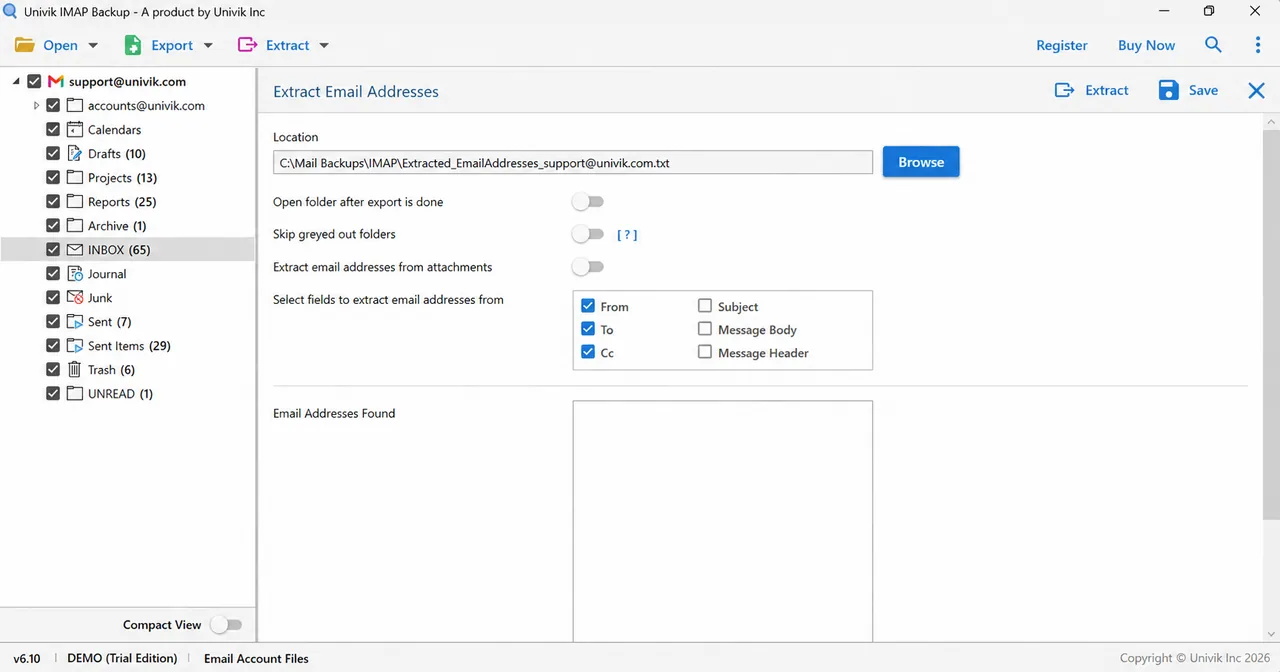
The switch named Extract email addresses from attachments is off when the screen opens. Turn the switch on only when the addresses you need sit inside attached files, because the other fields never look inside a file.
Before you use a list for mailings, check the rules on email marketing that apply in your country, because the people on the list may not have agreed to receive your messages.
IMAP Backup logs in to the mailbox with its address and password. Its Extract menu then reads the header fields you tick in the folders you choose.
Download Free Trial Select a Licence - From $99Pick one folder and read what the Email Addresses Found box shows.
What If Your Address List Looks Like This?
Do this: Check the folder tree first because only ticked folders are read. Then check the field boxes, since a clear To or Cc box leaves those addresses out of the list.
Do this: Tick Message Body or Message Header and press Extract again. Addresses typed inside the message text sit outside the From, To and Cc lines.
Do this: Turn on Extract email addresses from attachments and press Extract again.
Do this: Try the same address and password in webmail to rule out a typo. Then run Find under Advance Settings again so the IMAP server is looked up afresh.
If an address list turns out differently from this guide, write to Univik support.
- Extracting email addresses from IMAP by hand means one open and one copy for every message.
- IMAP Backup reads the header fields you tick in every ticked folder.
- From, To and Cc are ticked when the Extract Email Addresses screen opens while Subject, Message Body and Message Header start clear.
- The Email Addresses Found box shows the list and Save writes it to the Location path.
- An address list for mailings needs a check against the email marketing rules of your country.
FAQ: Extract Email Addresses From IMAP
How do I extract email addresses from IMAP?
Connect the mailbox with its address and password. Mark the folders and go to Extract, then Email Addresses. Choose the fields, press Extract in IMAP Backup and then press Save to write the list.
Which fields can I extract email addresses from?
The screen offers From, To, Cc, Subject, Message Body and Message Header. From, To and Cc are ticked when the screen opens.
Where does the address list get saved?
The Location box holds the path. The path starts at C:\Mail Backups\IMAP and ends with a text file name that begins Extracted_EmailAddresses_. The Browse button lets you change the path.
Can I extract email addresses from attachments too?
The screen has a switch named Extract email addresses from attachments. The switch is off when the screen opens, so you turn the switch on when you need it.
Can I choose which folders to read?
Yes, one folder or the whole mailbox can be read because a tick box sits next to every folder in the tree.
What does the Email Addresses Found box show?
The Email Addresses Found box lists the addresses after you press Extract. Save then writes the addresses to the Location path.
Does the Extract menu cover anything besides email addresses?
Yes, Contact Photos, Phone Numbers, Attachments and a combined Associated Email & Phone Numbers entry share the Extract menu.
How much does IMAP Backup cost?
A licence of IMAP Backup costs from $99 for 2 PCs. A free trial covers a first look at the Email Addresses screen on one folder.

Written on October 27, 2026 from the Extract Email Addresses screen of IMAP Backup 6.10. The message count comes from a test mailbox loaded into the trial build.