Quick Answer
To back up hosting email accounts, sign in to each mailbox over IMAP and save its folders as files before your hosting plan ends. Each mailbox needs its address, its password and an IMAP server name from your host.
A saved copy outside your hosting account keeps working after a plan closes. A hosting mailbox backup is complete when saved files match the folder counts.
A hosting plan holds your domain mailboxes on your host's server, so every address you read through webmail or Outlook lives on a machine you don't own. When a hosting plan ends or you move to a new host, those mailboxes usually go with that plan.
Back up hosting email accounts over IMAP before that happens. Each hosting mailbox needs one sign-in, after which mailbox folders are saved to your PC. That quick save makes your old host safe to close because saved folders no longer depend on that host.
Why Does Hosting Email Disappear When a Plan Ends?
Hosting email sits inside your hosting account, so closing that account usually closes its mailboxes too. A host may keep data for a grace period after a plan lapses. However, that period differs from host to host, so your host's own notice is the only date you can plan around and you should read that notice first.
A move to a new host adds a second trap because a new host starts with empty mailboxes. Nothing carries your old mail across unless you copy that mail yourself. Webmail and phone apps (Outlook, Apple Mail or Gmail) show only what your old mail server still holds, so they can't rescue a mailbox after that server closes.

Which Route Fits Your Hosting Mailboxes?
Four routes can back up email from an old web host. The table shows what each route leaves you with.
| Route | What you get | Limit to expect |
|---|---|---|
| Host webmail | Webmail opens or saves messages one at a time | Webmail makes a full folder take long and a subfolder is easy to miss |
| Forwarding | Forwarding copies new mail from the day you switch it on | Old mail stays on the old server |
| Mail app on your PC | A mail app keeps a local copy that follows the server | The copy can drop a message when the server drops it |
| IMAP Backup | IMAP Backup writes files to your PC for every ticked folder | The trial stops at 10 items for each folder |
I'd pick the last row for any hosting mailbox you can't afford to lose, because IMAP Backup saves every ticked folder in one pass and shows the counts before you save. Webmail still works for a single message, but webmail gets slow once you need a whole folder.
Who Needs to Back Up Hosting Email Accounts?
Four hosting situations usually call for a mailbox backup.
- A site mover Your website goes to a new host next week and the old mailboxes close with the plan.
- An agency lead Each client domain has several mailboxes and every one needs a copy.
- A site closer The website is shutting down but years of mail still matter.
- A domain buyer You bought a domain with its mailboxes and want the mail history.
How Do You Back Up Hosting Email Accounts Step by Step?
The tool in these steps is IMAP Backup, IMAP backup software for Windows. Keep one hosting mailbox open in webmail as you go, because every step names a screen you can compare with that mailbox.
- Collect the mailbox details. Write down each address with its password and the IMAP server name. Your host lists the server name on its mail settings page. Hostinger email settings shows what such a page looks like.
- Add the first mailbox. In IMAP Backup go to Open and then Email Accounts and pick Add account. Enter the mailbox address and its password, then expand Advance Settings and press Find, which fills in the IMAP server from the address. The port should read 993 with Secure Port ticked, a setting that matches RFC 8314 on encrypted mail access.
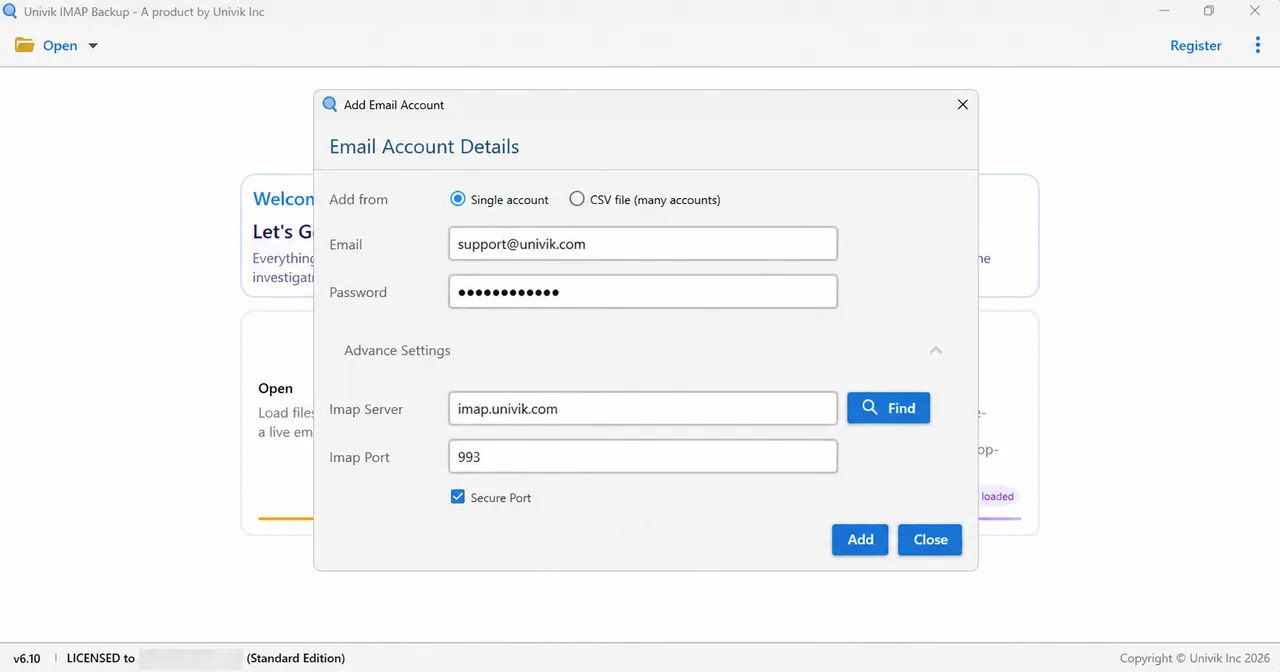
The Add account window after Find has filled in the IMAP server. - Read the folder tree. The folder tree lists every folder with its message count. My test mailbox holds 173 messages, a fixed number I could compare against after the save.
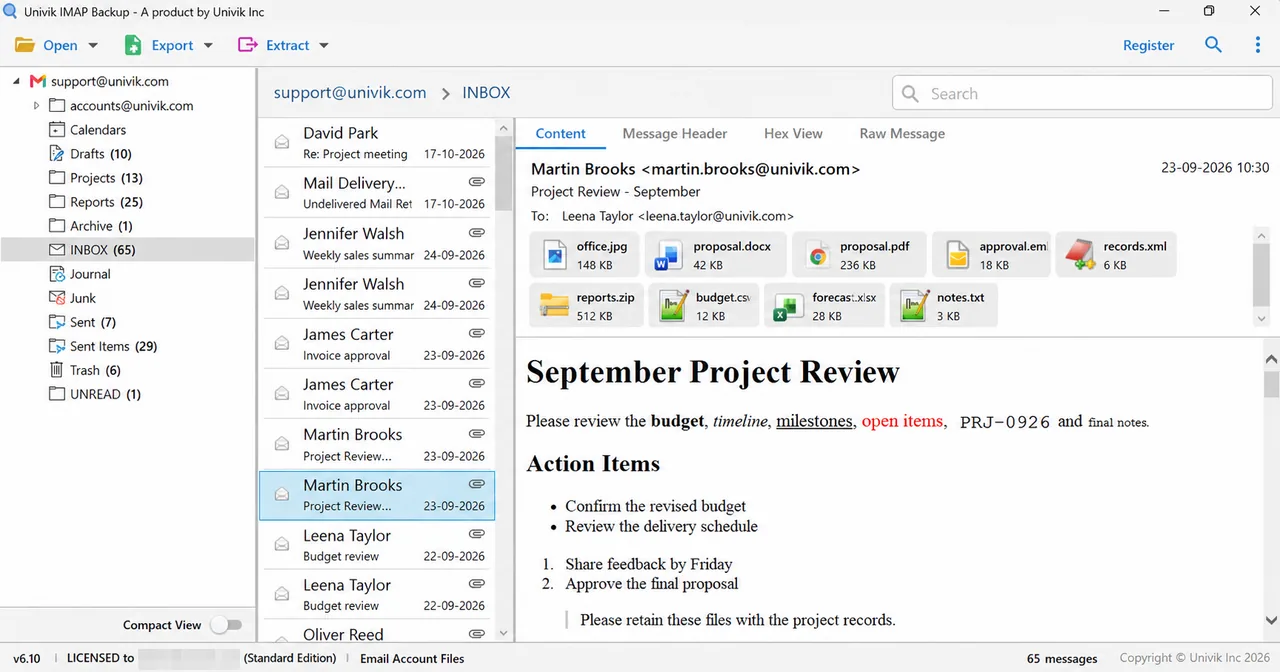
The folder tree of a signed-in mailbox with a count beside each folder. - Tick folders and choose a format. Tick the folders you want, then open the Export menu and choose one format. The Location box shows where the files will land, so check it before you go on.
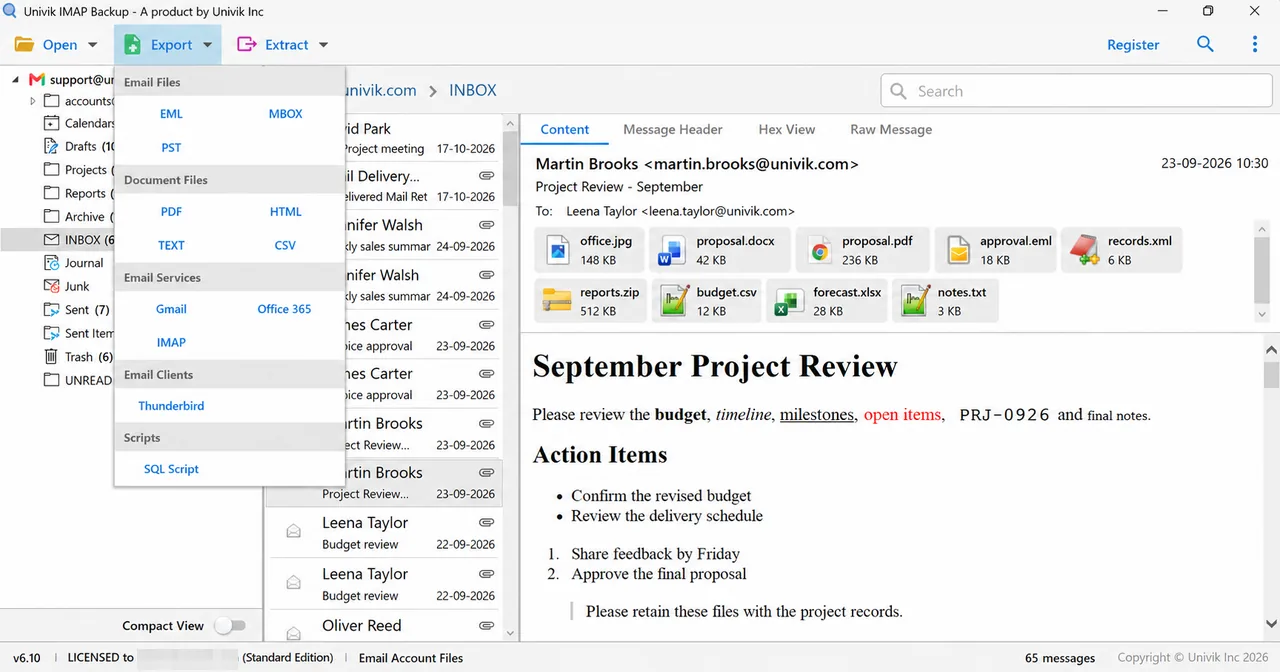
The Export menu lists the file formats and the mailbox targets. - Save and compare the counts. Press Save in the top right corner and let the run finish, then open the output folder and check its files against the tree counts before you close the old hosting account. With many mailboxes, pick Add accounts from CSV file and list one mailbox on each line as address,password. Then repeat steps 3 to 5 for each account.
Note: Trash and Junk count as folders in the tree. Leave their boxes empty unless the backup should keep the spam and the deleted mail.
Which File Format Suits a Hosting Mailbox Backup?
The format depends on where the mail goes next. PST opens in Outlook and MBOX opens in Thunderbird while PDF suits a records folder. The Export menu also has an IMAP option for sending mail into a live mailbox on the new host.
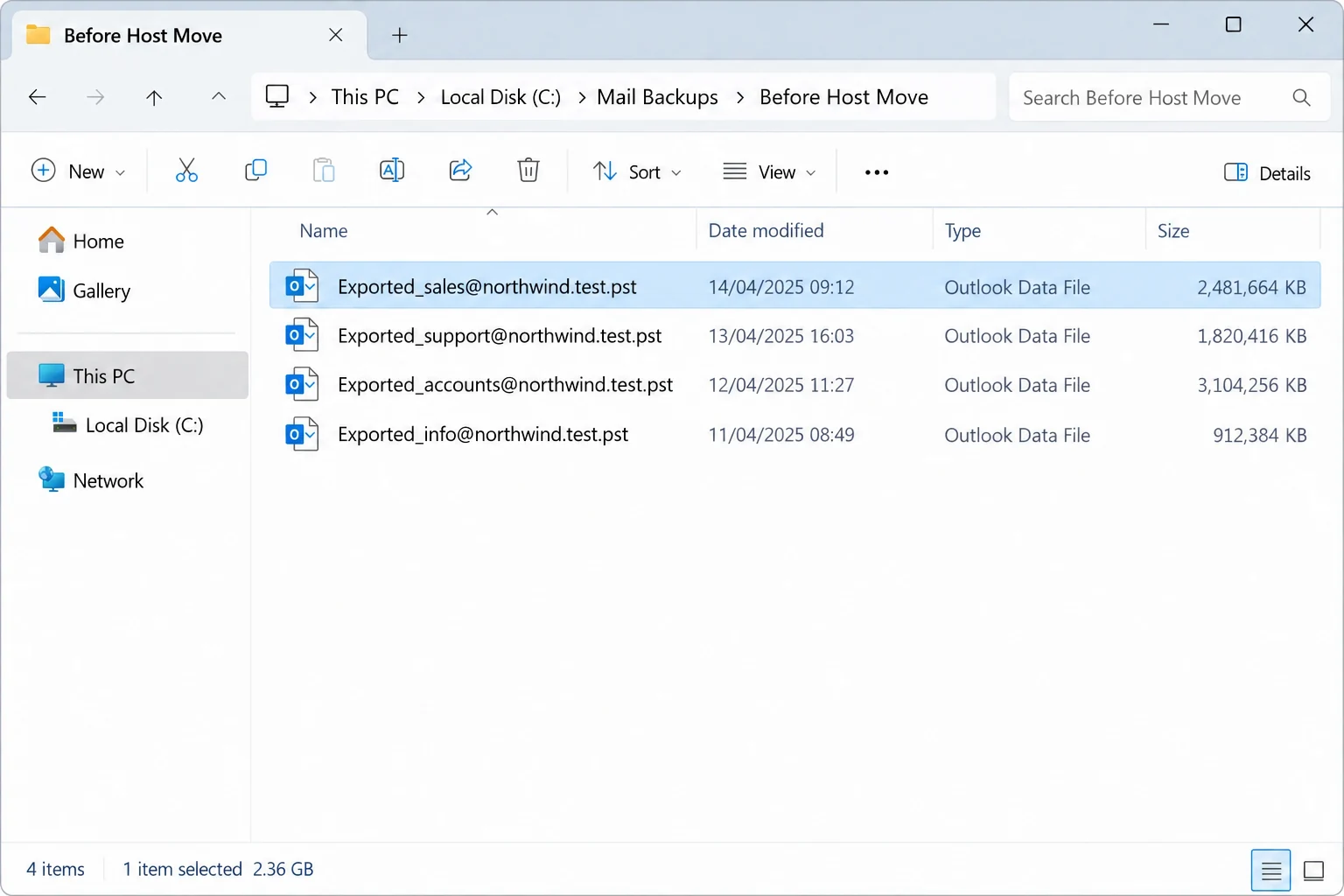
PST adds one more choice because a mailbox can go into one file or into many. In my test mailbox a single PST came to 38.8 MB and held 81 messages in 17 folders, while the individual PST option wrote 17 files with one file for each folder that had mail. That 81 is a trial figure because the trial saves 10 items from each folder, whereas a licensed run saves every message.
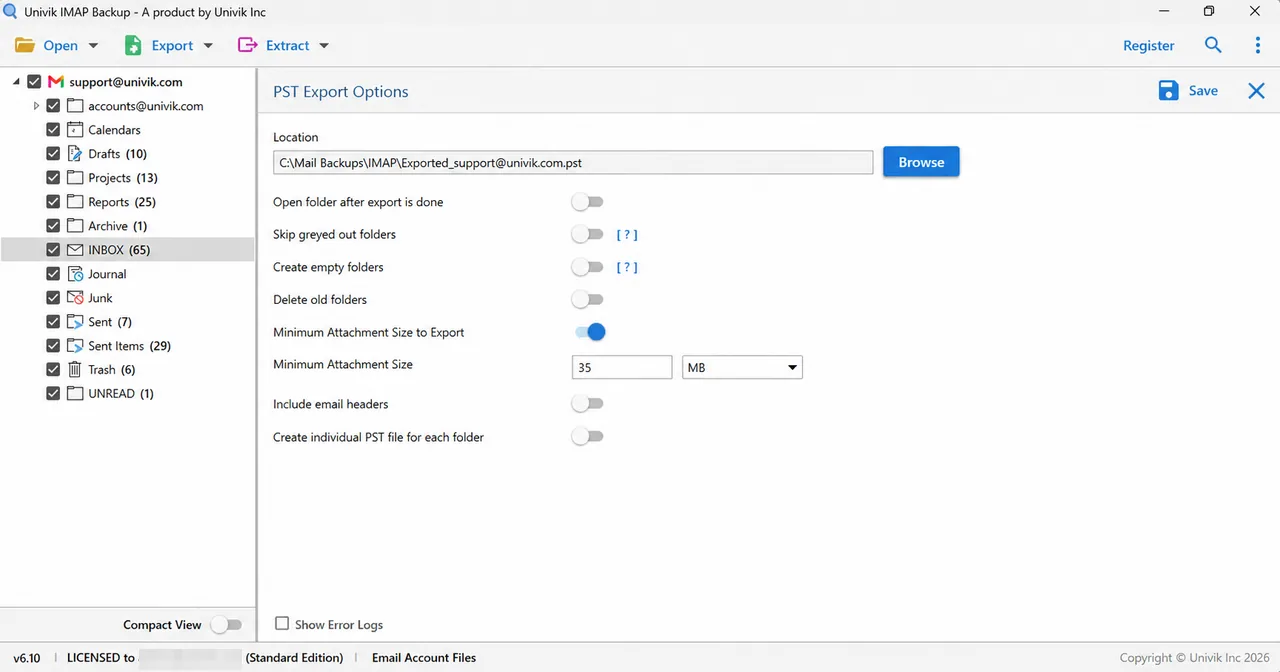
Choose the single PST when you want one file to import. Choose the individual PST option when each folder needs to go to a different person.
Note: the PST screen carries a Minimum Attachment Size to Export option that starts at 35 MB. While that option is on, a mailbox with no attachment of that size exports 0 messages, so clear the option for a full backup.
IMAP Backup opens a hosting mailbox with the address and password you already use. The folders you tick are written to a folder on your PC.
Download Free Trial Select a Licence - From $99Run one mailbox first and set its saved files beside the folder tree counts.
What If Your Hosting Mailbox Looks Like This?
Do this: Start with the mailboxes that hold the most mail and save one folder at a time. A short first run shows whether the sign-in works, which is a safe check before you commit to a large folder.
Do this: Log in to your host's webmail with the same address and password. When webmail works, return to Advance Settings, press Find once more and confirm port 993 with Secure Port ticked.
Do this: Press Find in Advance Settings because it looks up the IMAP server from the email address. If Find returns nothing, your host's mail settings page lists the name.
Do this: Pick Add accounts from CSV file and list each mailbox on its own line as address,password. The same window holds a sample CSV file.
If a hosting mailbox acts in a way this guide doesn't cover, write to Univik support.
- Hosting email usually ends with the hosting plan, so the backup of each hosting mailbox comes first.
- A new hosting plan starts with empty mailboxes, so old hosting mail only arrives if you copy it.
- IMAP Backup signs in to each hosting mailbox with its address and password and then lists every folder with a count.
- PST, MBOX and PDF cover Outlook, Thunderbird and records folders.
- IMAP Backup shows folder tree counts. A hosting mailbox backup is complete when the saved files match the folder tree counts.
FAQ: Back Up Hosting Email Accounts
How do I back up hosting email accounts?
Sign in to each mailbox over IMAP with its address and password, tick the folders and save them as files before the plan ends. In IMAP Backup that path runs through Open, Email Accounts and Add account. The files then land in the Location folder on your PC.
Do I need the IMAP server name from my host?
Press Find in Advance Settings first because it looks up the server from the email address. If Find returns nothing, your host's mail settings page lists the server name.
Can I back up many hosting mailboxes at once?
Yes, the CSV option reads one mailbox per line with the address first and the password second. The same window holds a sample CSV file.
Which format should I choose for an old web host backup?
Choose PST for Outlook and MBOX for Thunderbird while PDF suits a records folder. The Export menu also has an IMAP option for sending mail into a live mailbox on the new host.
Does a backup move my mail to the new host?
A backup saves files on your PC. The IMAP option on the Export menu sends mail into another mailbox, so use that option when you are ready to fill the new host.
Can I try the backup before I buy?
Yes, the trial caps every folder at 10 items, which is enough to open a saved message and see the result. Licences start at $99 for 2 PCs.
Does the backup include mail I already deleted?
No, a backup holds the messages that sit in the mailbox on the day you save, so tick the Trash folder only when you want the mail you threw away.
How do I know the backup is complete?
Check the output folder against the message counts in the folder tree. After that open two saved messages and one attachment from the copy.

Read against RFC 8314 on October 27, 2026. Every screenshot comes from the 6.10 trial of IMAP Backup with a test mailbox loaded.
Pages we read: