Quick Answer
To backup Titan Email, first turn on Enable Titan on other apps inside Titan Webmail. Then log in over IMAP with imap.titan.email on port 993 using SSL/TLS. Use your full Titan address and, when two-factor authentication is on, a Titan application password.
Then choose the folders and write them as PST, EML or MBOX files in a directory on your PC. Mailboxes hosted in Titan's EU region use imap0101.titan.email on the same port.
Titan Email is sold through partner companies, so your plan may come from a hosting company. Your mail lives on the Titan servers either way. A copy on your PC does not depend on a renewal date.
I tested the export in a desktop IMAP app on Windows with a mailbox that Titan does not host. All counts in this guide come from that test mailbox. Every Titan value comes from the Titan help center, read on 2 November 2026.
Which Host Name Does Titan Give a Desktop App: imap.titan.email or imap0101.titan.email?
Titan's client setup guide names imap.titan.email with port 993 and SSL/TLS. A second Titan guide, written for mailboxes hosted in the EU region, names imap0101.titan.email on the same port. Your host can tell you which region holds your mailbox. Titan sends mailboxes from some partners to the partner's own guide, so follow that page if neither name connects.
name@yourdomain.comYour full Titan address, with the @ and your domain.- Password
- Your Titan password or an application passwordWith two-factor authentication on, generate an application password in Titan Security & Access.
- Imap Server
imap.titan.emailEU-hosted mailboxes type imap0101.titan.email instead.- Imap Port
993993 is filled in for you.- Secure Port
- Ticked (SSL/TLS)Leave this box ticked.
Find suggests a server name based on your email address. Match it to the card before you press Save. Port 993 is implicit TLS, the connection style that RFC 8314 prefers over cleartext. The Titan Email IMAP settings page on Univik lists the POP and SMTP hosts as well.
Why Does a Titan Login Fail Until Enable Titan on Other Apps Is Switched On?
Titan keeps outside apps away from the mailbox until third-party access is on. In Titan Webmail click the Settings icon and select Enable Titan on other apps. After the short feature tour click the same button again to grant access.
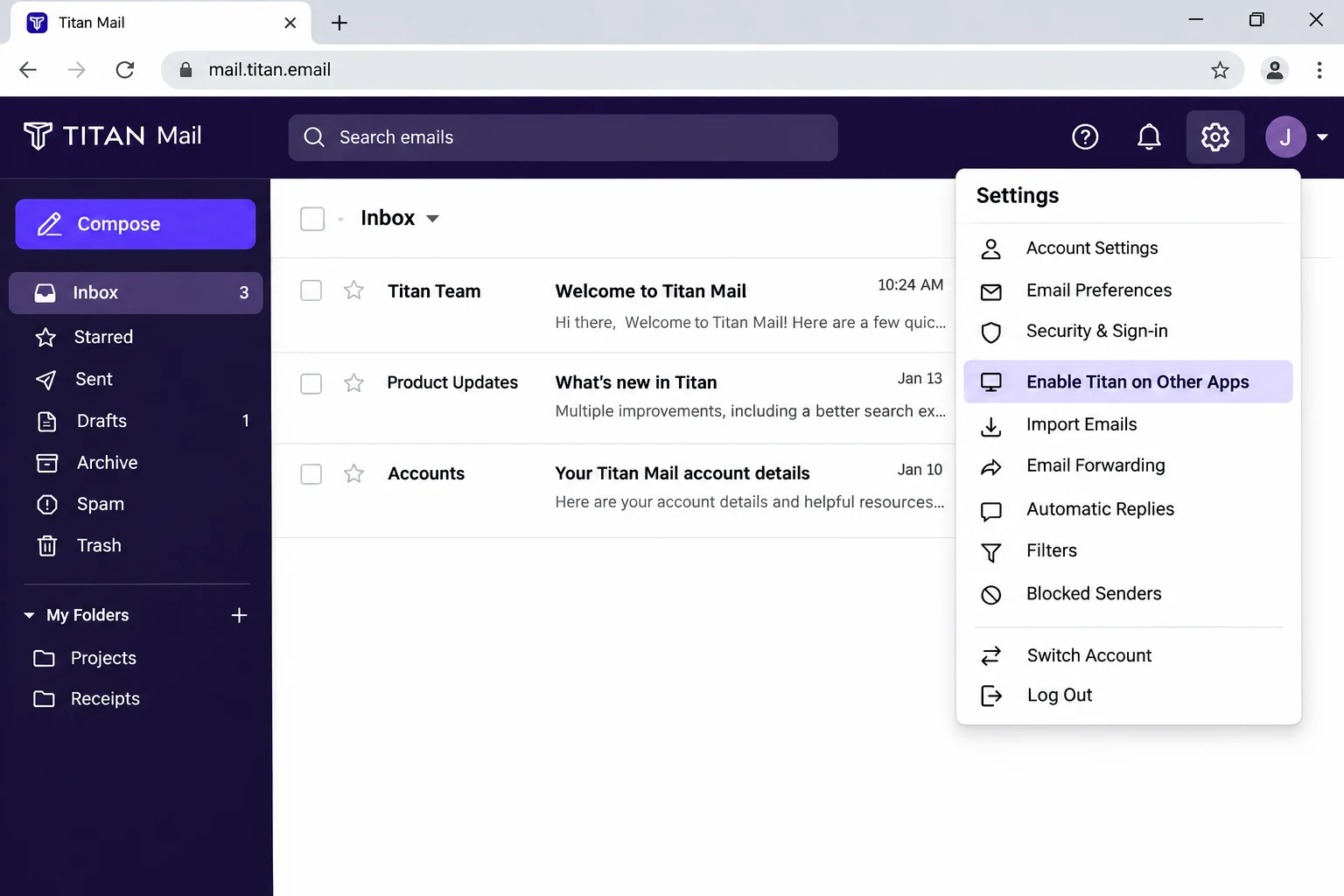
Titan adds that Configure 3rd party apps under Settings opens a support page when access is already on, which tells you the first switch is done. If the login still fails, check the two-factor setting in the next section.
Can You Keep Two-Factor On and Use an Application Password With Titan?
Yes. Titan now documents application passwords for third-party apps while two-factor authentication stays on. In Titan Webmail, open Settings > Preferences > Account & Security > Security & Access. Under Two-Factor Authentication, select Manage, verify your password and 2FA code, then find Application Password and choose Set up now. Generate a new password, copy it when Titan displays it and paste that value into the backup app's Password box.
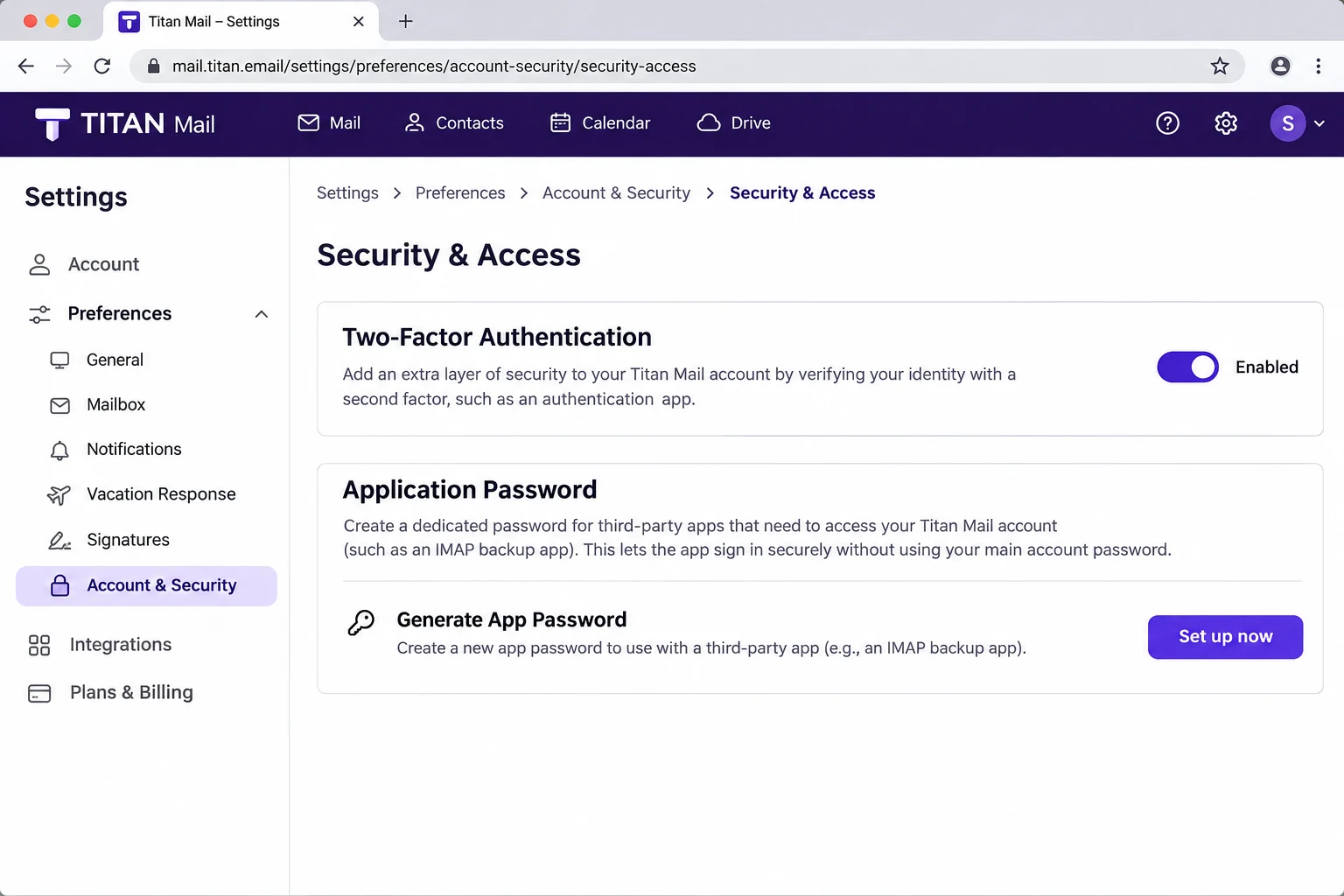
| Titan account state | Email box | Password box |
|---|---|---|
| Third-party access on, 2FA off | Full Titan address | Your normal Titan password |
| Third-party access on, 2FA on | Full Titan address | A Titan application password |
Titan displays the new application password only once. If you close that screen before copying it, revoke the entry and generate a new one. Create a separate application password for each backup app or device you use.
Does Titan's Own Backup Mean You Still Need a Copy of Titan Email?
The Titan help page on mail backups says Titan keeps multiple copies of every email across multiple regions for disaster recovery only. Titan does not restore the emails to an earlier backup state and mail deleted from Trash cannot be restored.
An IMAP login adds no second copy either, because IMAP, defined in RFC 9051, shows the server mail and a delete made in an app is a delete on Titan. The guide Is IMAP a backup? covers that difference in full.
What Does Titan Delete When Mail Ages in Trash or an Order Is Not Renewed?
Titan removes mail from Trash and Spam automatically 30 days after you move it there. The Trash and Spam page adds that deleted mail cannot be recovered.
An unrenewed order follows a longer path, described on the page about unrenewed orders. Titan first suspends the account, so the mail services stop while the control panel stays open for renewal. Without renewal Titan deletes the order and you lose mailbox access. Email data then stays on the Titan servers for another 30 days for emergency restore requests and is erased 30 days after the deletion date.
Titan gives no day count for the suspended stage and says timelines may vary by hosting partner. Ask your partner for the dates that apply to your order. Back up hosting email accounts covers the same pattern for a host change.
Who Needs a Titan Email Backup?
- Leaving a host You are moving away from the partner that sold your plan and want each mailbox saved first.
- A plan that could lapse You pay month to month and want a copy outside the 30 day windows.
- Moving mail You plan to move your domain mail to another service. Direct moves belong to email migration software.
Once the copy exists, the app can also extract attachments from IMAP mail or extract email addresses from IMAP folders.
Does Titan Offer a Mailbox Export or Only Saves Through a Client?
The Titan help center describes saving mail through a client connected to your account. In Outlook the route starts at File and Open & Export, then the Import/Export wizard. There you pick Export to a file. The next screen offers Outlook Data File (.pst) for one selected folder at a time. In Thunderbird the page uses Save As, which writes each email as its own file. The pages read for this guide show no one-step download of the whole mailbox in Webmail.
A Titan mail export through either client repeats once per folder. The app lists every folder in one tree and writes the ticked ones in a single run.
How Do You Backup Titan Email Step by Step?
Enable Titan on other apps, create an application password if 2FA is on, add the mailbox, tick the folders you want, then open Export, pick a format and press Save.
My test ran in Univik IMAP Backup. Its product page describes IMAP backup software for Windows that connects straight to a mailbox over IMAP.
- Add the account. Click Open, go to Email Accounts and select Add account. Type your Titan address in the Email box. In Password, paste the application password when 2FA is on; otherwise use your Titan mailbox password. Expand Advance Settings and type imap.titan.email in the Imap Server field. Imap Port already holds 993 and the Secure Port box is ticked.
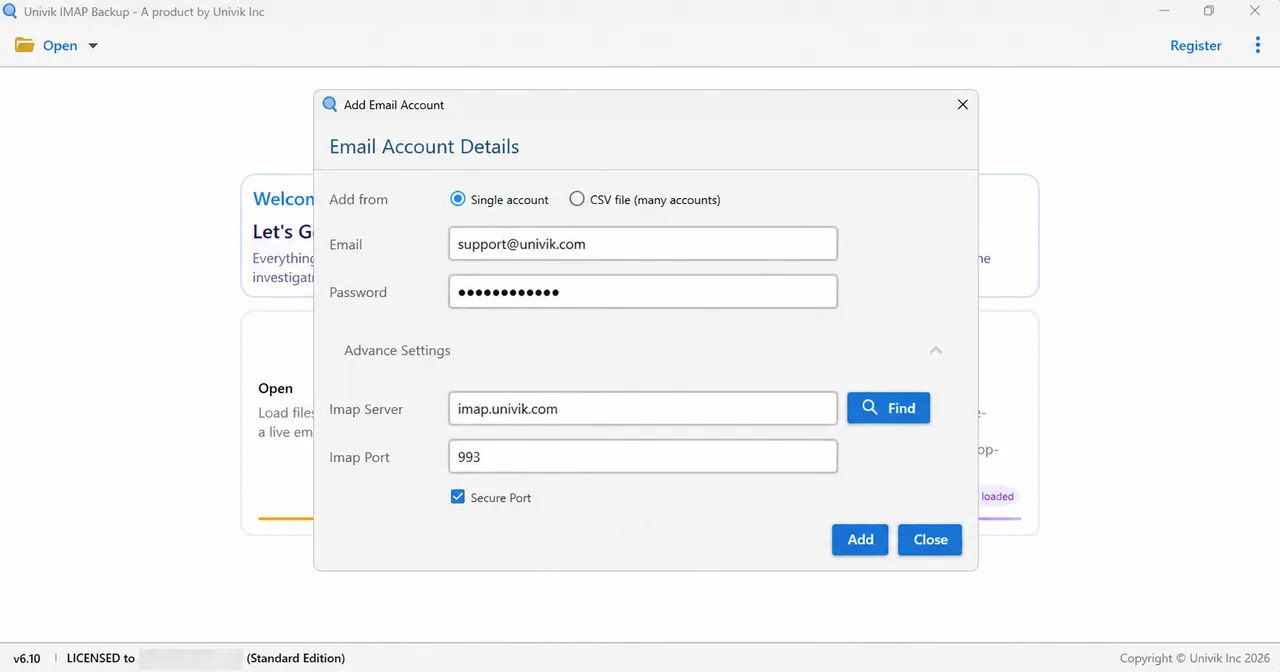
Advance Settings expanded in the account window. - Tick the folders. The tree shows each folder with the number of messages in it. Compare that list with the folders in Titan Webmail, then tick Inbox and the folders you use. Tick Trash and Spam only if you want the older mail.
- Choose the format. Open Export and find EML, MBOX and PST in the Email Files group.
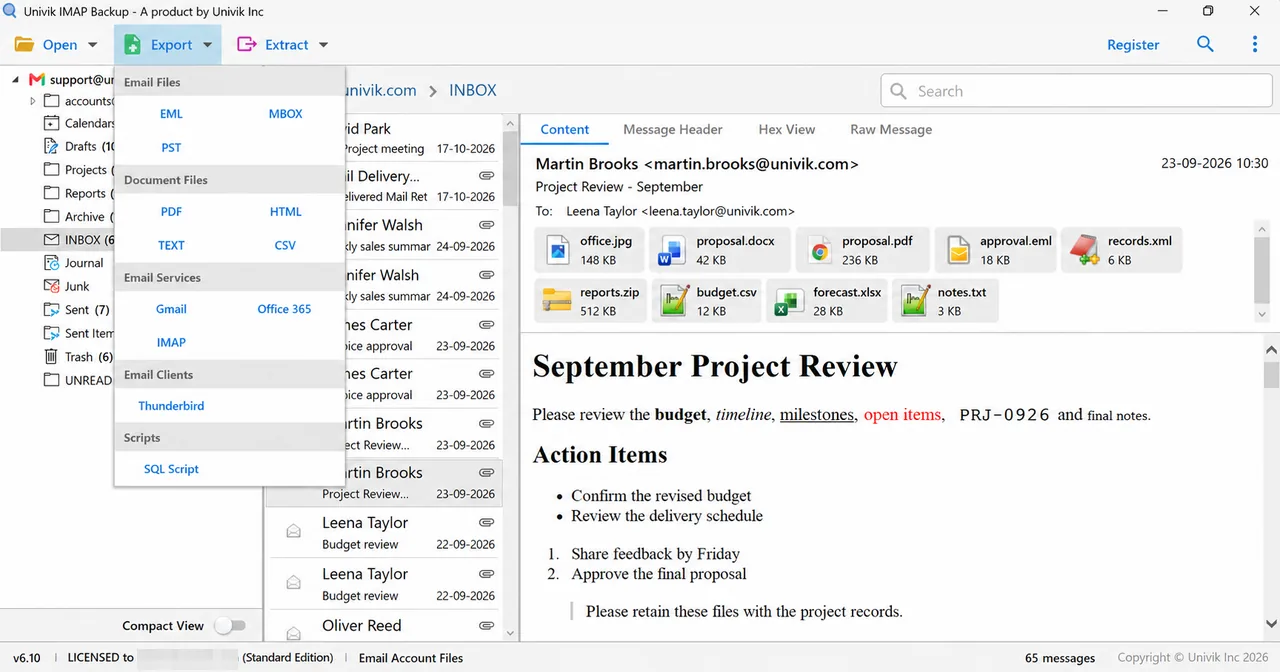
Export menu with Email Files on top. - Review the size filter. The Minimum Attachment Size to Export option starts on, set to 35 MB. A first PST test with it on wrote nothing, so the filter went off before my real export.
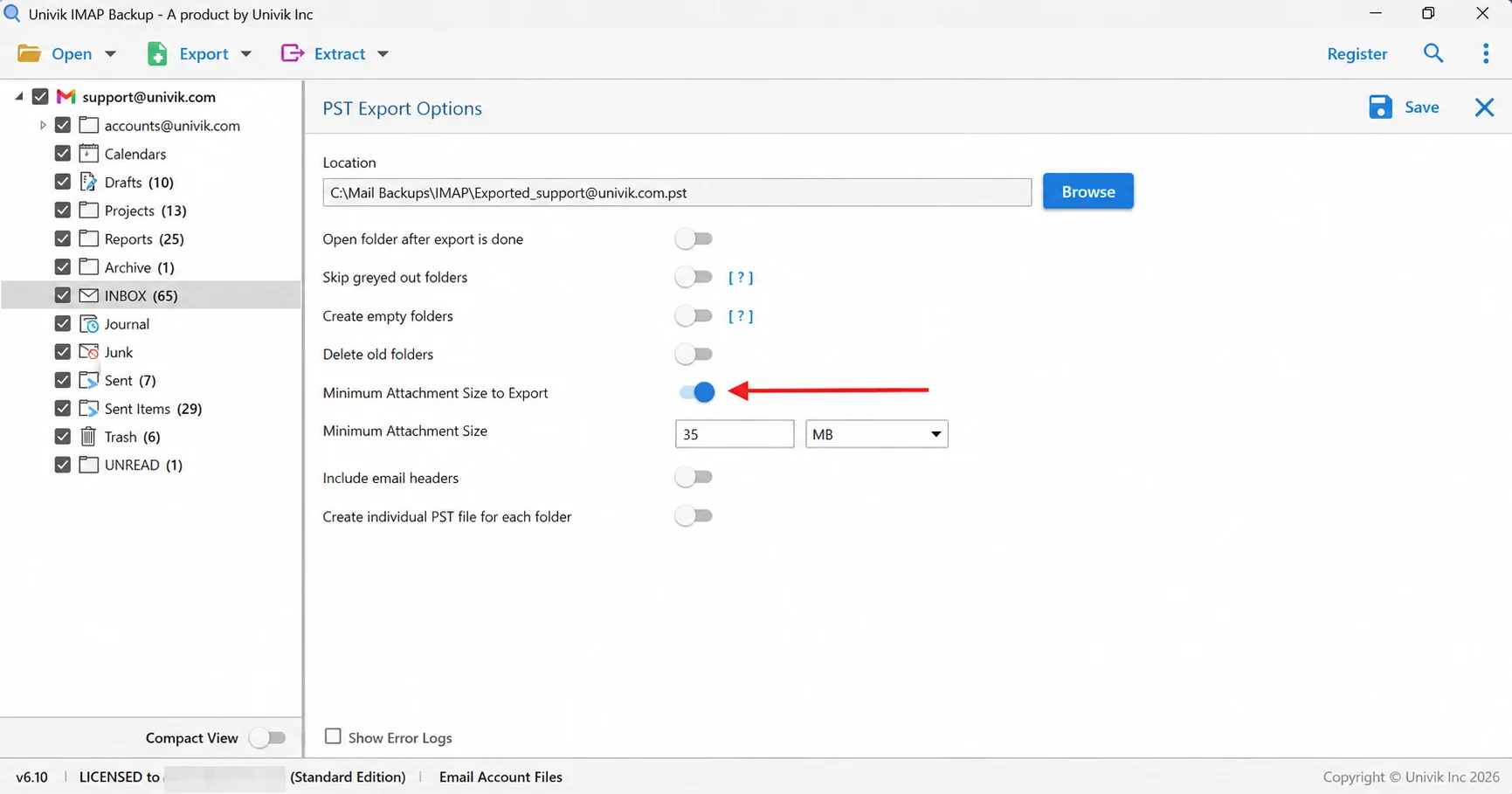
Arrow on the 35 MB size filter. - Save and count. Click Save in the top right corner, wait for the green success bar, then check that every folder's file count equals its tree count.
Which Format Fits a Titan Mail Export?
| Format | What you get | Open it with |
|---|---|---|
| Export IMAP to PST | A single .pst for the mailbox or a separate .pst for every folder | Outlook, the format of Titan's own Outlook route |
| Export IMAP to EML | Each message saved as its own .eml in a folder tree | Any program that reads single messages |
| Export IMAP to MBOX | A .mbox file for every folder you tick | Thunderbird |
Pick PST for Outlook, EML for one file per message and MBOX for Thunderbird. Every guide in the table shows its export options screen by screen.
Which Titan Features Can Move or Remove Mail Before a Backup Runs?
Three Titan features change what the IMAP login finds in a folder.
- Trash and Spam Titan clears both after 30 days, so save the older mail now or leave them unticked.
- Auto-clean rules On Titan Select plans a rule moves mail from one named sender to the Trash or Archive folder after 1 to 90 days. If a sender's mail seems to be missing, look in both folders.
- Labels Titan Webmail shows labels in a folder-like view. The Titan label page does not say how an IMAP app lists them, so compare the tree with the Webmail list.
Every folder in the tree carries a count, so the check takes a minute. Counts from my non-Titan test mailbox: INBOX showed 65 messages and the trial wrote 10, Sent Items showed 29 and the trial wrote 10. Drafts held 10 and Trash held 6, so both came out complete.
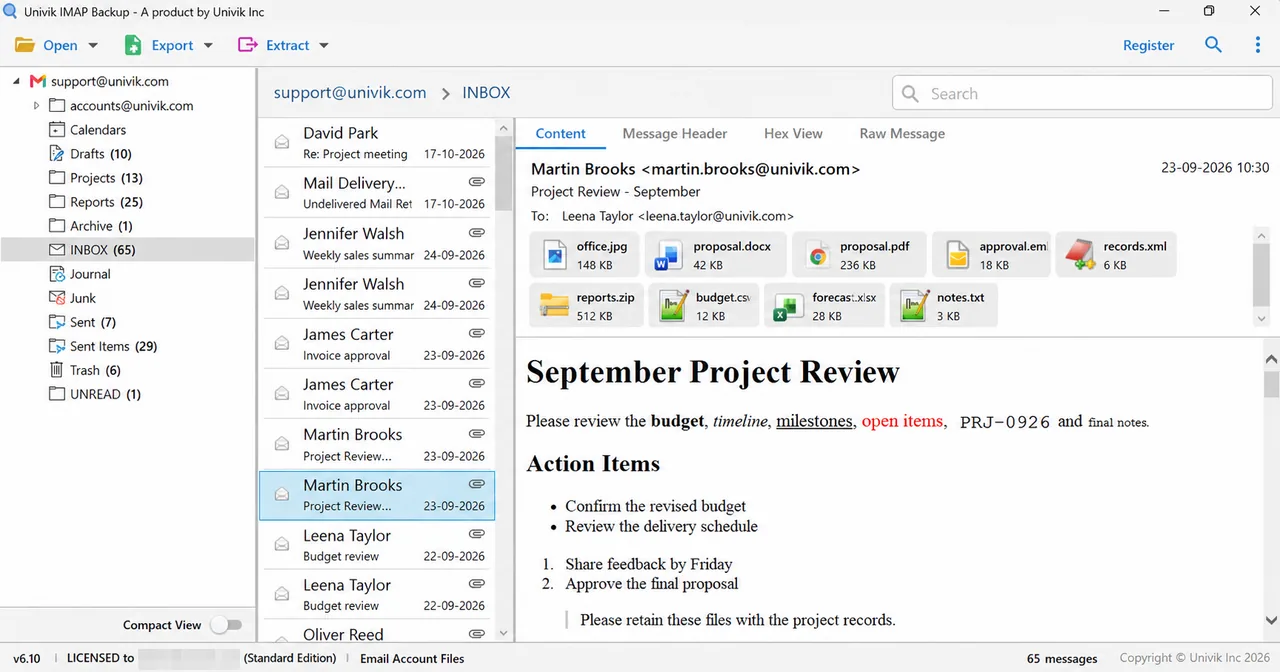
Once a licence lifts the cap of 10 items per folder, each file count should match its count in the tree.
Which Titan Switch Is Wrong When the Backup Login Fails?
Fix: Open Titan Webmail and check Enable Titan on other apps first. If 2FA is on, use an application password. Last, check imap.titan.email for typing errors.
Fix: With 2FA on, the regular mailbox password is not the value to paste into this app. Generate a Titan application password, copy it when shown and enter that in the Password box. If 2FA is off, check the mailbox password.
Fix: Ask your host whether the mailbox sits in the EU region. If it does, type imap0101.titan.email and keep the port at 993.
Fix: Check Minimum Attachment Size to Export before pressing Save. It is on from the start and my first PST run wrote nothing with it on. Turn it off or lower the number, then press Save again.
Fix: The trial edition caps every folder at 10 items and a Demo Edition notice appears. A licence removes that limit.
Something did not match this guide? Write to Univik support and describe what happened.
- Titan documents imap.titan.email on port 993 and imap0101.titan.email for EU-hosted mailboxes.
- Enable Titan on other apps must be on. With 2FA on, use a Titan application password in the backup app.
- Trash and Spam clear after 30 days and an unrenewed order ends in erasure.

FAQ: Backup Titan Email
How do I backup Titan Email?
Turn on Enable Titan on other apps inside Titan Webmail. If 2FA is on, generate an application password. Then connect the mailbox with your full Titan address and the appropriate password, type imap.titan.email in Imap Server, leave 993 as the port and keep Secure Port ticked. Tick your folders, choose PST, EML or MBOX in Export, then press Save.
Which Imap Server goes in the app for a Titan mailbox?
Titan's client guide names imap.titan.email on port 993 with SSL/TLS. Its guide for EU-hosted mailboxes names imap0101.titan.email on the same port. Ask your host which region holds your mailbox.
What do I type in the Password box for a Titan mailbox?
With 2FA on, paste an application password generated in Titan Security & Access. With 2FA off, use the normal Titan mailbox password. Enable Titan on other apps in either case.
Does Titan have an app password?
Yes. Titan documents application passwords for third-party clients with 2FA enabled. Open Settings > Preferences > Account & Security > Security & Access, select Manage under Two-Factor Authentication, verify your identity and create an application password.
Why does my Titan login fail in a desktop app?
Check Enable Titan on other apps first. If 2FA is on, use an application password instead of the regular mailbox password. A server name that does not match the region can also fail; ask your host whether an EU mailbox needs imap0101.titan.email.
Does Titan keep a backup of my mail that I can restore?
Titan keeps multiple copies of every email across multiple regions for disaster recovery only. It does not restore emails to an earlier backup state. Mail deleted from the Trash folder cannot be restored.
How long does Titan keep mail after an order is not renewed?
Titan suspends the account first and deletes the order if it stays unrenewed. Email data then stays on the Titan servers for another 30 days and is erased 30 days after the deletion date. Timelines may vary by hosting partner, so confirm your dates with your partner.
Can I backup several Titan mailboxes at once?
Yes. List the mailboxes as email,password lines in a CSV file and load it in the account window. Every mailbox needs third-party access enabled; for 2FA accounts use a separate application password for each mailbox.
How do I know my Titan backup is complete?
Match each folder's exported file count to its count in the tree. My test INBOX listed 65 messages. The trial wrote 10, so only a licence can bring the counts level.

Drafted on November 2, 2026 from Titan's own help center plus a trial copy of IMAP Backup 6.10. Each file count belongs to a test mailbox that Titan does not host.
The Titan help center pages read on 2 November 2026 cover IMAP setup, two-factor sign-in, backups, Trash and Spam, Auto-clean, labels and unrenewed orders.