Quick Answer
To migrate IMAP to Office 365, create each user and assign a licence in Microsoft 365 first. Then add an IMAP endpoint, upload a CSV file with EmailAddress, UserName and Password and start an Office 365 migration batch in the Exchange admin center.
Microsoft copies mail only, newest first, up to 500,000 items per mailbox and nothing above 35 MB. Wait at least 72 hours after you change the MX record before you delete the batch.
Your old mailboxes sit on an IMAP server at a host, a company or a free provider. Microsoft 365 can read mail from that server once it has a server name, a list of people and a sign-in for every mailbox.
I read Microsoft's IMAP migration and Exchange Online pages on 2 November 2026 and took every limit, header name and wait time in this guide from them. I took the counts in the product sections from a test mailbox outside Microsoft.
How Do You Migrate IMAP to Office 365 and Which Route Fits?
Microsoft 365 has one built-in way to bring IMAP mail in, an IMAP migration batch that you run in the Exchange admin center. The batch signs in to your old server with the details in a CSV file and copies mail into mailboxes that already exist in the tenant. Two other routes suit smaller jobs.
| Route | What it moves | What you prepare first |
|---|---|---|
| IMAP migration batch | The mail folders of many mailboxes | The licensed users, an endpoint and a CSV file |
| Office 365 export in a Windows app | The ticked folders of one signed-in IMAP mailbox | A Microsoft sign-in that can write to the target mailbox |
| PST import in Microsoft Purview | PST files that you saved earlier | The PST files, with the Purview steps in import PST to Office 365 |
What Does Microsoft 365 Need Before an IMAP Migration Can Start?
Microsoft 365 needs a licensed mailbox waiting for every person you migrate, because the batch fills mailboxes and does not create them.
- Users and licences Create each person in Microsoft 365 and assign a licence.
- Your domain Add the domain you want to keep as an accepted domain before you create the users. Microsoft also asks you to verify with the registrar that you own it.
- The IMAP server name The endpoint needs one name for your old server, for example imap.contoso.com in Microsoft's page. Ask your host's support when your mail app does not list it. How to find IMAP server covers the lookup methods.
- Room in the new plan Microsoft lists 50 GB per mailbox for Exchange Online Plan 1 and 100 GB for Business Basic and Business Standard. Compare the largest old mailbox with the plan you assign.
How Do You Fill In the CSV File for an IMAP to Office 365 Migration?
The CSV file needs headers named EmailAddress, UserName and Password, with one row for each person. One file holds up to 50,000 rows and can reach 10 MB. Microsoft suggests several smaller batches.
| Column | What it holds |
|---|---|
| EmailAddress | The Microsoft 365 address of the person. Microsoft names this column first when a batch step fails |
| UserName | The sign-in name on the old IMAP server in any format that the server supports |
| Password | The password for that sign-in, reset to a value you know when you lack it |
| UserRoot (optional) | The place of each mailbox in the virtual shared folder structure of Courier IMAP or Oracle IMAP |
Which UserName Should You Use for the Old Server?
An administrator account in the UserName column saves you from collecting passwords. Microsoft calls it the least disruptive choice, because people can change their own passwords without breaking later syncs. Exchange uses Domain/Admin_UserName/User_UserName and Dovecot uses User_UserName*Admin_UserName. Mirapoint uses #user@domain#Admin_UserName#.
Without admin credentials you reset the passwords to values you know. People who never learn the new password cannot reach their old mailboxes during or after the migration.
Hosts often want an app password in the Password column. Microsoft's Gmail walkthrough says each Gmail account needs one, because Google refuses a password-only connection from Outlook. The page on IMAP app password compares that sign-in with OAuth.
How Do You Migrate IMAP to Office 365 in the Exchange Admin Center?
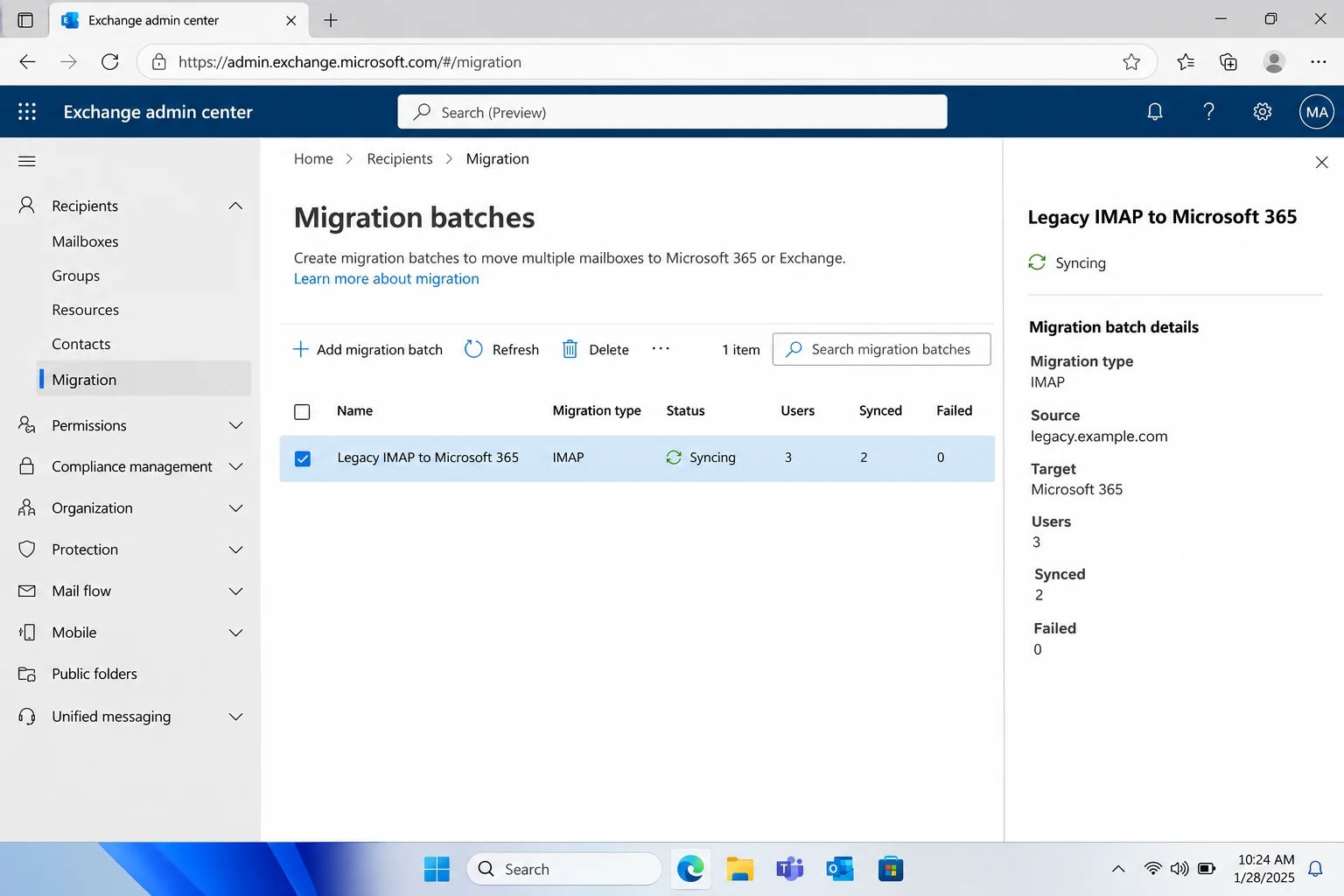
The batch takes six actions. Five of them sit inside Migration in the Exchange admin center. Button names follow Microsoft's page, last updated on 15 March 2024, so a label may read differently on your screen. Microsoft advises a few small test batches before a large one.
What Are the Six Actions in Order?
- Create the users. In the Microsoft 365 admin center add each person under Users and assign a licence, so a mailbox exists for the batch to fill.
- Add the endpoint. Open Migration in the Exchange admin center, pick Endpoints and then Add. Choose IMAP and type a unique endpoint name and the IMAP server name. Leave the other settings at their defaults and select Create.
- Start a batch. Back in Migration select Add migration batch. Type a batch name without spaces or special characters, choose Migrate to Exchange Online and select Next. Pick IMAP migration and confirm the prerequisites page.
- Upload the CSV file. On the Set a migration endpoint page pick the endpoint. On the Add user mailboxes page download the CSV template and add your people. Select Import CSV file and upload it.
- Set filters and a schedule. On the Select configuration settings page add any exceptions or inclusions under Migration filtering options. On the Schedule batch migration page choose your reporting and start options. Select Save and then Done.
- Check the result. Select the batch in Migration and then View details in the details pane. When a step fails, open the mailbox status reports and confirm that EmailAddress holds each person's Microsoft 365 address.
What Will Microsoft Leave Behind When You Migrate IMAP to Office 365?
Microsoft's batch copies mail folders only, so contacts, calendar items and tasks stay on the old server. However, four more limits decide which mail arrives.
| Left behind | Why Microsoft leaves it | What you do about it |
|---|---|---|
| Contacts, calendar items and tasks | The batch moves items in the inbox and other mail folders only | Copy them with a separate export and import |
| Emails above 35 MB | Microsoft sets 35 MB as the largest email that a batch moves | Plan a second pass, as migrate skipped large emails to Microsoft 365 explains |
| Items beyond 500,000 | A mailbox migrates at most 500,000 items, newest to oldest | Treat the oldest mail of a very large mailbox as the part at risk |
| Folders with a slash in the name | Microsoft's tips page says such folders are not migrated | Rename the folder on your old server and drop the slash |
| Mail that a retention rule removed | MRM and archive policies delete or move mail, so it shows as missing | Switch those policies off first, as Microsoft strongly recommends |
What Can Break an IMAP Migration Batch Once It Is Running?
Passwords cause most of the trouble. Microsoft's tips page says a password change before a mailbox migrates makes that mailbox fail. A change after the mailbox has migrated stops new mail from coming across. Change passwords for everyone first and block further changes before the migration starts.
Microsoft also asks you not to delete a mailbox or change its SMTP address during the migration. Finish the batch first, otherwise the system reports an error.
When Should You Change the MX Record and Delete the Batch?
Microsoft synchronizes your old server and Microsoft 365 once a day, so a batch needs at least 72 hours before you delete it.
- Shorten the TTL Set the time to live on each MX record to 3,600 seconds or less before the migration starts. Restore a longer interval after the final switch. Skipping the step is allowed, but new mail may take longer to show up.
- Change the MX record Point it at Microsoft 365 once the migration is complete. Other mail systems can take up to 72 hours to notice the change.
- Wait Leave the batch running for at least 72 hours and confirm that everyone reads mail in Microsoft 365.
- Delete the batch Select the batch in Migration and then Delete. Mail sent to the old mailboxes afterwards is not copied to Microsoft 365.
A live move that repeats until you switch over is the job of Univik's email migration software, which signs in to both accounts and moves mail directly between the two servers. After cutover Microsoft 365 holds your only copy. A file copy of the new mailbox is a separate job, covered in backup Office 365 email.
What Should You Save Before the Old IMAP Server Goes Away?
Your IMAP server holds the only copy of your old mail. A migration batch reads from that copy and leaves no file behind. Files on your own PC give you a quick way to check the new mailbox.
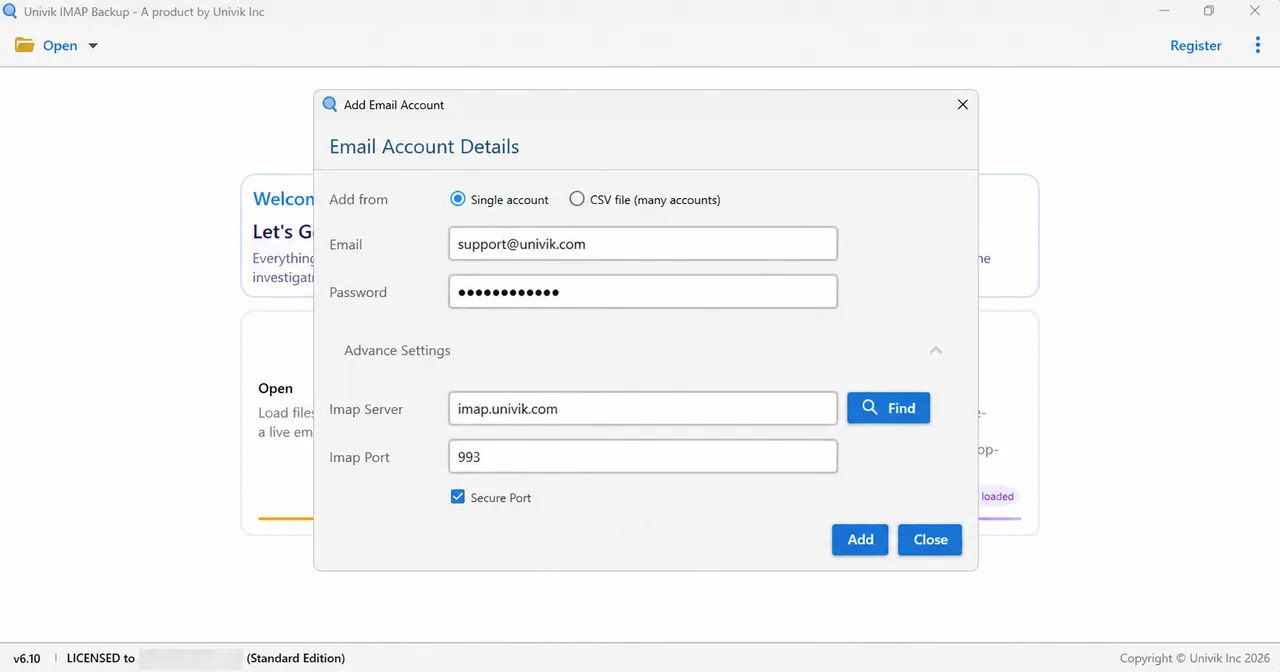
Univik IMAP Backup installs on Windows and acts as IMAP backup software. On the toolbar, select Open and go to Email Accounts, where Add account starts the sign-in. Put your address into Email and the password of the mailbox into Password. A collapsed Advance Settings block hides Imap Server, Imap Port (default 993) and a ticked Secure Port box. Find fills in the server from your address.
Which Export Format Fits and Why Check the 35 MB Filter?
Next, the Export menu holds three file formats in its Email Files group: EML, MBOX and PST. Guides for each format: export IMAP to PST for Outlook, export IMAP to EML for one file per message and export IMAP to MBOX for one file per folder.
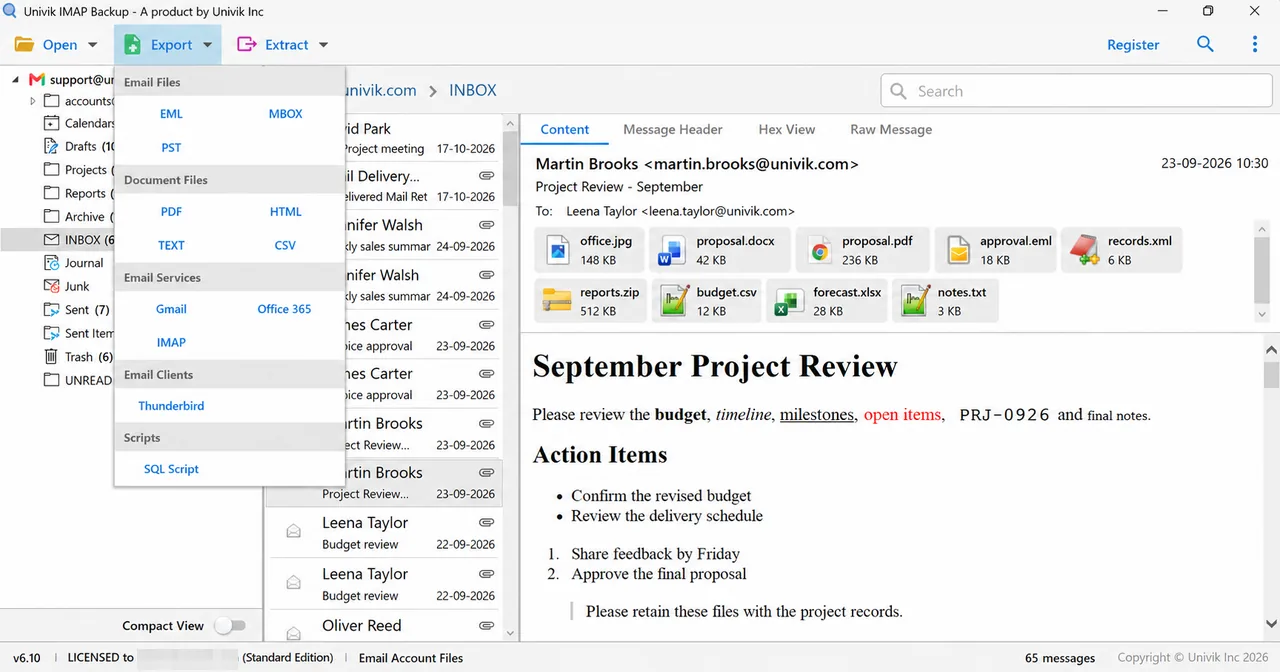
Check Minimum Attachment Size to Export before you press Save, because it arrives switched on with 35 MB typed in. On my test mailbox, which is not a Microsoft one, the first PST export in Univik IMAP Backup 6.10 (trial edition) with that filter on wrote 0 messages. After I switched it off, the trial wrote 10 items from each folder. INBOX listed 65 messages and gave 10 while Drafts gave all 10.
What I Measured on a Non-Microsoft Test Mailbox
I ran this export on my own test mailbox with Univik IMAP Backup 6.10, the trial edition. The numbers describe a file copy and not a batch.
| Item | Result |
|---|---|
| Mailbox | 173 messages in its folder tree |
| First PST run, 35 MB filter on | 0 messages written and 173 skipped |
| Filter switched off | 10 items written from each folder with more than 10 mails |
Can One Windows App Send IMAP Mail Into Office 365 Itself?
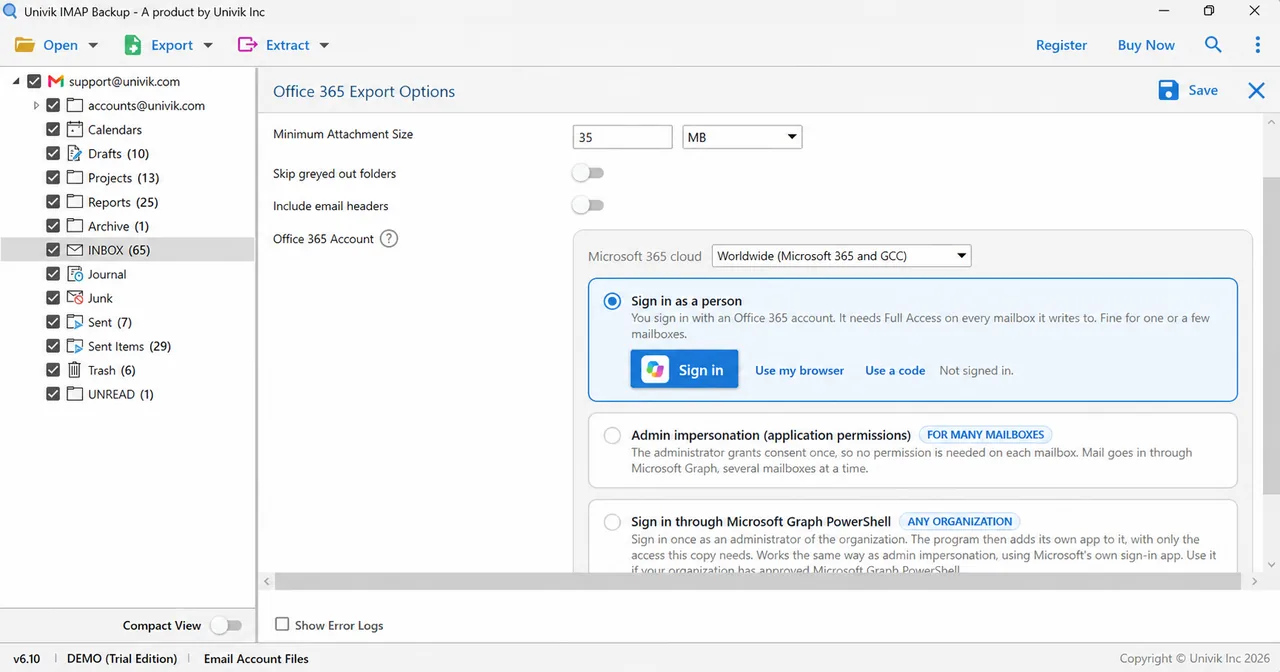
Yes, the Export menu lists Office 365 in its Email Services group next to Gmail and IMAP, so a mailbox you signed in to can feed a Microsoft 365 mailbox directly. Univik IMAP Backup opens Office 365 Export Options from there. A Microsoft 365 cloud list sits above three sign-in choices.
| Sign-in choice | Tag on screen | What the screen says |
|---|---|---|
| Sign in as a person | No tag | Full Access is required on each target mailbox. The screen suits one or a few mailboxes and shows the buttons Sign in, Use my browser and Use a code |
| Admin impersonation (application permissions) | FOR MANY MAILBOXES | Consent comes from an administrator once, which removes the need for rights on every single mailbox. Mail enters through Microsoft Graph, several mailboxes at a time |
| Sign in through Microsoft Graph PowerShell | ANY ORGANIZATION | One administrator sign-in is enough. The program adds an app of its own, limited to the access this copy needs. Choose it if your organization approved Microsoft Graph PowerShell earlier |
Which Sign-In Choice Fits Your Job?
An administrator who moves a team starts with the second choice. One person who moves a single mailbox starts with the first. Check Minimum Attachment Size (35 MB on this screen) and the switches for Skip greyed out folders and Include email headers before you select Save. For Microsoft's own server names and sign-in rules, see Microsoft 365 email settings.
My verdict: use the batch when you administer the tenant and the old server accepts an administrator account or passwords that you can reset. Pick a per-mailbox route for one or two mailboxes or when you lack admin rights. Save your own copy first in both cases and delete the batch only after your people confirm that their mail arrived.
- An IMAP migration CSV file needs EmailAddress, UserName and Password headers and holds up to 50,000 rows within 10 MB.
- Microsoft synchronizes the old IMAP server with Microsoft 365 once a day, so a batch needs at least 72 hours before deletion.
- Contacts, calendar items and tasks stay on the old server because an IMAP batch moves mail folders only.
- Microsoft lists 50 GB per mailbox for Exchange Online Plan 1 and 100 GB for Business Basic and Business Standard.
- Univik IMAP Backup lists Office 365 in the Email Services group of its Export menu and offers three sign-in choices.
IMAP to Office 365 Migration Questions
How do I migrate IMAP to Office 365?
Create each user and assign a licence in Microsoft 365. Open Migration in the Exchange admin center and add the IMAP endpoint with the old server name. Then add a migration batch, choose IMAP migration and upload the CSV file with EmailAddress, UserName and Password. Change the MX record when the migration is complete.
What does an IMAP migration to Office 365 copy?
The batch copies items in the inbox and other mail folders. Contacts, calendar items and tasks stay behind. Microsoft migrates up to 500,000 items per mailbox from newest to oldest and skips any email above 35 MB.
How many mailboxes can one IMAP migration CSV file hold?
The file holds up to 50,000 rows with one row for each person and can be as large as 10 MB. Microsoft still suggests several smaller batches.
Do I need each person's password for an IMAP migration to Office 365?
No, an administrator account works too when the old server supports it. Put the combined sign-in in the UserName column. Without admin credentials Microsoft tells you to reset passwords to values you know.
How long should I wait before I delete the migration batch?
Wait at least 72 hours. Microsoft synchronizes the old server and Microsoft 365 once a day. Mail sent to the old mailboxes after you delete the batch is not copied.
Why does an IMAP batch skip some emails?
Microsoft's batch skips emails above 35 MB and folders with a slash in the name. A mailbox also stops at 500,000 items.
Can a Windows app send IMAP mail into Office 365?
Yes, if the app has an Office 365 export. Univik's app lists Office 365 under Export and offers three sign-in choices. The first one, Sign in as a person, requires Full Access to each target mailbox.
Should I save my own copy of IMAP mail before I migrate?
Yes, because the old server holds the only copy and a batch leaves no file behind. In my test the PST export wrote 0 messages until I switched off the 35 MB attachment filter, so check that switch first.


Checked on 2 November 2026 against Microsoft Learn. The file counts come from a non-Microsoft test mailbox in the trial edition of Univik's Windows app.
Pages I read: