Export the mailboxes you must keep and store a cold copy of each .edb with its logs before the server goes off.
Standard support ended on 14 October 2025. The paid Extended Security Update program runs out in October 2026 with no third period. After that the server gets no security fixes, so keeping it online as a mail archive is a risk you carry alone.
The Exchange 2019 end of support date has passed, and Exchange 2016 end of support came on the same day. Your users already live in Exchange Online or on Exchange Server Subscription Edition. The old 2016 or 2019 box still sits in the rack because an auditor will ask for a mailbox from 2019 one day. That box is about to lose its last security patches. This guide covers what to keep, how to keep it and what to check before the power goes off.
When does support for Exchange 2016 and 2019 end?
Both versions left standard support on 14 October 2025. Microsoft then sold Extended Security Updates in two coverage periods for customers who needed more time. The Exchange Team confirmed in July 2026 that the program ends in October 2026 and that no third period will follow (Exchange Team blog).
| Version | Status in October 2026 | Way forward |
|---|---|---|
| Exchange 2016 | Out of support, ESU ending | Move mailboxes to Exchange SE or Exchange Online |
| Exchange 2019 CU14 or CU15 | Out of support, ESU ending | In-place upgrade to Exchange SE or a move to the cloud |
| Exchange SE | Supported under subscription | Keep patched with each new release |
| Exchange 2013 and older | Out of support for years | Export the data and retire the server |
The server does not stop working on the last day. It stops getting fixes. Every new Exchange flaw found after October 2026 stays open on that machine for good.
What are your options for the old mailbox data?
There are three honest options. Most teams end up using two of them together.

- Keep the server running. Mail stays searchable in Outlook and the admin center. It also stays exposed. If you go this way, cut it off from the internet and from user networks.
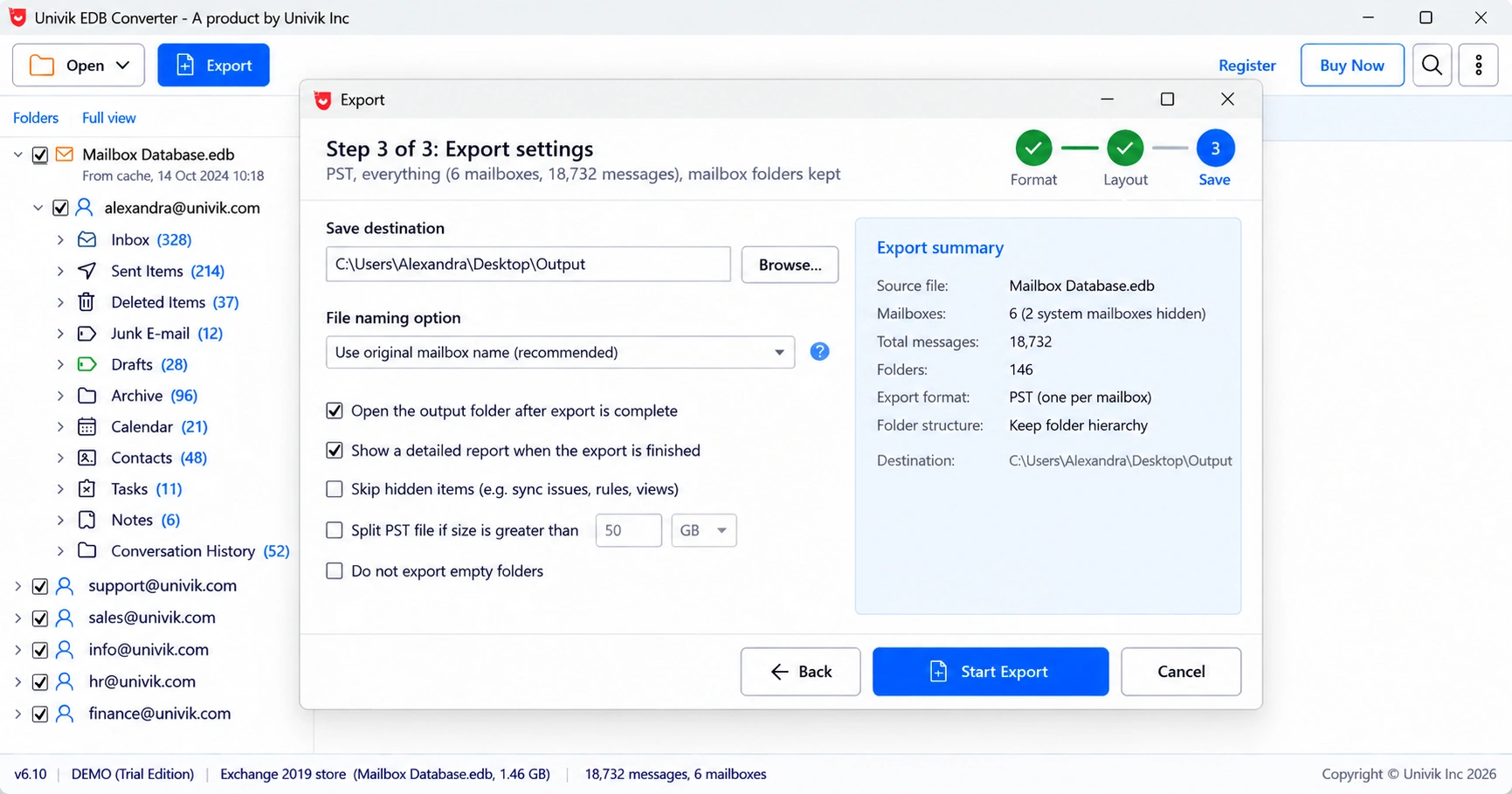
- Export the mailboxes you need. One PST per mailbox for people who come back, PDF for records that only need to be read. These files open without any Exchange server.
- Store a cold copy of each database. Copy every .edb file with its log folder to protected storage. It costs only disk space and covers the mailbox nobody thought to export.
We recommend options 2 and 3 together. Exports cover the mailboxes you know about. The cold copy covers the questions nobody can predict yet, such as a legal request three years from now.
“Export what people already ask for, then keep the database copy for the questions nobody has asked yet. That second part costs almost nothing.”
Why is a cold .edb copy hard to open later?
Exchange only mounts a database inside the organization that owns it. Once the last server is uninstalled, that home is gone. A Recovery Database on a new server takes Exchange 2016 or later databases only, and the target mailbox has to sit in the same Active Directory forest (Microsoft Learn). Our Recovery Database guide walks through each limit.
So a cold copy needs a plan for reading it. Either export now while the server still runs, or keep an offline reader that opens the .edb on any Windows PC. Univik EDB Converter does the second job and never writes to the source file.
What should you check before switching the server off?
Run these checks while the server can still answer questions. Each one takes minutes now and saves days later.
- List every database with its paths:
Get-MailboxDatabase | fl Name,EdbFilePath,LogFolderPath. - Save a mailbox list per database:
Get-Mailbox -ResultSize Unlimited | Select DisplayName,PrimarySmtpAddress,Database | Export-Csv mailboxes.csv. - Look for disconnected mailboxes of people who left. They disappear when the retention period runs out.
- Dismount each database cleanly, then copy the .edb file and its whole log folder.
- Confirm the copy reads Clean Shutdown with
eseutil /mhagainst the copied file. - Write down the Exchange version and cumulative update. Old databases are easier to support when this is known.
A clean dismount matters most. A copy taken while the database was mounted is in dirty shutdown and needs its logs to come back. See our guide to an Exchange database in dirty shutdown.
How do you export old Exchange mailboxes after the server is gone?
Open the copied .edb file in an offline reader and export the mailboxes you need. With the server still running you can also use the Exchange cmdlet covered in our New-MailboxExportRequest guide.
- Exchange 2016 and 2019 lost support on 14 October 2025 and paid ESU ends in October 2026.
- An unpatched server kept online as an archive is a growing risk.
- Export the mailboxes you know you need and keep a cold copy of every .edb with its logs.
- Recovery Databases only take 2016 or later databases from the same forest, so plan how you will read cold copies.
- Dismount cleanly and confirm Clean Shutdown with eseutil /mh before the copy goes to storage.
Open a copy of your database on any Windows PC and test the export. The trial saves 10 messages per folder.
Free Download See all featuresQuestions about retiring Exchange 2016 and 2019

Leena Taylor Paul wrote this guide with the Univik team, which has shipped Windows mail tools since 2013. This guide covers what to do with mailbox databases when an Exchange 2016 or 2019 server is retired. Last checked October 2026. Stuck? Contact our support team.