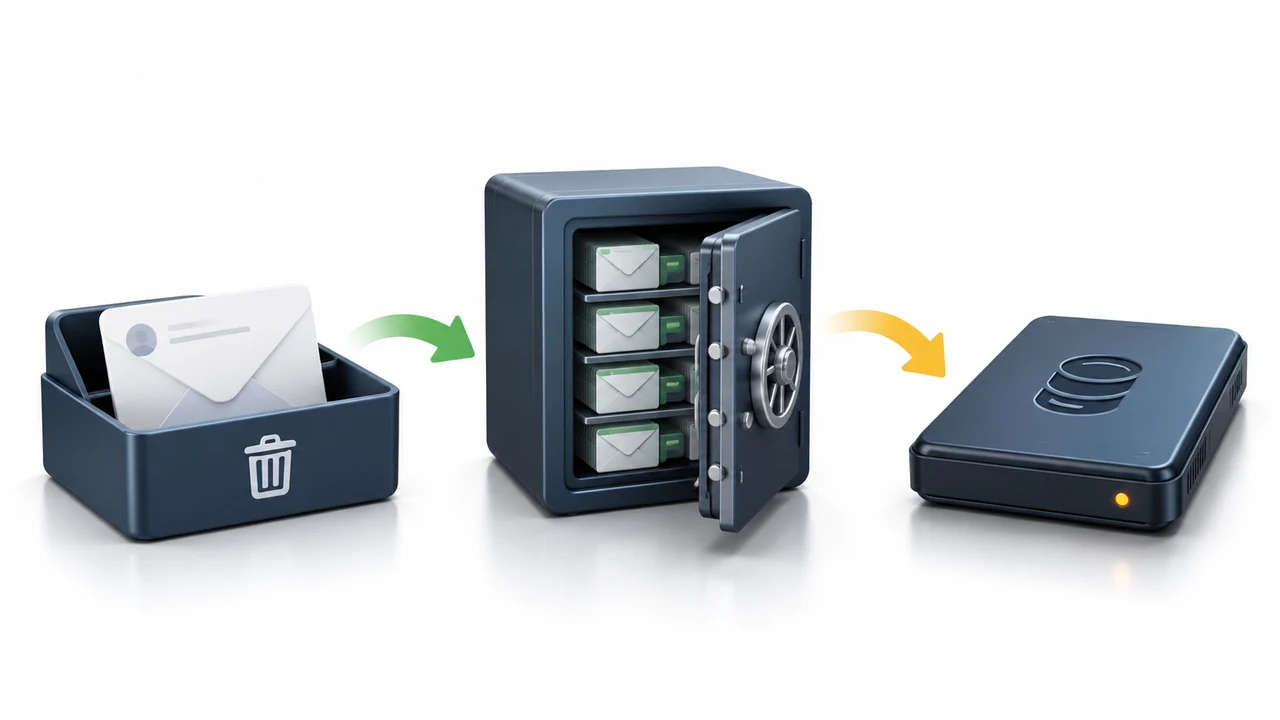
Deleted Exchange mail waits in Recoverable Items for 14 days by default, and users can restore it themselves.
Admins can search and restore Recoverable Items with Get-RecoverableItems and Restore-RecoverableItems. Once the retention window passes, the only copies left are in backups or older copies of the database file.
Someone emptied Deleted Items or used Shift+Delete on a folder. Now that mail is needed back. Exchange has several safety nets. Which one still holds the mail depends on time and on a few settings. This guide shows how to recover deleted emails in Exchange Server at each stage.
Where does deleted mail go in Exchange?
| Stage | Where the item sits | Who can get it back |
|---|---|---|
| Deleted | Deleted Items folder | The user, by moving it back |
| Soft deleted | Recoverable Items, Deletions subfolder | The user, with Recover Deleted Items |
| Purged by the user | Recoverable Items, Purges subfolder | An admin, if single item recovery or a hold is on |
| Past retention | Removed from the database | Only from a backup or an older .edb copy |
Exchange 2016 and 2019 keep Recoverable Items for 14 days by default. Litigation hold and in-place hold keep them longer.
How do users recover deleted emails themselves?
Users can get removed mail back without help from IT, as long as it is still within retention.
- Open Deleted Items. In classic Outlook, open the Deleted Items folder. In Outlook on the web, right-click Deleted Items.
- Open the recovery list. In classic Outlook, select Recover Deleted Items From Server on the Home tab. In Outlook on the web, open Deleted Items and select Recover items deleted from this folder at the top of the list.
- Pick the messages. Select the messages you want back. Sort by date or sender to find them.
- Restore. Click Restore. The mail returns to Deleted Items or its first folder.
Tell users where restored mail lands. It depends on the client version.
How can an admin recover purged emails?
On Exchange 2016 CU14 or later and Exchange 2019 CU3 or later, admins can search a mailbox's Recoverable Items and restore matches in place:
Get-RecoverableItems -Identity jane@contoso.com -SubjectContains "Invoice"
Restore-RecoverableItems -Identity jane@contoso.com -SubjectContains "Invoice"
Purged mail is kept only if single item recovery or a hold was on before the purge. Turn it on now for mailboxes that matter, with a longer window:
Set-Mailbox jane@contoso.com -SingleItemRecoveryEnabled $true -RetainDeletedItemsFor 30“Turn on single item recovery today. It is the cheapest insurance Exchange offers against a user who empties the wrong folder.”
What if the retention window has already passed?
Then the live database no longer holds that mail. Two routes remain:
- Restore a backup into a Recovery Database and copy the mail back. This needs a 2016 or later database in the same forest, as our Recovery Database guide explains.
- Open an older .edb copy offline. Univik EDB Converter exports the Recoverable Items folder along with the visible folders, so mail purged since that copy was made comes back.
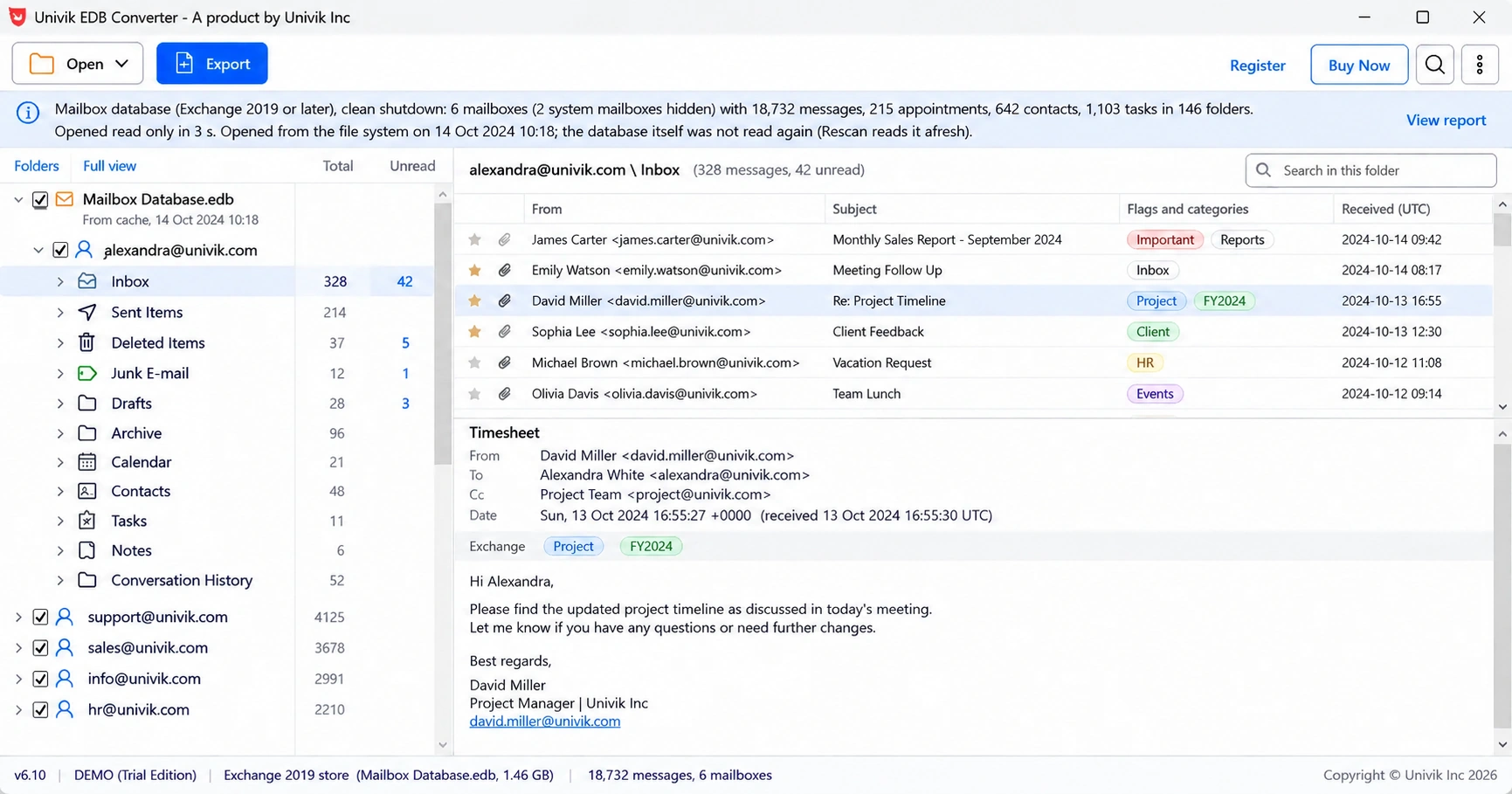
Damaged databases add one more source. When a folder record is lost, its mail still turns up under Recovered items.
How do you stop this happening next time?
- Turn on single item recovery for every mailbox. It costs a little disk space and saves many tickets.
- Raise deleted item retention to 30 days for key teams.
- Use litigation hold for people under legal review.
- Keep backup copies of databases for longer than the retention window.
- Deleted mail moves to Deleted Items, then to Recoverable Items.
- Exchange 2016 and 2019 keep Recoverable Items for 14 days by default.
- Users restore with Recover Deleted Items and admins with Restore-RecoverableItems.
- Purged mail is kept only if single item recovery or a hold was already on.
- Past retention, the mail lives on only in backups or older database copies.
Open an older .edb copy and look in Recoverable Items for the missing messages. The trial saves 10 messages per folder.
Free Download See all featuresQuestions about recovering deleted Exchange email

Leena Taylor Paul wrote this guide with the Univik team, which has shipped Windows mail tools since 2013. This guide covers recovering deleted and purged email in Exchange Server. Last checked October 2026. Stuck? Contact our support team.