Quick Answer
To extract attachments from Foxmail in bulk, open a copy of your Storage folder in a converter. Choose Extract and then Attachments to read your ticked folders. A list shows each file with its type, size, message subject and sender. Untick what you do not need and save the rest.
Nothing is written until you click Save, so you can preview first.
A mailbox keeps each attachment inside its own message, so collecting a year of invoices means opening message after message. I wanted every file out in one pass and I still wanted to choose what to keep. The tool I used shows a list first and writes files only after I confirm it.
Foxmail's own feature list for version 7.2.25 names a preview of attachment content since version 7.1.3, which helps when you read one file at a time. This guide covers the other job, which is saving many files together. I'd say ten minutes of reading it pays off before you start clicking.
I ran these steps on a sample store whose Inbox held 2,866 messages. The progress line counted through those messages while the list of files filled up. Each row carried a file name, a type, a size, a message subject and a sender, which is enough to judge a file without opening the message that carried it and without leaving the list. You won't need to open a single mail for that.
Which Way Gets Attachments Out of Foxmail?
Three routes cover most jobs. The table shows what each route handles, which files you get and where it slows you down.
| Route | Handles | Files you get | Watch out for |
|---|---|---|---|
| Open a message and save | One message at a time | The file you save by hand | Slow past a few dozen messages |
| PDF export with attachments | Every message you export to PDF | Attachments in a folder | You also write the PDF files |
| Extract, then Attachments | Every ticked folder in one run | Only the rows you leave ticked | A filter change needs a new run |
I'd use the Extract route when I want the files and nothing else. The PDF route fits better when I also want readable copies of the messages. The guide on converting Foxmail to PDF covers it. Reading a single attachment from the preview is a different job again, which the Foxmail email viewer guide explains.
Who Needs Every Attachment Out of a Mailbox?
Four situations send people looking for the files outside the mail program. Each one wants the files first and the messages second.
- An accounts team You collect invoices and expense reports from a year of mail.
- A legal or HR file You pull contracts and signed forms for one matter.
- A leaver's mailbox You save the working files before the PC is wiped.
- A backup You store the files next to a mail export for safekeeping.
How Do You Extract Attachments From Foxmail in Bulk?
Univik Foxmail Converter works from a copied Storage folder, so Foxmail does not need to be installed on this PC. Copy your Storage folder first and work on the copy, since your original then stays as Foxmail left it. If you can't find your Storage folder, where Foxmail stores emails explains the usual paths. Six steps cover the run.
- Open your copied Storage folder Open the Open menu and choose Choose Foxmail Folder, then pick your copy of Storage. Choose Open Foxmail Configured Accounts instead when Foxmail still runs on this PC. Each account then shows up in the tree with its folders and message counts.
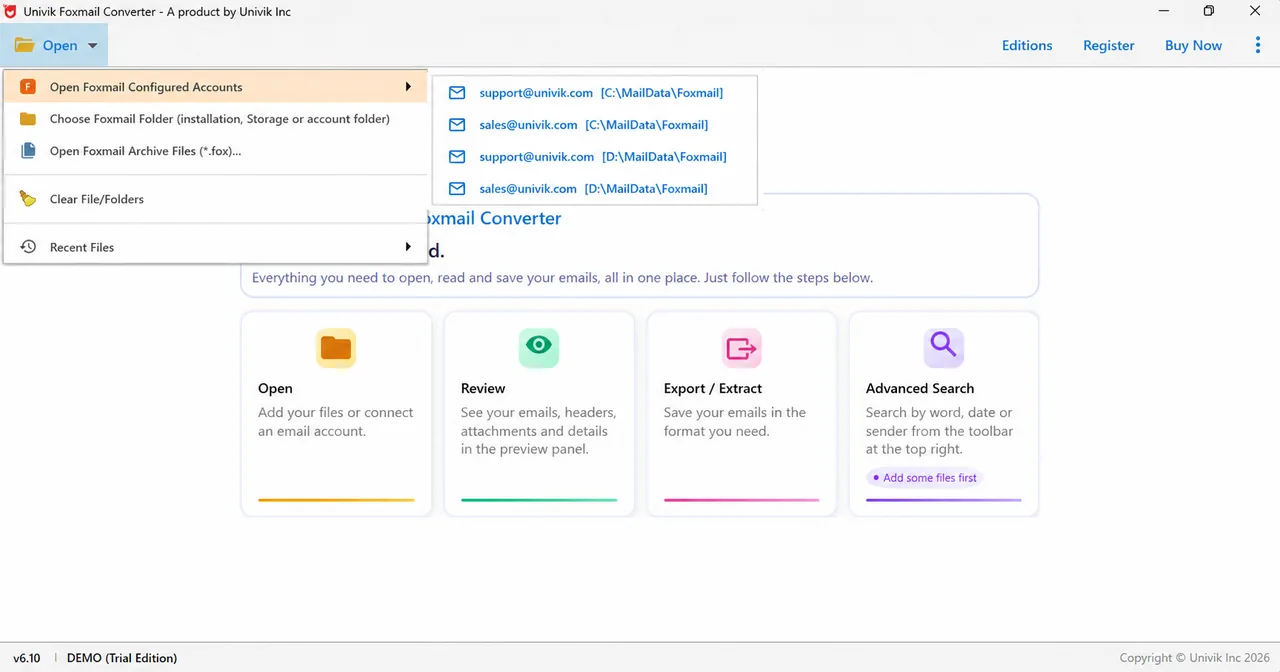
Foxmail Converter Open menu. Choose Foxmail Folder suits a copy. The configured-accounts entry suits a PC where Foxmail still runs. - Tick the folders to read Tick the folders on the left that may hold the files you want. Every folder was ticked in my run, so untick Spam and Trash first if you do not want files from them. Only the ticked folders are read.
- Choose Extract, then Attachments Click Extract in the toolbar. The menu holds five entries and Attachments is the second one. Choose it.
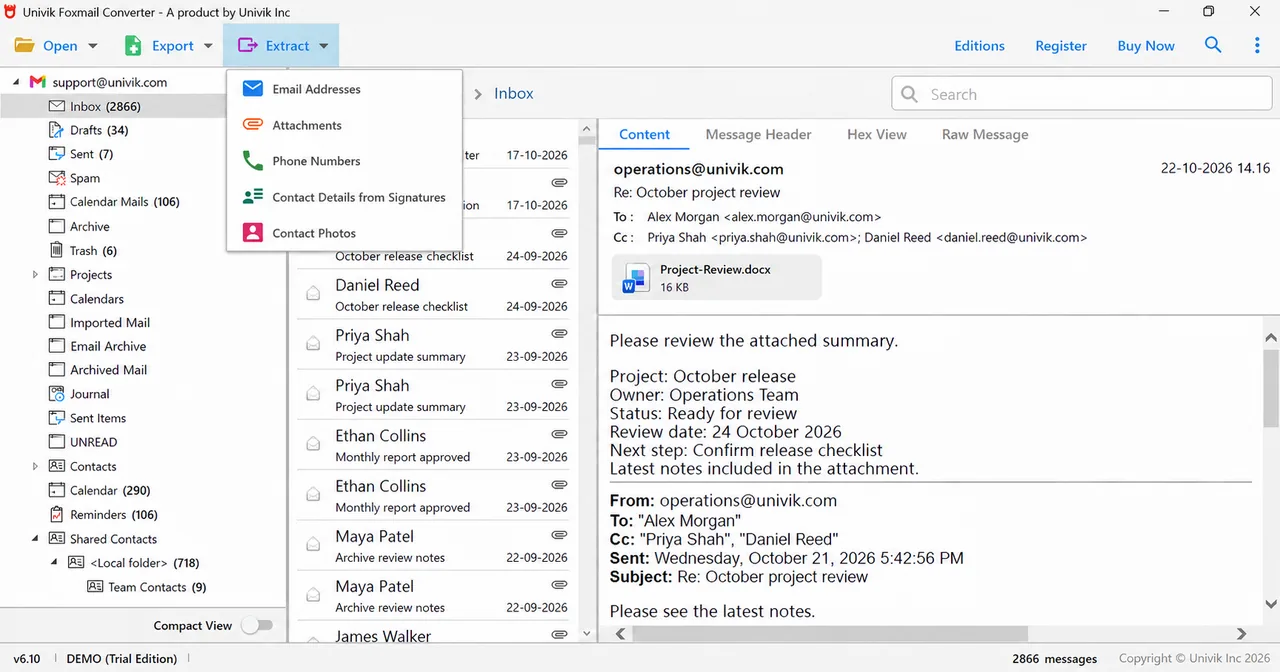
Foxmail Converter Extract menu. Attachments is the second entry, after Email Addresses. - Watch the list fill A progress line names the folder being read, for example Extracting 24 of 2866 messages beside 1 of 9 Folders. Files appear under Attachments Found as soon as each one is found, so you can start reviewing before the run ends. Pause and Stop sit at the top right.
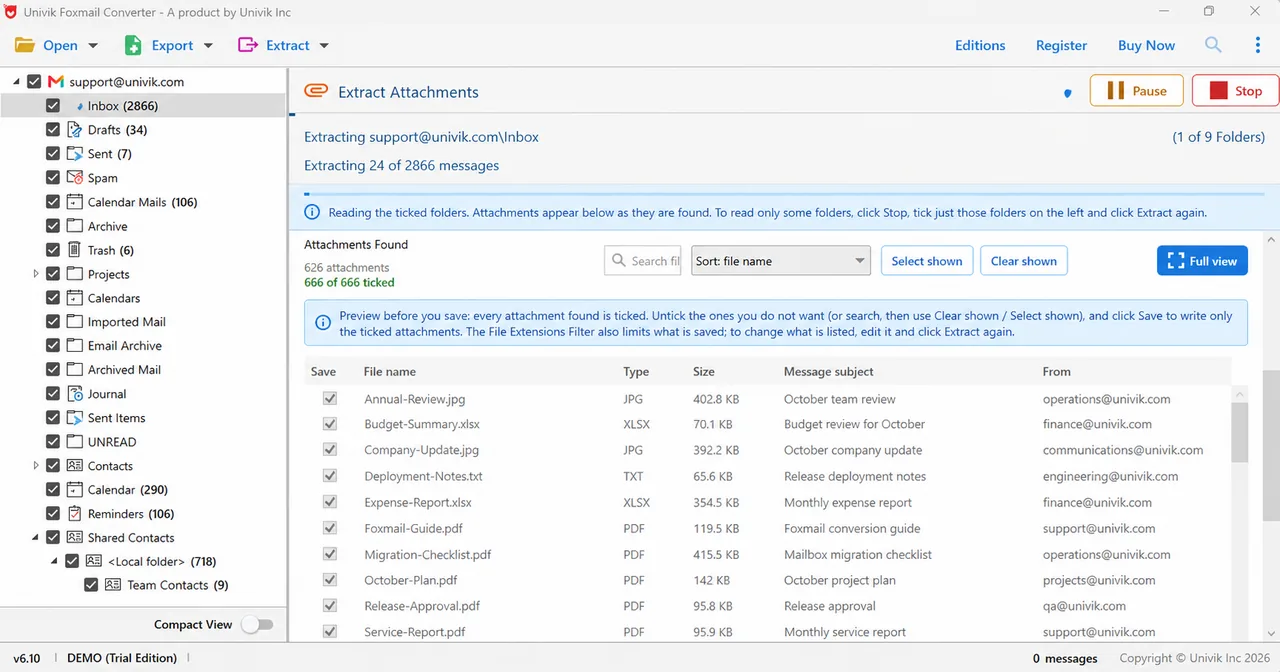
Foxmail Converter Extract Attachments. A progress line counts messages and folders. Rows show Save, File name, Type, Size, Message subject and From, with Search, Select shown and Clear shown above them. - Untick what you do not need Every attachment found is ticked. Untick single rows. Or type in the search box and click Clear shown to untick every row that matches. Select shown ticks them again. The Message subject and From columns tell you which mail each file came from.
- Click Save Click Save to write only the ticked attachments. The File Extensions Filter also limits what is saved, so edit the filter and click Extract again when a file type is missing from the list.
Also, I'd run one folder first, such as Sent, because a quick small run shows what the list looks like before you read the whole store. However, keep the first run as a test, since a wrong tick is cheap to fix before you click Save.
Univik Foxmail Converter opens stores written by Foxmail 6 through 7.2, copies included. It lists every attachment in the ticked folders before it saves anything and then writes only the files you leave ticked.
Download Free Trial Select a Licence - From $39Needs 64-bit Windows with .NET Framework 4.8 installed. A quick trial run on one folder shows the list before you buy.
How Do You Keep Only PDF or Excel Files and Skip the Rest?
Two controls shape the list. The File Extensions Filter named in the notice above the list limits what is listed and saved, so set it to the types you want before the run. The Type column then shows each file as PDF, XLSX, JPG or TXT, which lets you check that the filter did its job.
A changed filter shows up only after a new run, so edit the filter and click Extract again. For a manual prune, type in the search box, look at what remains and click Clear shown to untick those rows. Select shown ticks them again when you change your mind. It doesn't write anything yet. Full view widens the list when many rows share a screen.
Can You Pause or Narrow the Run Before It Finishes?
Yes. Pause holds the run and Stop ends it. A notice above the list says what to do next: to read only some folders, click Stop, tick only those folders on the left and click Extract again. The progress line counted nine folders in my store (1 of 9 Folders), so a narrow run on one folder saves time when the files you want sit in Sent or in a single project folder.
How Do You Check the Saved Attachments Against the List?
The line under Attachments Found shows how many files are ticked out of the total. Note that number before you click Save, then count the files in your output folder after the run. The two numbers should match.
Finally, open three files and compare each file name and size with its row. The From and Message subject columns let you trace a file back to its mail, so a surprise file is easy to explain. A test run is easy to delete if a folder was left unticked.
What If the List Looks Wrong?
Do this: Check the tick boxes in the folder tree. The usual cause is a folder that stayed unticked, because unticked folders are not read. Tick it, click Extract and run again.
Do this: The File Extensions Filter limits what is listed and saved. Edit the filter, then click Extract again to list the missing type.
Do this: Save writes only ticked rows, so rows that were cleared by mistake are the likely cause. Compare the ticked count above the list with the files in your output folder. Click Select shown if rows were cleared by mistake.
Do this: Click Stop, tick one folder and click Extract again. A big store often takes a while. Pause holds a run when you need the PC for other work.
Still stuck? Send Univik support your Foxmail version and the folders you ticked.
- Extract, then Attachments lists every file in the ticked folders before anything is saved.
- Each row shows the file name, type, size, message subject and sender.
- Save writes only the ticked attachments, so you untick the rest first.
- The File Extensions Filter limits what is listed and saved. A change needs a new Extract run.
- You compare the ticked count above the list with the files in your output folder.
FAQ: Extract Attachments From Foxmail
How do I extract attachments from Foxmail in bulk?
Open a copy of your Foxmail Storage folder in a converter, click Extract and choose Attachments. It lists every attachment in the ticked folders with its file name, type, size, message subject and sender. Untick what you do not need and click Save to write the ticked files.
Can I choose which Foxmail attachments get saved?
Yes. Every attachment found starts ticked. You untick single rows or search the list and click Clear shown. Select shown ticks rows again. Save writes only the ticked ones.
Can I save only PDF or Excel attachments from Foxmail?
Yes. The File Extensions Filter limits what is listed and saved. The Type column shows each file as PDF, XLSX, JPG or TXT. To change the listed types, edit the filter and click Extract again.
Can I extract attachments from only some Foxmail folders?
Yes. Click Stop, tick only the folders you want on the left and click Extract again. Only the ticked folders are read.
Does Foxmail have to be installed to extract its attachments?
No. A copied Storage folder is enough, so the client can be closed or uninstalled while the files are listed.
How do I see which message an attachment came from?
Each row of the list carries a Message subject column and a From column. Read those two columns before you untick a file.
Do I have to wait for the run to finish before I review the files?
No. Files appear under Attachments Found as soon as each one is found. Pause holds the run and Stop ends it.
What else does the Extract menu pull out of Foxmail mail?
Next to Attachments the menu offers addresses, phone numbers, signature contact details and contact photos. The guide on how to extract email addresses from Foxmail covers the first of them.

Read on October 24, 2026: the Foxmail feature list for version 7.2.25 on foxmail.com. The screens in this guide come from Foxmail Converter 6.10, demo edition, run on a sample store whose Inbox holds 2,866 messages.
Pages we read: