Quick Answer
To extract email addresses from Foxmail, load a copy of your Storage folder into a converter. Then pick Extract and Email Addresses. From, To and Cc are the fields it reads first. Each address appears once in the list. Search or sort that list, because Save writes exactly the addresses that are shown.
Subject, Message Body and Message Header are optional extra fields.
Your mail history is a list of everyone you ever dealt with. A sales team wants the clients in it, a buyer wants the vendors and an admin wants to know who still writes to a mailbox before it is retired. I wanted that list as one set of unique addresses. I didn't want to copy a single one out of a message by hand.
The Foxmail address book is a different thing. It holds the people you saved, while this guide reads the addresses inside the mail. At message 400 of 2,866 in my sample Inbox the list already held 306 addresses, each one once. The list kept growing as the run went on.
Which Way Builds a List of Addresses From Foxmail Mail?
The table compares three routes by what each one handles and where it stops.
| Route | Covers | Result | Limit |
|---|---|---|---|
| Address book export | The contacts you saved | Saved people only | Misses senders you never saved |
| Copy from each message | One message at a time | Whatever you copy by hand | Slow and easy to miss an address |
| Extract, then Email Addresses | Every ticked folder in one run | One of each address found | Header fields can add system addresses |
I'd use the address book route when the list should hold saved contacts only. The Extract route fits when the list should hold everyone who actually wrote to the mailbox, saved or not. Each route answers a different question.
Who Needs a List of Addresses From Old Mail?
Four jobs send people to their mail history for a list of names.
- A sales team You pull every client who ever wrote in.
- A buyer You list the vendors behind a year of quotes.
- An admin You check who still writes to a mailbox before you retire it.
- A cleanup You review who mails you before you unsubscribe or block.
How Do You Extract Email Addresses From Foxmail?
Univik Foxmail Converter reads your copy directly, with Foxmail closed or absent. Work on a copy of Storage so your original stays untouched. Not sure where Storage lives? Where Foxmail stores emails points to the usual folders. Six steps follow.
- Add your copy of Storage Choose Open and then Choose Foxmail Folder, then point it at your Storage copy. Open Foxmail Configured Accounts is the alternative when Foxmail still runs on this PC. Accounts and folders then show in the tree.
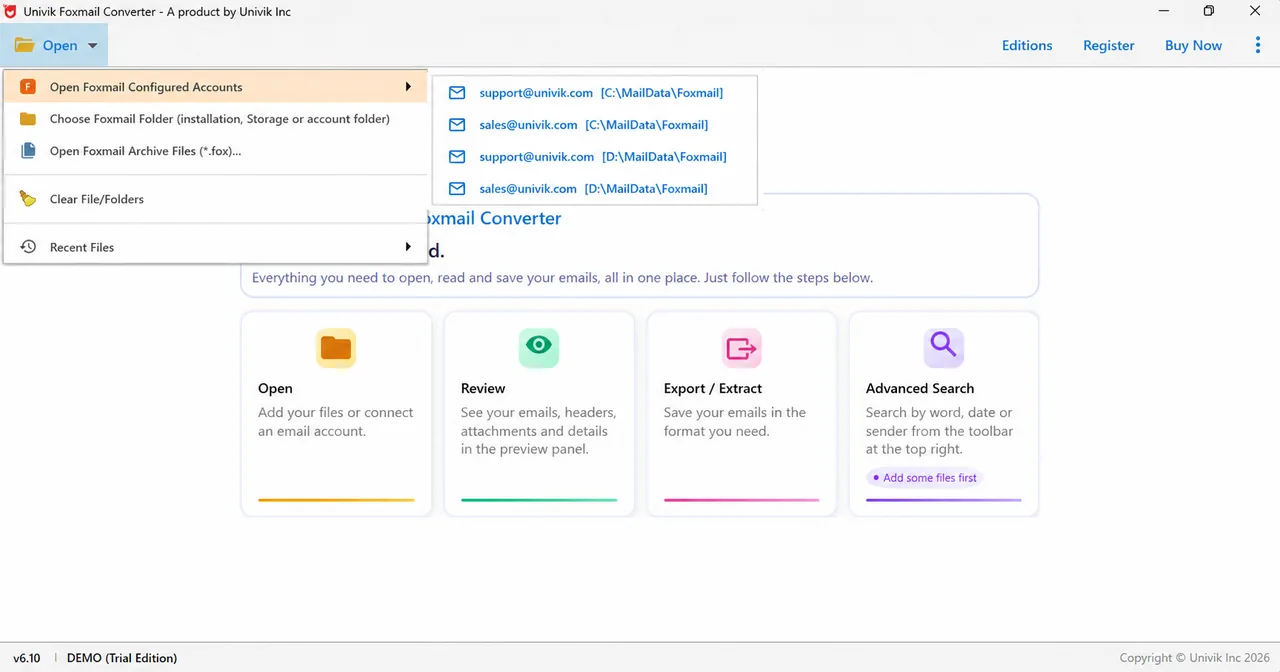
Foxmail Converter Open menu with Choose Foxmail Folder for a copy and the configured-accounts entry for a PC that runs Foxmail. - Tick the folders to scan Tick the folders that hold the people you want. Inbox holds senders and Sent holds recipients, so tick both for a full picture (a list built from Inbox alone misses everyone you wrote to). Every folder was ticked in my run. Unticked folders are skipped.
- Choose Extract, then Email Addresses Use the Extract button in the toolbar and pick Email Addresses, the first of five entries.
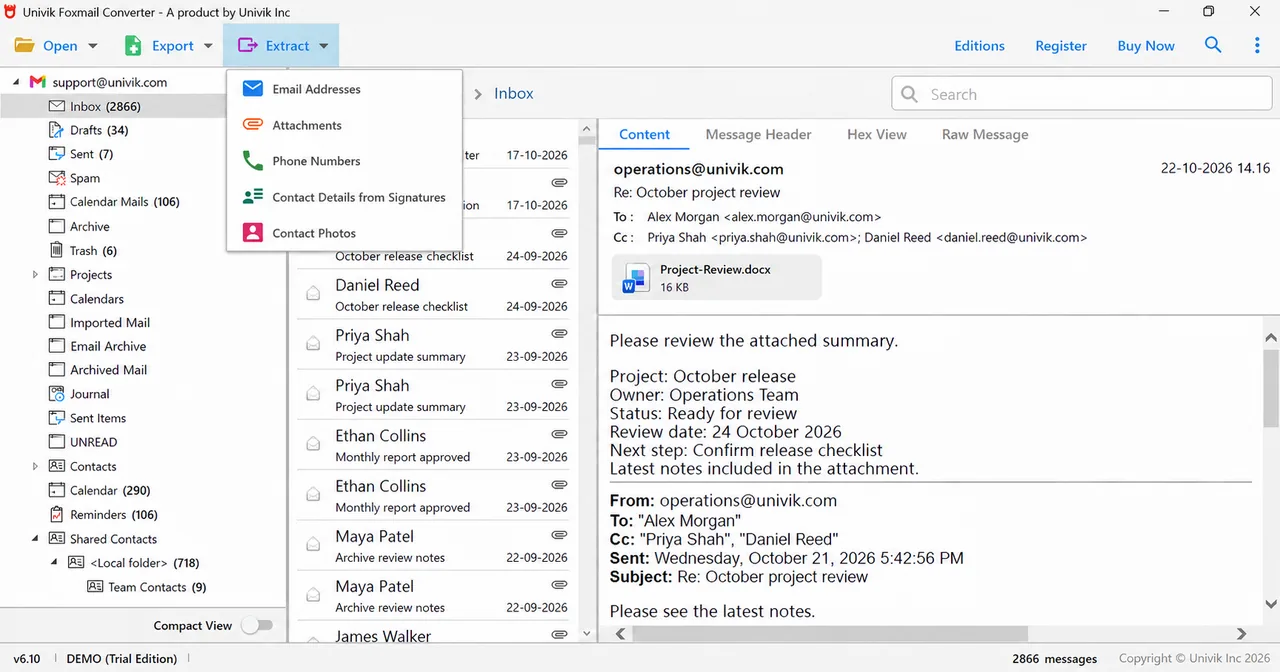
Foxmail Converter Extract menu. Email Addresses is the first entry. - Read the field panel The panel titled Select fields to extract email addresses from shows six boxes. From, To and Cc are ticked. Subject, Message Body and Message Header are the optional fields. A switch named Extract email addresses from attachments sits above the panel and was off in my run.
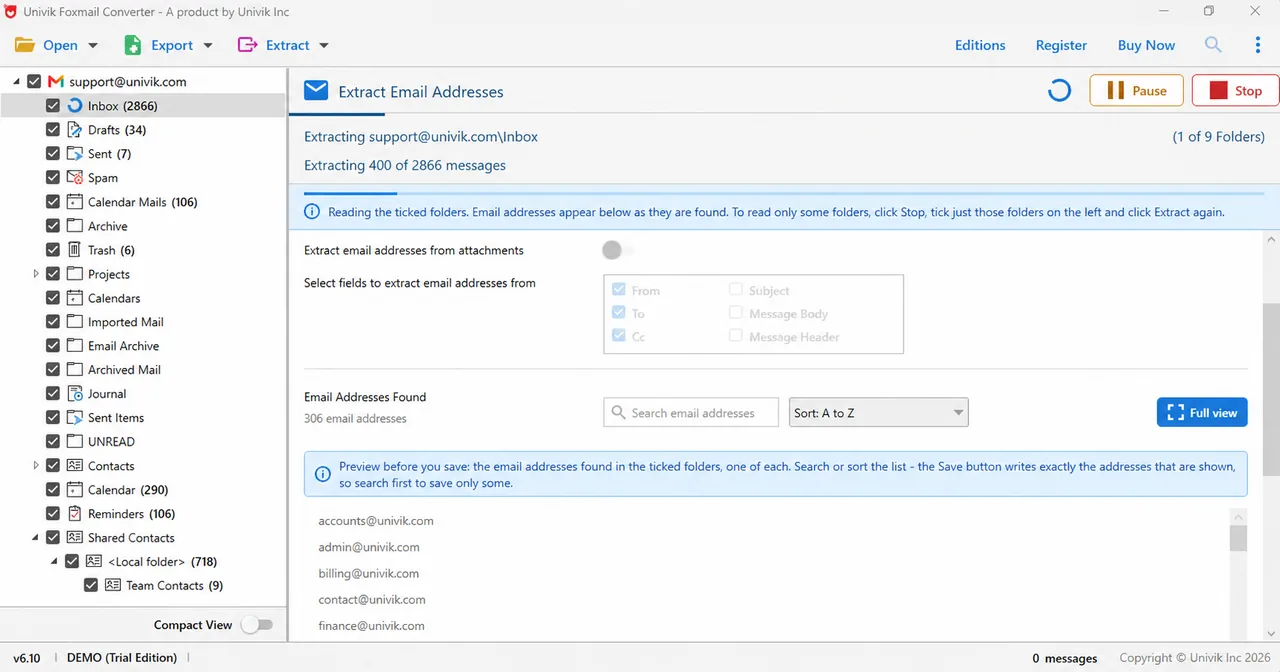
Foxmail Converter Extract Email Addresses. A panel offers From, To, Cc, Subject, Message Body and Message Header, above a searchable list with a count. - Review the list as it fills Addresses appear under Email Addresses Found while the run continues. A count sits under the title. Search email addresses narrows the list and Sort: A to Z orders it. The Pause and Stop buttons are at the top right of the run panel.
- Click Save Click Save to write exactly the addresses that are shown. Search first when you want only some of them.
I'd tick Inbox and Sent together on a first run, because the two folders together show both sides of every conversation.
Univik Foxmail Converter handles stores from Foxmail 6 up to 7.2, copies included. It reads the fields you tick, shows each address once and writes exactly the addresses left in the list.
Download Free Trial Select a Licence - From $39Install .NET Framework 4.8 on 64-bit Windows first. Then try one folder and read the list before you decide.
Which Fields Should You Read for the Addresses You Want?
From catches the people who wrote to you. To and Cc catch the people you wrote to or copied. Those three come ticked. They suit a client or vendor list.
Subject and Message Body add addresses that people typed into the text, such as a colleague named in a reply. Message Header reads the header block, which can add system addresses such as bounce and relay addresses. I'd keep the header box unticked for a customer list for that reason. Each extra field may lengthen the list, so tick one at a time and watch the count. A quick look at the count after each change tells you what that field added.
Should You Include Addresses From Attachments?
The switch Extract email addresses from attachments reads the attached files too. A quote or a contract often names a person who never wrote to you, so the switch widens the list beyond your own correspondents. Leave it off for a list of people you dealt with. Turn it on when the files matter more than the senders, which is often the case in an audit.
Can You Save Only Some of the Addresses?
Yes. The notice above the list says Save writes exactly the addresses that are shown. Type a domain or a name into Search email addresses, check that only matching addresses remain and then click Save. Clear the box to bring the full list back.
An address in your mail history is not consent to receive marketing mail. Check the rules that apply to you before you send to the list, because the law differs by country and by sender. This guide covers how to build the list and is not legal advice.
How Do You Check the Saved List Against the Count?
The count under Email Addresses Found shows how many addresses the run has listed. Note it before you click Save, then compare it with the number of lines in your saved file. Finally, search for two people you know wrote to the mailbox and confirm both appear. It's a reliable test that takes a minute.
What If the List Looks Wrong?
Do this: Folders left unticked are not scanned, which is the most common reason. Tick the missing folder and run the extraction again.
Do this: Recipients live in To and Cc of sent mail, so check that the Sent folder is ticked and that the To and Cc boxes are ticked.
Do this: The Message Header box is the likely source, so untick it and run again. Search also helps you spot a pattern before you save.
Do this: Work through one folder at a time. Stop the run, tick a single folder and start again. Pause suits the moments when you need the PC elsewhere.
A list that still looks off to you is worth a note to Univik support, along with the Foxmail version you use.
- Extract, then Email Addresses builds a list from the mail itself, one of each address.
- From, To and Cc come ticked. Subject, Message Body and Message Header are optional.
- Save writes exactly the addresses that are shown, so search first to save only some.
- The Extract email addresses from attachments switch adds addresses found inside files. It was off in my run.
- You compare the count above the list with the lines in your saved file.
FAQ: Extract Email Addresses From Foxmail
How do I extract email addresses from Foxmail?
Load a copy of your Storage folder, open Extract and select Email Addresses. A list shows every address found in the ticked folders, one of each. Search or sort the list and click Save to write the addresses that are shown.
Does each address appear once in the list?
Yes. The notice above the list says the addresses are one of each, so a sender who wrote a hundred times appears one time.
Which fields can I read the addresses from?
The panel offers From, To, Cc, Subject, Message Body and Message Header. From, To and Cc come ticked. The other three are optional.
Can I save only some of the addresses?
Yes. Save writes exactly the addresses that are shown, so type in the search box first and save the shorter list.
Can I also read addresses written inside attachments?
Yes. A switch named Extract email addresses from attachments adds them. It was off in my run, so turn it on only when you need those people.
Do I need Foxmail on the PC to build the list?
No. Foxmail can stay closed or even be removed from the PC, since the converter reads a copy of Storage.
Is this the same as exporting my Foxmail contacts?
No. This list comes from the mail itself, so it holds everyone who wrote to you or received a message from you. The address book holds only the people you saved, which the guide on how to export Foxmail contacts covers.
Can I pull the attachments out of the same mail?
Yes. The same Extract menu has an Attachments entry that lists each file with its name, type, size, message subject and sender. The guide on how to extract attachments from Foxmail walks through it.

Checked on October 24, 2026 against Foxmail's published feature list for version 7.2.25. Every screen here is from a 6.10 demo build of the converter that I loaded with a sample store.
Pages we read: